Creating Events
Add events to your schedule and configure event settings like venue, participants, recurrence, visibility, and tickets.
Creating Events Manually
An event belongs to a schedule, and you add it from that schedule's page in the admin panel. Adding events is free on every plan; the parts of the form that need a paid plan are marked with a badge below. The form opens for a schedule's owner and its admins, not for a viewer. This page follows the form tab by tab, in the order the tabs are listed.
-
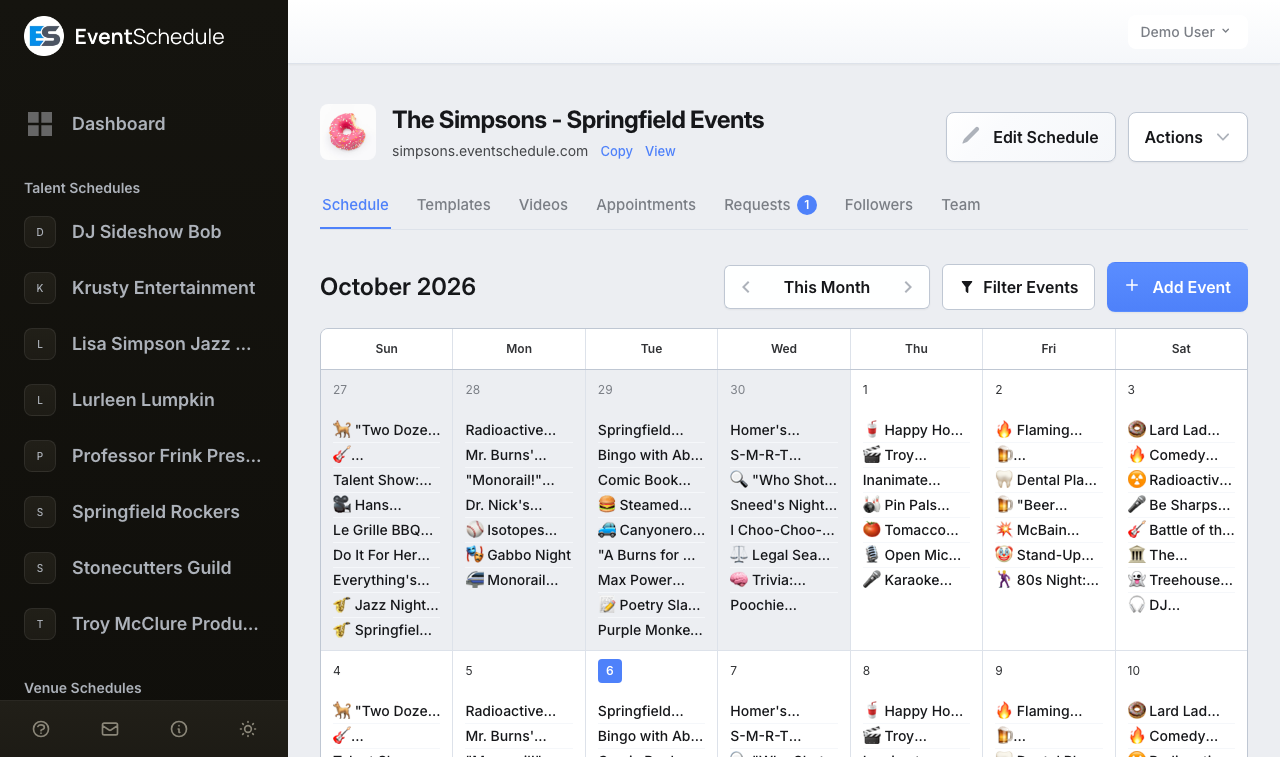
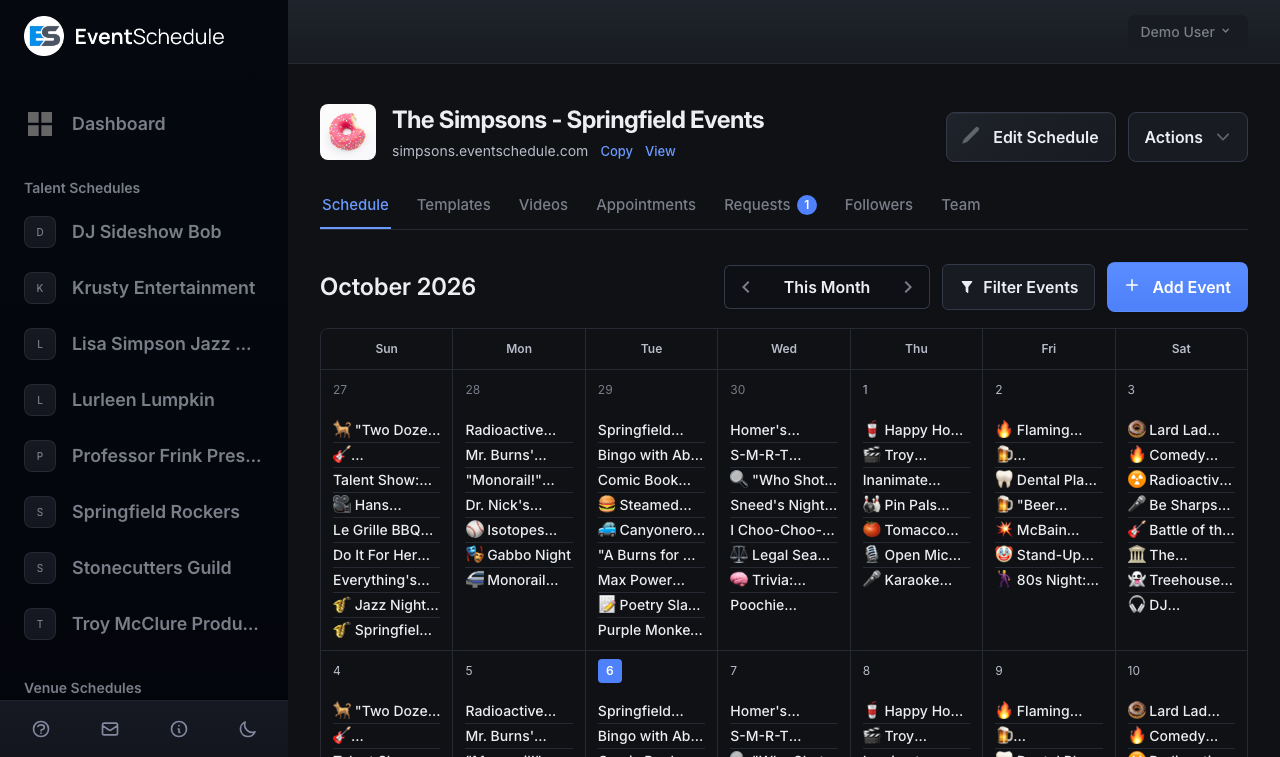
Open the schedule and click Add Event
Pick the schedule in the sidebar of the admin panel. On its Schedule tab, click Add Event above the calendar. The dashboard has the same button, and asks which schedule when you have more than one.
-
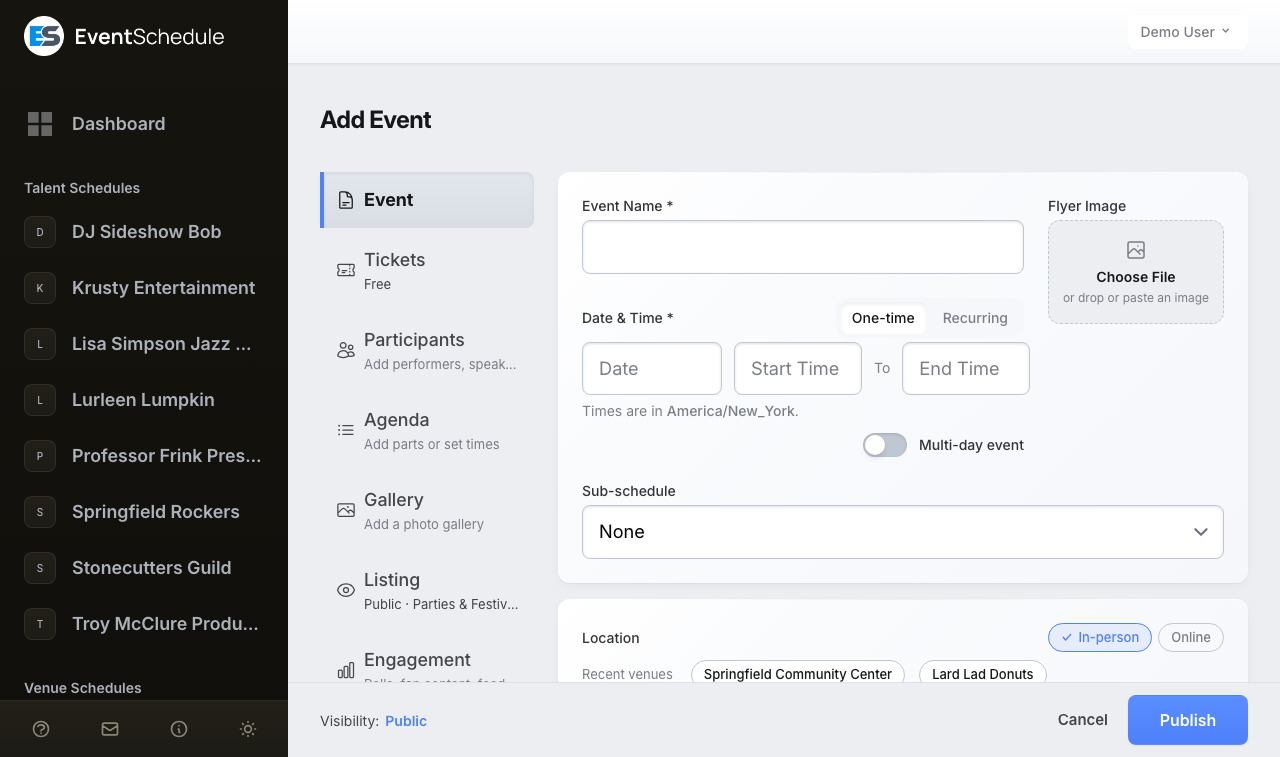
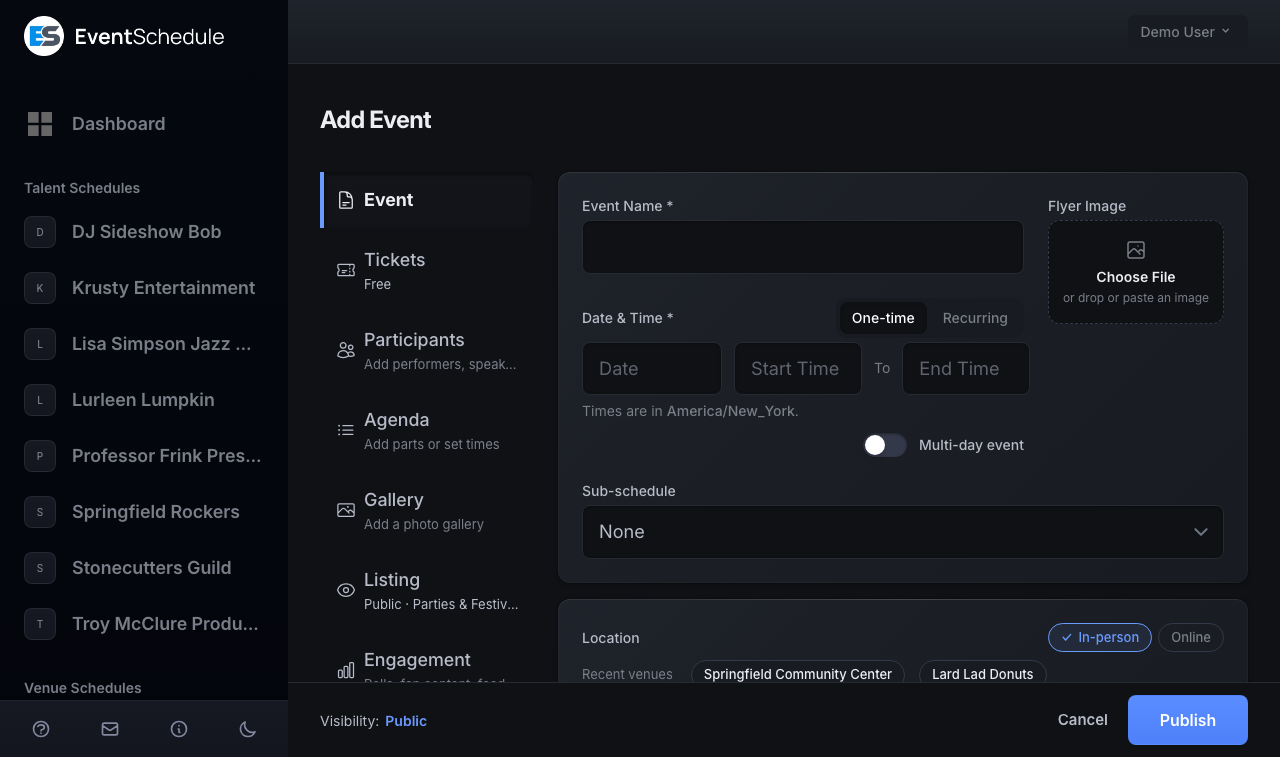
Say what, when and where
The first tab, Event, asks for the Event Name and the Date & Time, the two things every event must have, then a flyer image and a sub-schedule if your schedule has any. Location, under them, says where: one of your saved venues, a new one, or online. About opens the description.
-
Choose how people sign up
Open the Tickets tab and press Free registration, Sell tickets or Tickets elsewhere. Leave it on Not needed for an event people just turn up to.
-
Open any other tab you need
Each tab shows a one-line summary of what it holds, so you can see what is set without opening it. The table below says what each one covers.
-
Publish, or save a draft
The button is in the bar at the bottom of the form. On a new event that will be public it reads Publish, because that first save is what puts the event in front of people. With Draft or Internal chosen on the Listing tab it reads Save draft. On an event that already exists it reads Save, or Save draft while Draft or Internal is chosen, and a saved draft gets a green Publish button beside it for when you are ready.
Tabs of the Event Form
The event form is split into tabs, listed in a sidebar on desktop and as collapsible headers on mobile. Under each tab's name is a one-line summary of what it holds, and a dot marks a tab with changes you have not saved yet. Some tabs only appear once they apply to your schedule:
| Tab | What it covers | When it appears |
|---|---|---|
| Event | Name, date and time (one-time or recurring), flyer and sub-schedule in one section; the location in a second; then the description | Always |
| Tickets | Free registration, tickets you sell, or a link to tickets elsewhere | Always, except for someone whose only tie to the event is a Curator schedule that lists it: its tickets and sales are not theirs to see |
| Participants | Performers, speakers, and other people on the bill | Always |
| Agenda | Event parts such as sets, sessions, or talks | Always |
| Gallery Pro - Requires the Pro plan | A photo gallery shown on the event page | Always. On a free schedule it carries a Pro lock and explains the plan, and a first event's form leaves it out |
| Listing | Visibility, the event's link, its category, and the other schedules it appears on | Always |
| Calendar sync | Syncing this one event to a connected Google or Outlook calendar | Saved events, on a schedule that sends its events to a connected Google or Outlook calendar |
| Engagement | Polls, fan content, feedback, and carpool | Always (the Carpool row only when carpooling is enabled on the schedule) |
| Sponsors | Which sponsors this one event shows | When the schedule you are editing in, or the one the event belongs to, is on Pro |
The very first event you create gets a shorter form, so it starts with only what an event needs: the tabs after Tickets wait behind More options, the flyer field sits under the location, locked upgrade controls are left out, and the button reads Create Event.
Saving, and Coming Back to an Event
The bar at the bottom of the form holds Cancel and the save button, and one line that says what saving will do or what is in its way:
| The bar says | When |
|---|---|
| Visibility: Public | On a new event: the visibility it will be saved with. The word is a link to the Listing tab, where you can change it. |
| Unsaved: and tab names | Those tabs hold changes you have not saved. Each name opens its tab. |
| Saving publishes this event. | A saved event is being changed to Public. Changing a public one to anything else reads Saving hides this event from the public. |
| Saving removes ... | Saving would delete something, and the bar names it first: the event's ticket types and add-ons (Sell tickets no longer chosen), the times of its agenda (Show times off), or its own sponsors (another sponsor choice picked). Undo the change before saving to keep them. |
| Check: and tab names | The save was refused, and those tabs hold what needs fixing. A name clears as soon as you change something on its tab. |
| Save your changes first | You pressed something that reloads the page, such as approving fan content or syncing to a calendar, with changes still unsaved. |
| No unsaved changes | Nothing has changed since the event was opened or last saved. |
- A refused save keeps what you typed. The form comes back with every field as you left it, ticket types, promo codes and add-ons included, so you fix what the message names and save again.
- A row you filled in and did not add is added by Save. A participant with a name, or a sponsor with a logo, typed into its form but not yet added to the list is added when you save. If it cannot be (no name, no logo), Save stops and opens that tab on it.
- Cancel asks first. With unsaved changes the bar asks Discard unsaved changes? and offers Keep editing or Discard.
- An event that already exists opens straight on its fields. The page is titled with the event's name, with a badge for its saved visibility that opens the Listing tab, and the event's public link sits under the title with Copy and View.
- Shortcuts. Ctrl+S (Cmd+S on a Mac) saves, and Enter in the name of an event that has no date yet moves on to the date.
Actions on a Saved Event
Once an event is saved, an Actions menu appears at the top of the form:
- Clone Event - open a copy of the event as a new, unsaved event.
- Save as Template Pro - Requires the Pro plan - store the event as a reusable template on the Templates tab.
- Cancel event and Restore event - mark the event cancelled without deleting it, then bring it back later. Cancelling can tell everyone who bought a ticket, registered or asked to hear about it; see Notifying Attendees of Changes. A cancelled event shows a red banner at the top of the form with its own Restore button.
- Delete Event - remove the event permanently.
On a wide screen Boost Event Pro - Requires the Pro plan sits beside the Actions button rather than inside the menu; on a narrow screen it moves into the menu. See Boost.
Other Ways Events Arrive
- Import. Bring events in from a link, pasted text, a flyer image or a Google calendar. See AI Import.
- A copy or a template. Clone Event starts a new event from an existing one, and a saved template Pro - Requires the Pro plan does the same for a format you repeat.
- Event requests. If your schedule accepts event requests with Require Approval enabled, events submitted by other people wait for your review. Approve or reject them on the Requests tab of your schedule's admin page, which only appears while there is something waiting.
- WhatsApp Enterprise - Requires the Enterprise plan . Send the details or a photo of a flyer in a message. See Creating Events via WhatsApp.
Notifying Attendees of Changes
Two groups can hear about a change to a published event: people who bought a ticket or registered, and people who asked to hear about it from the event page, who make up its interest list. On eventschedule.com, buyers and registrants are only emailed when your schedule has its own email settings; a selfhosted install only needs a working mailer. The interest list is emailed either way, although on eventschedule.com a schedule without its own email settings can only reach an interest list of more than 50 people once its owner has verified a phone number.
- When you save a change. Change the date or time of a one-time event, or the venue or online link of any event, and saving first asks Notify attendees of this change?, as long as there is someone to tell. Add a note of up to 280 characters if you like, check it with Preview email, then choose Notify attendees or Don't notify. Either button saves the change. A new date or time on a recurring event is not detected, so it never asks.
- When you cancel. Choosing Cancel event from the Actions menu asks Cancel this event? first. When there is someone to tell, the button reads Cancel and notify and the notice goes to all of them, with your note if you add one; otherwise it reads Cancel event. Keep event backs out.
- Nothing is sent for a draft. A change to a one-time event whose start time has already passed notifies nobody, and on a recurring event only people with a date still to come are told.
Cancelling keeps the event's tickets and refund records, stops any boost campaign and any installment plan still charging for it, and shows guests a notice that it has been cancelled. You can restore the event later. It does not refund anyone: refund each sale from the Sales page, where a Stripe or PayPal payment goes back through the provider and any other method is marked as refunded.
The Event Tab
The Event tab holds what nearly every event needs, in three blocks, top to bottom. The first has the name, the date and time (with the repeat settings of a recurring event), the flyer and the sub-schedule. The second is the Location. The third, About, is folded until you press it and holds the descriptions, the AI Generator and your custom fields; while it is closed it shows the short description, or the start of the description. How people sign up is on the Tickets tab, and visibility, the event's link and its category are on the Listing tab.
| Field | Description |
|---|---|
| Event Name | The event title (required) |
| Date & Time | The date, start time, and end time. Times are entered in your schedule's timezone, which is shown under the field along with a preview of how the start will read; if the schedule has no timezone set yet, a warning says so. An event has no stored end date: what is saved is the start plus a duration worked out from the two times. Choose Recurring beside the label to repeat the event. Turn on Multi-day event and the field becomes Start Date, with a separate End Date row (and its own end time) below. The toggle is hidden on a recurring event. |
| Flyer Image | A flyer or photo for the event. Click Choose File, drop an image onto the card, or paste one from the clipboard: a JPG or PNG under 2.5MB. On a first event the field sits under the location instead. Enterprise schedules can instead have one drawn from the event details by selecting Flyer Image in the AI Generator, where you can also describe a style (for example "minimalist, blue and white"). |
| Sub-schedule | Groups events by type (for example "Live Music" or "Comedy"). It is optional: leave it on None for an event that belongs to no sub-schedule. The field only appears when your schedule has sub-schedules. See Sub-schedules |
| Short Description | A brief summary of the event (up to 200 characters). Appears as a subtitle on the event page and in schedule listings. Under About. |
| Description | Details about the event (supports markdown formatting). Under About. |
| Custom Fields Pro - Requires the Pro plan | Any custom fields you defined on the schedule appear at the bottom of About. The block is absent until you have defined at least one. |
Recurring
A recurring event is one event that repeats on a pattern, so you do not have to add each date by hand. On the Event tab, choose One-time or Recurring beside Date & Time; the repeat settings open under the date.
A recurring event is still a single event. It keeps one start time and one duration, so a matinee and an evening show on the same day are two separate events. The series never starts before the event's own date, so set the date to the first occurrence. A recurring event cannot also be a multi-day one: the Multi-day event toggle is hidden while Recurring is chosen.
The pattern decides which days the event lands on. Pick a Frequency:
| Frequency | Description |
|---|---|
| Daily | Repeats every day |
| Weekly | Repeats every week. Tick the Days of the Week the event runs on (Sun, Mon, Tue, and so on). |
| Every N Weeks | Repeats every 2 to 52 weeks, for example fortnightly. Also uses the Days of the Week checkboxes. |
| Monthly (same date) | Repeats on the same date each month, for example the 15th |
| Monthly (same day of week) | Repeats on the same weekday each month, for example the second Tuesday |
| Yearly | Repeats once a year on the same date |
Recurring End
Every pattern has an end condition:
- Never - the series keeps going until you change it.
- On Date - the series stops after the date you pick.
- After Events - the series stops after a set number of occurrences.
Include and Exclude Dates
Use Add Date under either list to fine-tune the generated dates:
- Include Dates - extra one-off dates that do not match the pattern. They are added even after the end condition has been reached, as long as they are on or after the event's own date.
- Exclude Dates - dates to skip, such as a holiday. An excluded date is absent from the schedule: guests see nothing there, not a cancelled entry.
A recurring event is pushed to a connected Google, Outlook, or CalDAV calendar as a single entry on the series start date, not as a repeating appointment. Guests who want every date can subscribe to your schedule's live calendar feed, offered as Subscribe to all events from your schedule on your event and schedule pages, which lists each occurrence in the next 90 days individually.
Location
Location is the second section of the Event tab and says where your event takes place. Turn on In-person, Online, or both.
If you have saved venues, pick one from All your venues; the ones your schedule was last at are offered above the list as Recent venues. Choose New Venue to type a venue name, street address and city instead. Typing the name of a venue you already have offers it, so the same place is not created twice. Find or invite the venue by email or phone opens the venue's contact fields, and State, postal code, website opens the rest of the address.
In-Person Events
A chosen venue is one line: its name, street and city. Change picks another, and Edit, offered for a venue nobody has claimed yet, opens its address, with Done to close it again. The list holds the venues you manage and the ones you follow that accept event requests; when it hides duplicates of the same place, a note under it links to where you can merge them. On a Venue schedule the event is at that venue, so In-person stays on and there is nothing to change. A map of the location is shown on the public event page.
Map and Address Validation
The buttons are at the end of State, postal code, website. View Map previews the address before you save. Where geocoding is set up (BACKEND_GOOGLE_KEY on a selfhosted install), Validate Address checks the address and suggests a corrected version, and Accept takes it.
Online Events
Tick Online and paste an Event URL, for example a Zoom, Meet, or Teams link. It is a single link field with no platform-specific integration behind it. The event page never shows the link itself: where there is no venue to name, it shows the link's domain, such as zoom.us, or just Online. The link appears on the ticket of everyone who registers or buys one, so give an online event registration or tickets if guests need to receive it.
Venue Contact and Notifications
Find or invite the venue by email or phone does two things. If a venue with that email or phone already has a schedule on Event Schedule it is listed with a Select button, so your event shows on its schedule too. If not, the contact is stored on the new venue's page, and on eventschedule.com an email reveals Send an email to notify them, which tells the venue about the event and invites them to claim their page. On installs with SMS configured, a phone number offers Send an SMS to notify them instead.
AI Details Generator Enterprise - Requires the Enterprise plan
Let AI fill in an event's category, flyer image, and descriptions from its name and your schedule's context. Open About on the Event tab and click the AI Generator button. The event needs a name before you generate.
- Under Select elements to generate, tick the fields you want: Category, Flyer Image, Short Description, or Description. Fields that already have a value are marked with a dot and left unticked, so nothing is overwritten by accident.
- Optionally add Additional instructions (up to 500 characters), for example a house style for descriptions or a look for the flyer. Tick Save as default for this schedule to reuse them next time.
- Optionally open View/edit AI prompt to see and adjust the exact prompt, with Reset to default to go back.
- Click Generate.
- Review the Preview. Each field has its own Regenerate button, then Accept writes the results into the form or Discard throws them away. Nothing is saved until you save the event.
The button only appears when an AI key is configured, and generation is unavailable on demo schedules. On eventschedule.com a schedule below Enterprise sees the button greyed out, and pressing it opens the upgrade prompt. Text generation uses Google Gemini and flyer images use OpenAI , so a selfhosted install needs the matching keys in its environment settings. AI requests are capped per day per schedule, and the generator tells you when a limit is reached.
Custom Fields Pro - Requires the Pro plan
Custom fields capture information about an event that the standard fields do not cover. You define them once on the schedule, and they then appear at the bottom of About on the Event tab of every event form.
Setting Up Custom Fields
- Open your schedule in the admin panel and click Edit Schedule
- Open the Customize tab and its Custom Fields row
- Add a field, give it a name, and pick a type
- Save the schedule
You can define up to 10 custom fields per schedule, and drag them into the order you want. Their values are then filled in under About on each event, where a field marked required must be answered before the event saves. See Custom Fields for the schedule-side reference.
| Field type | What the event form shows |
|---|---|
| Text | A single-line text input |
| Multi-line Text | A text area for longer answers |
| Yes/No | An on/off toggle |
| Date | A date picker |
| Dropdown | One choice from options you list |
| Multi-select | Any number of choices from options you list |
Per-Field Options
Required
The field has to be filled in before an event can be saved.
Private
Hides the value from the guest portal. Private fields show a small lock icon next to their label on the event form. The value stays visible in the admin portal and can still be rendered into graphic templates and slug patterns via {custom_N}.
On request form
On by default: visitors submitting an event request are asked this question too. Turn it off to keep the field for your own use.
Validation Pattern
Text fields can be held to a ready-made pattern (email, phone, URL, digits, letters and numbers) or your own regular expression, with a Hint shown to whoever fills it in. The pattern is checked in the browser and again on the server.
AI prompt
An optional instruction telling AI how to pull this field's value out of imported text or images.
Typical uses are age restrictions, dress codes, support acts and door times. Each field's number is shown next to it on the schedule form as {custom_N}, for use in event graphics text templates and slug patterns.
Tickets
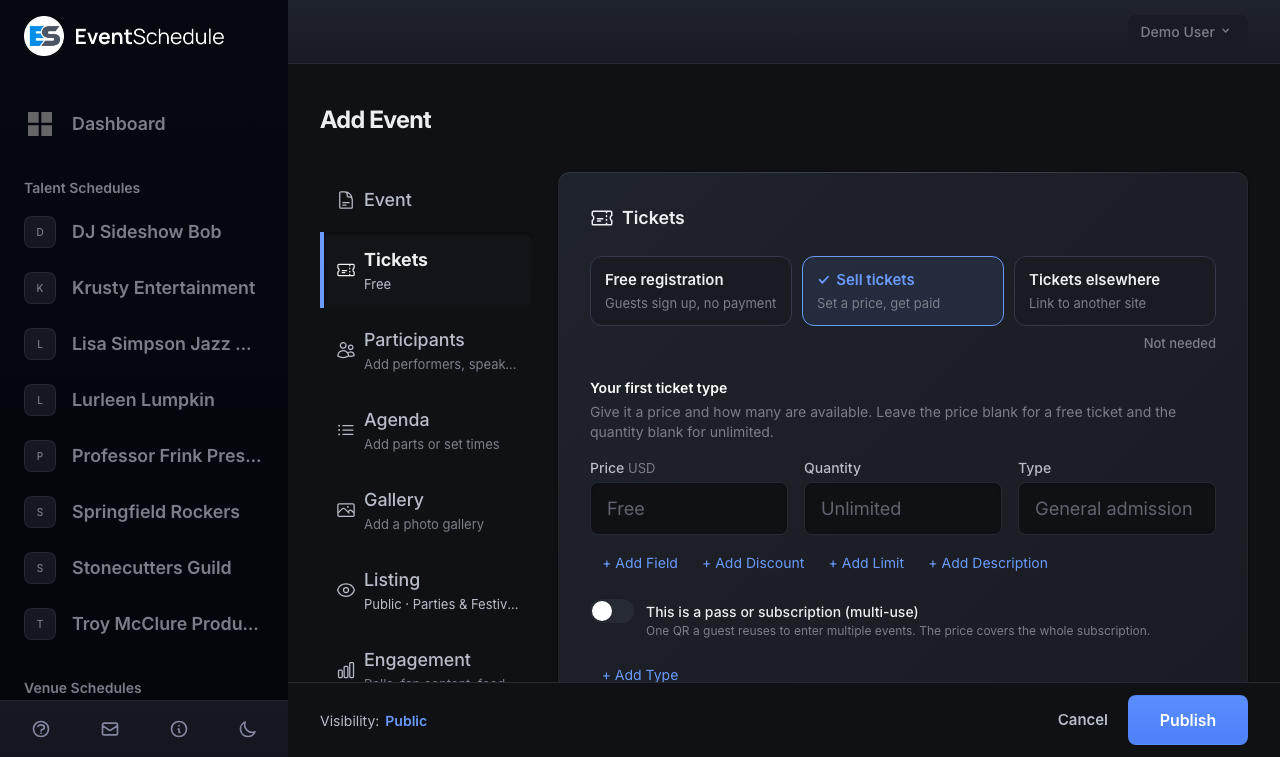
The Tickets tab is the one place that decides how people sign up. It opens on three choices; pressing one turns it on and shows what it needs right under it. Not needed, under the three, switches sign-up off again and carries a tick while nothing is switched on. This is a summary: the Selling Tickets guide covers setup, payment, sales, refunds and check-in.
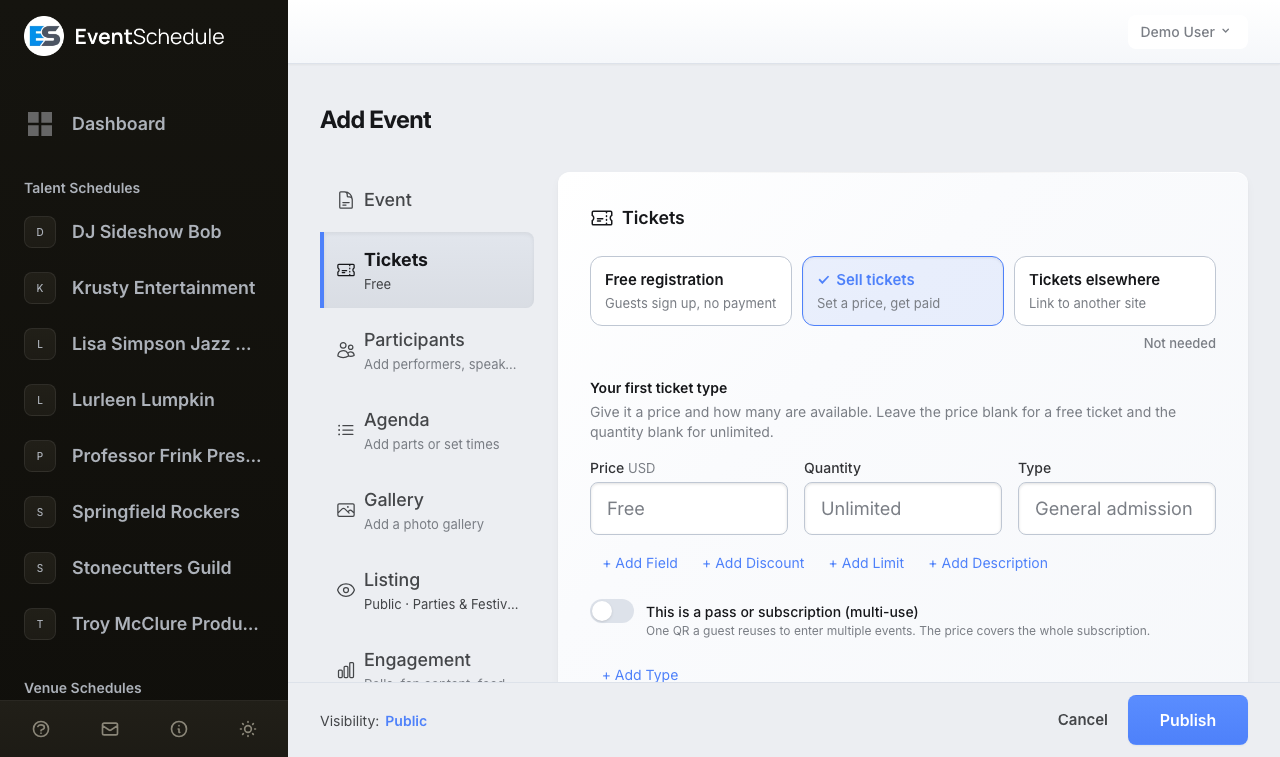
| Choice | What it does | What opens under it | Plan |
|---|---|---|---|
| Free registration | Guests sign up on your own event page, with no payment. See Free registration. | Registration Limit first, and the rest in a More options row | Unlimited on every plan |
| Sell tickets | Sell tickets from your own event page, paid to your own account through the Payment Method you pick: Stripe, PayPal, Payfast, Invoice Ninja, a payment link, or cash. See Sell tickets. | The ticket types, one line each (price, quantity, type), then a row each for Payment, Options, Promo Codes and Add-ons. A row says what it holds and opens in place. | A ticket with a price needs Pro - Requires the Pro plan ; a zero-price ticket sells on any plan |
| Tickets elsewhere | Links out to wherever you already sell. See Tickets elsewhere. | Registration URL (where guests are sent), a Price with a currency selector, an optional Coupon Code, and a Discount saying what that code is worth. The price and coupon feed event graphics text templates. | Every plan |
- Changing the choice. If people have already signed up, pressing another choice asks first. An event that leaves Sell tickets loses its ticket types and add-ons when you save, and the save bar says so before you do. What you typed under Tickets elsewhere is kept while another choice is on, and cleared by Not needed.
- Payment methods. The Payment Method list offers what you have set up under Manage payment methods that can take the event's Currency. While a ticket has a price and nothing is set up to take the money, the tab says so under the choices and points at the Payment row.
- On the free plan. Free registrations and zero-price tickets are unlimited, so an event that mixes a free ticket with priced ones keeps its buy button: the free one stays on sale while the priced rows wait for Pro. With Sell tickets chosen, the tab carries a one-line note saying so. Scanning tickets at the door is free on every plan; the live check-in dashboard is Pro - Requires the Pro plan .
- Currency. Once an event has taken money, its Currency is locked and the selector is greyed out, because a sale records no currency of its own. See Refunds.
- People waiting. If visitors have asked to hear about the event, the tab says how many above your ticket types, as in "3 people asked to be told when tickets go on sale." The number is never shown publicly. See Interest List.
- The tab's title line. Once anything has sold it shows the count and a link to the event's Sales. With tickets or registration on, a Pro schedule also gets Embed Tickets (Embed Registration on a registration-only event) for putting the form on another website. An Unlisted event does not offer the embed.
The tab is hidden from someone whose only tie to the event is a Curator schedule that lists it: prices, payment setup and sales belong to the schedule that created the event.
Participants
The Participants tab names the people performing, speaking or hosting, not the people attending. Every one of them appears on the public event page, and anyone with a schedule of their own is linked to it. Anyone you name who is not already on Event Schedule gets a page of their own at the same time, which they can claim later - see Pages Created for Others.
Adding Participants
Click + Add Participant, then either pick one of Your schedules from the list, or choose Someone New and fill in a name (required) and an optional email. A phone number and a Youtube Video URL wait behind + Phone or video link. When you leave the email field, anyone on Event Schedule with that address is offered under Matching schedules with a Select button. The email matters beyond your own records: it is what lets that person claim the page created for them. Click Add to put them on the list. A participant you typed and did not add is still saved with the event, as long as it has a name.
The List
Each participant is one line with Remove, and Edit for anyone who has no account of their own yet. On a Talent schedule the schedule itself is on the list, marked This schedule, and cannot be removed. The tab's summary in the sidebar lists the names.
Notify Participants
On eventschedule.com, a participant with an email address who does not already have an account gets a Send an email to notify them tick box. That email tells them you added them to the event and invites them to claim their page. Where SMS is configured, a phone number offers Send an SMS to notify them instead.
When to Use
Participants are most useful for Talent and Curator schedules, where events feature specific performers, speakers, or artists. On a Venue schedule the tab is marked Optional.
Pages Created for Others
Naming a performer or a venue who is not yet on Event Schedule creates a schedule for them there and then. It carries the name you typed, any contact details you added, and every date you list them on. This happens whether or not you send them an invitation, because it is what lets their name appear on your event page at all.
What the page shows
Your event page shows the whole lineup. Every act you named appears there by name, and an act with a page of its own, claimed or not, is linked to it, so the act and anyone else can get from your event to the page made for them.
Until it is claimed, the page opens with This page was created by and the schedule that first listed them - or This page was created automatically, when that cannot be worked out - and says the act has not claimed it yet, so nobody mistakes it for a page they built themselves. Below that it lists up to twenty upcoming public dates other schedules have added them to, each credited to the schedule that added it. Draft, internal, unlisted and cancelled dates are not shown, and a page whose dates have all passed says so. It carries no contact details, no follow button and no tickets, and it stays out of search engines until it is claimed.
Inviting them
On eventschedule.com, ticking Send an email to notify them on the participant or venue sends a single email telling them you added them to the event, with a link to their page. It sends once each time you tick the box, and replies go to whoever created the event. Nothing is sent for a draft event, or to someone whose address already has an account, because in that case the page is already theirs.
How they claim it
They press Claim this page and sign in with a verified account on the contact the page carries - the email address if it has one, otherwise the phone number. That is the whole check, so the contact you enter decides who can claim it: a booking agent's address means the agent claims the page, not the act. Once claimed, the page is an ordinary schedule and they can edit everything on it. Where SMS is configured, verifying the phone number on an account also claims any unclaimed schedule carrying that number, as long as it was created in the past year; claiming by email has no such time limit.
If it is not them
This is not me is the other answer, and it asks them to sign in first so we know who is reporting. Somebody who holds the contact on the page can take it down immediately; anyone else has their request recorded for review, so the button cannot be aimed at a competitor.
After they claim it
Dates you have already listed them on stay exactly where they are. If they claim by email, or by pressing Claim this page, the schedules that already had dates on their page are carried onto their approved list, so your future dates keep appearing without waiting for approval; a claim made by verifying a phone number does not carry that across. Any other schedule that lists them from then on sends a request, which they accept or decline on their Requests tab. A performer cannot switch that off, because a Talent schedule always requires approval; a claimed venue decides for itself in its request settings.
Enter a name they would recognise and a contact address that is really theirs. The page is public from the moment it exists, and the address on it is what decides who can take it over.
Agenda
The Agenda tab breaks an event into parts, such as performances, sessions, or talks. Each part appears on the public event page so guests can see what to expect. Adding and editing parts by hand is free on every plan.
Adding Parts
Click + Add Part. Each part is one line:
- Start Time and End Time (optional) - when this part runs within the event
- Part Name (required) - the title of the part, for example "Opening Keynote" or "DJ Set"
- + Add Description, under the line, opens a description for extra details. It stays showing once it has text.
Show Times
Once the agenda has a part, a Show times switch sits beside the tab's title. Off means an agenda without times, for a set list for example: the time fields are hidden and a line under the title says the agenda is shown without times. Times already entered are kept until you save, the save bar says Saving removes the times from this agenda first, and switching it back on before you save brings them back. The choice is remembered for the schedule's next event.
Reordering
Drag a part by the handle at the start of its line, or use the up and down arrows at its end. The order on the form is the order on the event page.
Importing with AI Enterprise - Requires the Enterprise plan
The Import row under the parts builds the agenda from something you already have:
- Open the Import row.
- Paste a set list or agenda into the box and click Read This Text, or click Or Choose a Photo to use a photo of a printed agenda, lineup, or setlist.
- Look over Preview Parts. Accept adds what was found to the parts already there (nothing is replaced), and Discard drops it. If nothing could be read, the row says why.
- Save the event.
Two more controls sit in the same row:
- + Instructions for the AI - opens an AI Prompt box for telling the AI how to read your agenda's format (up to 500 characters). Use these instructions for every event, under it, reuses them on this schedule's future events.
- Keep the photo - keeps the photo you chose with the event, where guests see it with the agenda. A kept photo can be removed again from the same place.
The row appears only where an AI key is configured. On eventschedule.com it needs an Enterprise schedule: below that the row carries an Enterprise lock and opens the upgrade prompt, and a first event's form leaves it out. Reads are capped per day per schedule there, and the row says when the limit is reached. To photograph an agenda with a phone's camera instead, see Scan Agenda.
Gallery Pro - Requires the Pro plan
An event can show one flyer, and the Gallery tab adds as many photos as you like beside it, up to 50: past editions, the room, the lineup. Guests see them on the event page and can open any photo full screen. The gallery is yours to curate; photos guests send in are separate and live under Fan Content.
Adding Photos
Click Add photos, drag photos onto the tab, or paste one. Each photo uploads as soon as you add it, so you can keep editing while they finish. Large photos are resized in your browser before they upload, and the location a phone stores in a photo is removed before it is published. JPG, PNG, WebP and GIF work; an iPhone's HEIC photos are converted when you pick them from the phone itself.
Arranging, Captions and Credits
The first photo leads the gallery and is shown largest, so drag the photos into the order you want. Click a photo to add a caption and a photographer credit, move it, or remove it; Apply this credit to all photos saves typing when one photographer shot them all. A removed photo can be brought back with Undo.
Fan Photos
When guests have sent in photos that you approved, Add from fan photos copies the ones you pick into the gallery, credited to whoever took them. The copy is the gallery's own, so rejecting the fan photo later does not remove it.
Publishing
Nothing changes on the event page until you click Save, the same as every other field on the form. If photos are still uploading when you save, the form waits for them. The first time a gallery is published, the schedule page shows a link to see it as guests do. A gallery belongs to the event, so every date of a recurring event shows the same photos, and duplicating an event starts its copy with an empty gallery.
On the Event Page
Guests see a strip of photos they can swipe on a phone. On a wider screen the layout follows the number of photos: two or four sit side by side as equal tiles, and three or more lead with one large photo, with up to four beside it and a + count on the last when there are more. With no flyer, the gallery takes the flyer's place at the top of the page. Any photo opens full screen, where guests can swipe, zoom and read the caption. Rename the heading with the Gallery custom label, or hide it with the #gp-gallery id (see Hiding sections).
Plans
Galleries are part of the Pro plan, decided by the schedule the event belongs to. If that schedule's plan ends, the photos are kept but hidden from guests, and you can still remove them; they come back when the schedule upgrades again.
Listing
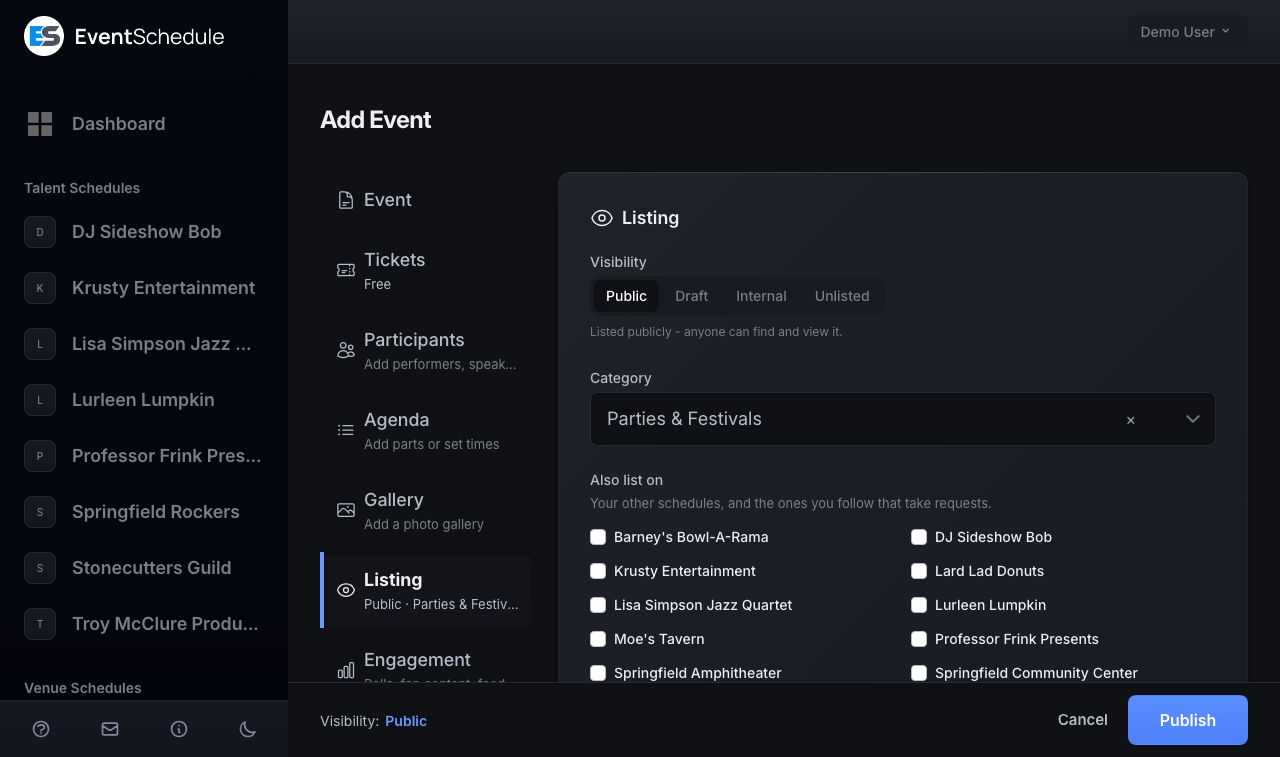
The Listing tab decides where and how the event is shown: the link it lives at, who can see it, its category, and the other schedules it appears on. Its summary in the sidebar reads, for example, "Public · Concert".
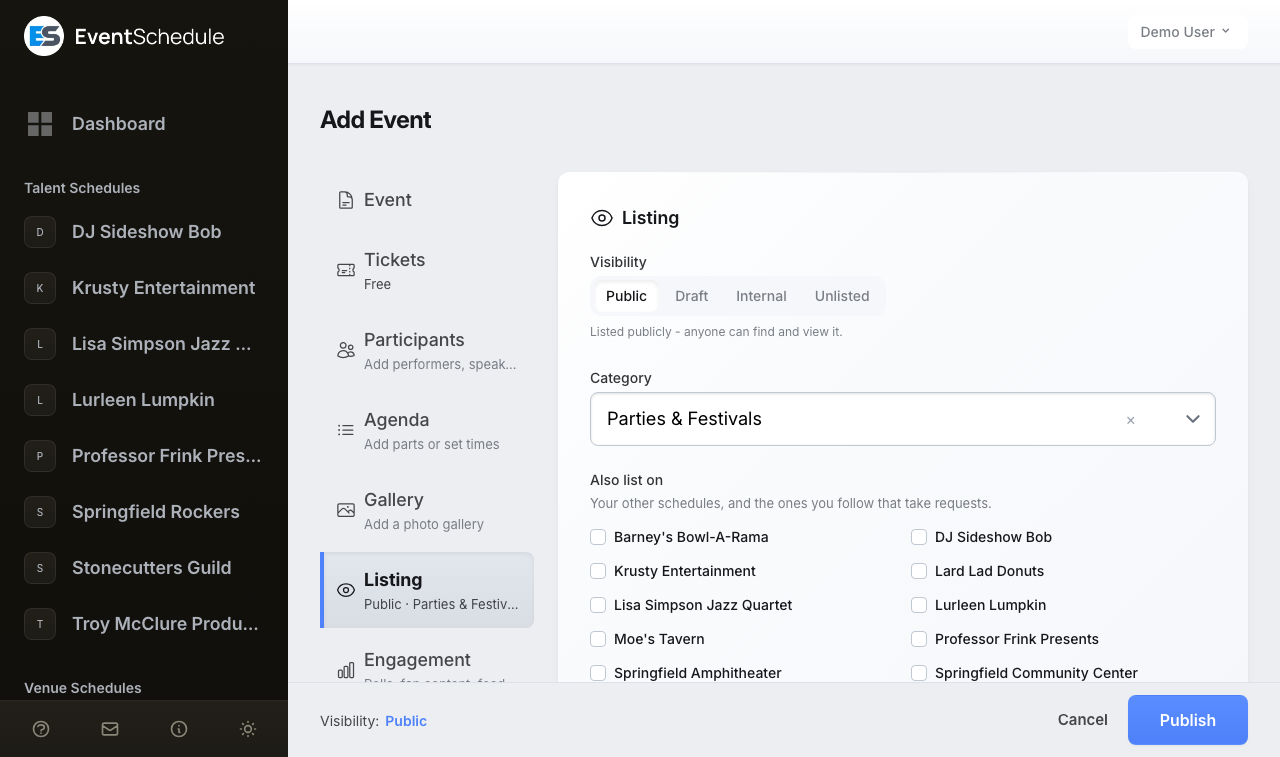
| Field | Description |
|---|---|
| Event link | On a saved event. The link itself sits under the page title on every tab, with Copy and View; here, Edit beside it changes its ending. An ending the server refuses comes back open, with the reason. The field is left out when the event's venue and a performer on it both have claimed schedules of their own, unless you are editing from a Curator schedule. |
| Visibility | Choose who can see the event. Public lists it for everyone. Draft keeps it visible to schedule members only while you finish editing. Internal (Enterprise) keeps it members-only permanently. Unlisted (Enterprise) hides it from your schedule but lets anyone with the direct link view it, optionally behind an Event password. One line under the choices says what the chosen one means, and follows whichever one you point at or tab to. Below Enterprise on eventschedule.com, Internal and Unlisted are shown locked and open the upgrade prompt. New events start at your schedule's default visibility, and switching a hidden event to Public warns you first. See Internal & Unlisted Events for exactly what each state hides. |
| Category | Pick the event's category from the list (for example Concert, Workshop, or Conference). You can edit the list under Custom Categories. |
| Also list on | The other schedules this event can appear on. See Also List On below. |
To choose the visibility that all new events start with, use Default visibility for new events in your schedule's Settings → Advanced.
Internal & Unlisted Events Enterprise - Requires the Enterprise plan
Every event has a Visibility setting on its Listing tab. Public and Draft are available on all plans; Enterprise schedules unlock two more states for events that should stay out of public view.
| Visibility | On your schedule page | By direct link | Calendar feed, digest, graphics, newsletters | Interest sign-up | Connected calendar |
|---|---|---|---|---|---|
| Public | Listed for everyone | Anyone | Included | Offered once the “Notify me” card is switched on | Synced |
| Draft | Members only | Members only | Excluded | Not offered | Not synced |
| Internal Enterprise - Requires the Enterprise plan | Members only | Members only | Excluded | Not offered | Not synced |
| Unlisted Enterprise - Requires the Enterprise plan | Hidden | Anyone with the link, and the password if you set one | Excluded | Not offered | Synced, marked private |
The digest is the automatic email your confirmed email subscribers get, and it only ever covers public events your schedule created itself, not ones it lists from other schedules. The interest sign-up is the Tell me when tickets go on sale form on the event page.
Draft and Internal
Both keep an event to schedule members, and both are skipped by the calendar feed, the subscriber digest, event graphics, newsletters, webhooks, and calendar sync, and neither offers the interest sign-up. The difference is intent: a Draft is on its way to being published, so once saved it gets a green Publish button next to Save draft. An Internal event is never meant to go out, so it has no Publish button. Un-publishing an event that was already live also removes it from any connected calendar.
Unlisted
- On the event's Listing tab, set Visibility to Unlisted
- Optionally set an Event password, which only applies to Unlisted events
- Save the event
Unlisted events are hidden from your schedule page and calendar views. Visitors reach them only by direct link, and where you set a password they have to enter it before they see the event. An unlisted event is also left out of the calendar feed and the subscriber digest, and never offers the interest sign-up, with or without a password.
Mix visibility states
Visibility is set per event, not per schedule. You can freely mix Public, Draft, Internal, and Unlisted events on the same schedule. Public events appear normally while the others stay hidden.
Sharing Unlisted Events
Share the event's direct link, and its password if you set one, with your intended audience by email, messaging, or any other channel. Only people with the link (and password) can view the event.
Going public later
Switching a hidden event to Public shows a warning first, since saving makes it visible to everyone. Any password is cleared at the same time, so a published event is never left password-locked.
If a plan lapses
Internal and Unlisted are Enterprise states. If a schedule drops off Enterprise, the next save of a hidden event turns it into a Draft rather than making it public, and clears any event password.
Hiding an event people asked about
Moving a public event to Draft, Internal or Unlisted stops the tickets-on-sale email and the reminder going to the people who asked to hear about it, because visibility is checked again when each one is due.
Also List On
Also list on, the last field of the Listing tab, lists your other schedules and then, under Schedules you follow, the ones you follow that take requests. Tick as many as you like and the event shows up on each of them; a schedule that reviews what it lists is marked Needs approval. The event's own venue and participants are not in the list: they are decided by the Event and Participants tabs, and a line above the list names them.
Every schedule in the list has a verified email address or phone number, and one of these is true:
- You own or help manage it as an owner, admin, or viewer.
- You follow it and it accepts event requests. If that schedule also has request terms, an info icon next to its name shows them.
Adding the event to a schedule you are a member of publishes it there immediately. Adding it to a schedule you only follow creates a request, which appears on that schedule's Requests tab if its owner requires approval.
When a ticked schedule is a Curator schedule with sub-schedules, a dropdown appears beneath it so you can choose which sub-schedule the event belongs to there.
The list only appears when at least one schedule other than the one you are editing in is available to you. With a single schedule you will not see it.
Calendar Sync
A published event is copied to your connected calendar each time you save it. The Calendar sync tab is where you see that for one event and step in by hand. It appears on a saved event only, and only when the schedule is connected to a calendar and set to send its events there.
The tab has a row per calendar: Google Calendar, Outlook Calendar, or both. Each row reads Synced or Not synced, with Sync Now to copy the event at once or Remove to take it off the calendar. Both act immediately, not with Save (with unsaved changes on the form they ask you to save first), and anything that goes wrong is said in the calendar's own row. An event that is not synced says why: a Draft or Internal event is not copied because only an event guests can see is, and any other event is copied the next time you save it.
For connecting a calendar and choosing the direction of the sync, see Google Calendar and Outlook Calendar.
Draft and Internal events are never pushed to a connected calendar, and un-publishing an event removes it again. An Unlisted event is synced but marked private in the calendar. A recurring event syncs as one entry on the series start date rather than as a repeating appointment.
Engagement
The Engagement tab is a row for each of Polls, Fan Content, Feedback, and Carpool when carpooling is enabled on the schedule. Each row says what is set and opens in place; rows start closed, and one is open at a time. Rows with something waiting for you, such as pending fan content or suggested poll options, carry a count badge, and on a free schedule the Polls and Feedback rows carry a Pro lock.
Most of these settings decide whether an event follows the schedule-wide setting or overrides it. For the schedule-wide versions see Engagement settings, and for carpooling see Carpool.
Polls Pro - Requires the Pro plan
Add multiple-choice questions to an event and let your guests vote on the options that matter most.
Creating Polls
- Open the event, go to its Engagement tab and open the Polls row
- Click Add Poll
- Enter your Question (up to 500 characters)
- Add between 2 and 10 Options for voters to choose from (up to 200 characters each)
- Save the event
You can add up to 5 polls per event, each with its own question and options. A poll left without a question, or with fewer than two options, stops the save: the Polls row opens on it so you can finish or remove it.
How Voting Works
- Sign in required - guests must be signed in to vote, which is what keeps voting to one per person.
- Members only on Draft and Internal events - only members of your schedule can vote on those. On an Unlisted event, anyone signed in who has the link can vote, after entering the event's password if it has one.
- One click to vote - guests click the option they want.
- One vote per poll - votes cannot be changed afterwards. On a recurring event, votes are counted per date, so a regular can vote again for the next occurrence.
- Instant results - the results come back as soon as the vote is cast, so guests immediately see how others voted.
Viewing Results
Once a guest has voted, results are shown as bars with the count and percentage for each option, and the leading option is highlighted.
As the organizer you can always see the results and the total vote count on the event form, whether or not you voted. Once a poll has votes its options are locked, so retitling the choices cannot change what people voted for.
User-Suggested Options
You can let guests add their own options to a poll:
- Allow users to suggest options - turn this on to let guests add options.
- Require approval for suggested options - appears once suggestions are allowed. Suggested options then wait in a pending list on the event form until you approve or reject each one.
Closing and Reopening
Each saved poll carries an Active or Closed badge showing its current state:
- Active polls - guests can vote, and results update as votes arrive.
- Closed polls - results are still visible, but no new votes are accepted.
The badge itself is a label, not a switch. Use the Close Poll link below the poll to stop accepting votes, and Reopen Poll in the same place to start again. A Delete link sits next to it. All three take effect straight away, without saving the event.
Fan Content
Fan content lets your audience add to your event pages, and nothing they send appears publicly until you approve it. There are three types, each with its own toggle in your schedule's Engagement settings and available on every plan:
- Comments - text comments on events and event parts
- Photos - photo uploads on events, capped at 25 per schedule on the free plan and unlimited on Pro - Requires the Pro plan
- Videos - YouTube links on events and event parts
Attendees do not need an account. By default they submit with just a name and email, which appear in your moderation queue so you know who sent what; the email is never shown publicly. If you would rather have people sign in first, turn on Require an account in your schedule's Engagement settings.
Per-Event Overrides Pro - Requires the Pro plan
On a Pro schedule, the Fan Content row of an event's Engagement tab has three choices per type: Same as schedule, Enabled, or Disabled. Under each type's name the form says what the schedule's own setting is, for example Schedule: enabled. The row itself says what is in force, for example Comments, Photos, followed by Same as schedule while none of the three has been changed for this event. That lets you open one event up while the rest of the schedule stays closed, or the other way round.
Moderation
The same tab is where you review submissions, so save the event first:
- Pending Approval - each comment, photo, and video is listed with the part it belongs to, the date it was submitted for, and who sent it, with Approve and Reject buttons.
- Approved - everything already public, which you can still Reject to pull it down. Pro schedules also get a Download all photos link that zips the event's photos.
Approved content appears on the public event page straight away. To hear about submissions by email, turn on the fan content notification in your schedule's Notifications settings; the email tells you how many items are waiting and links to the event.
Videos Tab for Curators
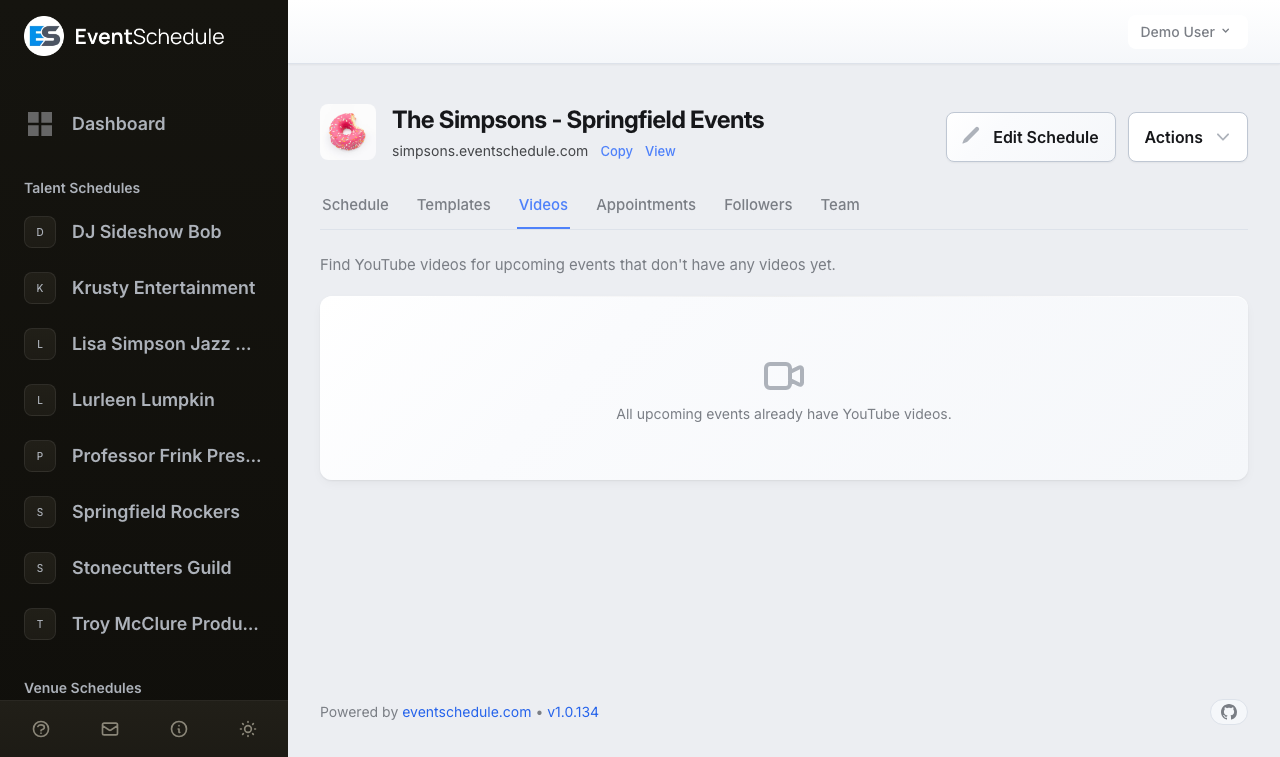
Curator schedules get a separate Videos tab on the schedule admin page. It is not a moderation queue: it suggests YouTube videos for talent on upcoming events that have none yet, so you can fill in their profiles. See the Videos tab.
Feedback Pro - Requires the Pro plan
Post-event feedback emails attendees after an event ends to collect a star rating and comments. Turn it on for the whole schedule in Settings → Engagement → Feedback, where you also choose how long after the event the request goes out. On the hosted platform this needs your schedule's own email settings.
Per-Event Override
The Feedback row of an event's Engagement tab offers three options:
- Same as schedule - follows whatever you set at the schedule level.
- Enabled - feedback emails go out for this event whatever the schedule setting is.
- Disabled - no feedback emails for this event whatever the schedule setting is.
For more on reading and managing the responses, see Selling Tickets → Post-Event Feedback.
Sponsors Pro - Requires the Pro plan
The Sponsors tab, the last one of the event form, decides which sponsors this one event shows. By default an event shows the sponsors set on its schedule, unless the schedule has its sponsors hidden. The tab appears when the schedule you are editing in, or the one the event belongs to, is on Pro.
The Three Choices
Press one of three choices. The tab's summary in the sidebar says which is in force.
Same as schedule
The event page displays the same sponsors configured on the schedule. This is the default. The choice names them on the form, says when the schedule has them hidden (the event page then shows none), or says the schedule has none.
No sponsors
Hide sponsors entirely on this event's page.
This event's own
Define sponsors for this event alone: fill in the form and click Add Sponsor, then + Add Sponsor for the next. Each one needs a logo, plus an optional Sponsor Name, Website URL, and Tier of Gold, Silver, or Bronze. Up to 50 sponsors per event. They are shown on this event only, and the schedule's own sponsors are not changed. A sponsor you filled in and did not add is added when you save, as long as it has its logo.
Choosing Same as schedule or No sponsors on an event that has sponsors of its own removes them when you save. The save bar reads Saving removes this event's sponsors. first, and choosing This event's own again before saving keeps them.
Logos are uploaded when you save the event, and only 15 new ones can be queued per save: with a long list, save partway through and then carry on. To set the sponsors every event starts with, see Schedule Sponsors.
Creating Events via WhatsApp Enterprise - Requires the Enterprise plan
Outside the event form, an Enterprise schedule can also take events by WhatsApp: send the details as text, or a photo of a flyer or poster, and AI reads it into an event. It works where the install has WhatsApp set up through Twilio (see the Twilio setup guide) along with an AI key for the reading.
How It Works
- Add and verify your phone number in Settings, under Profile Information
- Set a Default schedule in the same place, unless you can edit exactly one schedule, so the event has somewhere to go
- Send a WhatsApp message to the Event Schedule number
- Include the event details as text, or attach a photo of a flyer or poster
- AI parses the details and creates the event on that schedule
- You get a reply with the event name, date, and link. If the same event already exists on your schedule, the reply links to it instead of creating a duplicate
What AI Extracts
- Event name
- Date and time
- Duration
- Venue (name, email, website, address, city, state, postal code, country)
- Short description and description
- Flyer image
- Category
- Registration URL
- Performers, matched to existing schedules where it can
- Values for any custom fields that carry an AI prompt
A message from a number that is not verified on an account, or sent to a schedule below Enterprise, gets a reply saying so and creates nothing.
See Also
- AI Import - Import events from a link, text, images or a Google calendar
- Scan Agenda - Photograph a printed agenda and turn it into an event's parts
- Selling Tickets - Add tickets or free registration to your events
- Event Graphics - Create promotional images
- Sharing Your Schedule - Share, embed, and subscribe to your events
- Calendar Integrations - Set up Google Calendar, Outlook, and CalDAV sync
- Managing Schedules - Templates, cloning, and day-to-day upkeep