Getting Started
Go from zero to a live event calendar in a few minutes. No credit card required, and the free plan has no time limit.
Create Your Account
Signing up is free and takes no credit card. All you need is an email address you can check right away, because Event Schedule confirms it with a code before the account is created.
- Open the sign-up page, type your email address in the Email field, and tick "I accept the Terms of Service and Privacy Policy".
- Click "Continue". A six-digit code is emailed to that address and stays valid for 10 minutes. If the address looks like a typo of a common provider (gmial.com, say), the page offers the corrected address first, so no code is sent to an inbox nobody reads.
- Type or paste the code into the six boxes. It is checked straight away: the boxes turn green when it is right, or red, with the reason, when it is not.
- Enter your Full Name and a Password of at least 8 characters, then click "Create Account".
- You are signed in immediately, with the email already verified, and Event Schedule asks you to pick a schedule type.
If the code does not arrive, "Didn't receive the code? Resend code" appears under the boxes after 30 seconds, with a note on where else to look (the spam folder, and the email's subject line, which carries the code too). You can request up to five codes per hour for the same address. Typed the wrong address? Click "Use a different email" to go back a step. Your timezone and language are detected from your browser, so there is nothing to choose during sign-up.
Already confirmed an email sign-up on someone's schedule? That set up an account on your address with no password yet. Sign up with the same address and the form completes that account, so the schedules you follow come with it. If you added a password back then, sign in instead.
Signing up with Google is quicker. Where the page offers "Continue with Google", click it instead and there is no code to enter: Google has already confirmed the address, so the account is created verified and you land straight on the schedule-type chooser. Either way, your data is yours, and we never share or sell your information.
On a selfhosted server the sign-up page doubles as the setup wizard: it asks for your MySQL details first, and the first account created there becomes the instance admin. After that, sign-up is closed unless you enable ALLOW_REGISTRATION. See User Accounts and Registration for the details.
Create Your Schedule
A schedule is your event calendar: it is where your events live, and it gets its own public page that you share with your audience. Creating one is a short form with one field to fill in, Schedule Name, plus Street Address on a Venue schedule. From there a setup guide walks you to a live page: it shows as a small ring above the form, and its first line says "Two steps to your live schedule".
- Choose the type. Straight after sign-up you get a welcome screen that asks "What best describes you?" over three cards, Talent, Venue and Curator. Pick the one that fits (see Schedule Types below). If you would rather look around first, click "Skip for now" and come back later.
- Name it. The form asks for a Schedule Name and, for a Venue, a Street Address. That is all it needs. For a Talent schedule the name is prefilled with your own name.
- Check the two lines underneath. The first is your account's email address, which becomes the schedule's contact email. The second says which timezone the schedule's times are in, with Change beside it. If your device is set to a different timezone from your account, the picker opens by itself with the device's timezone selected. The email can be changed afterwards, along with everything else, on the schedule form.
- Click "Save and continue". Event Schedule creates the schedule and, because it is your first, takes you straight to adding an event, with the setup guide alongside. Everything else (description, images, colours, integrations) is optional and waits for you on the schedule form. See Customize Your Schedule for what each section holds.
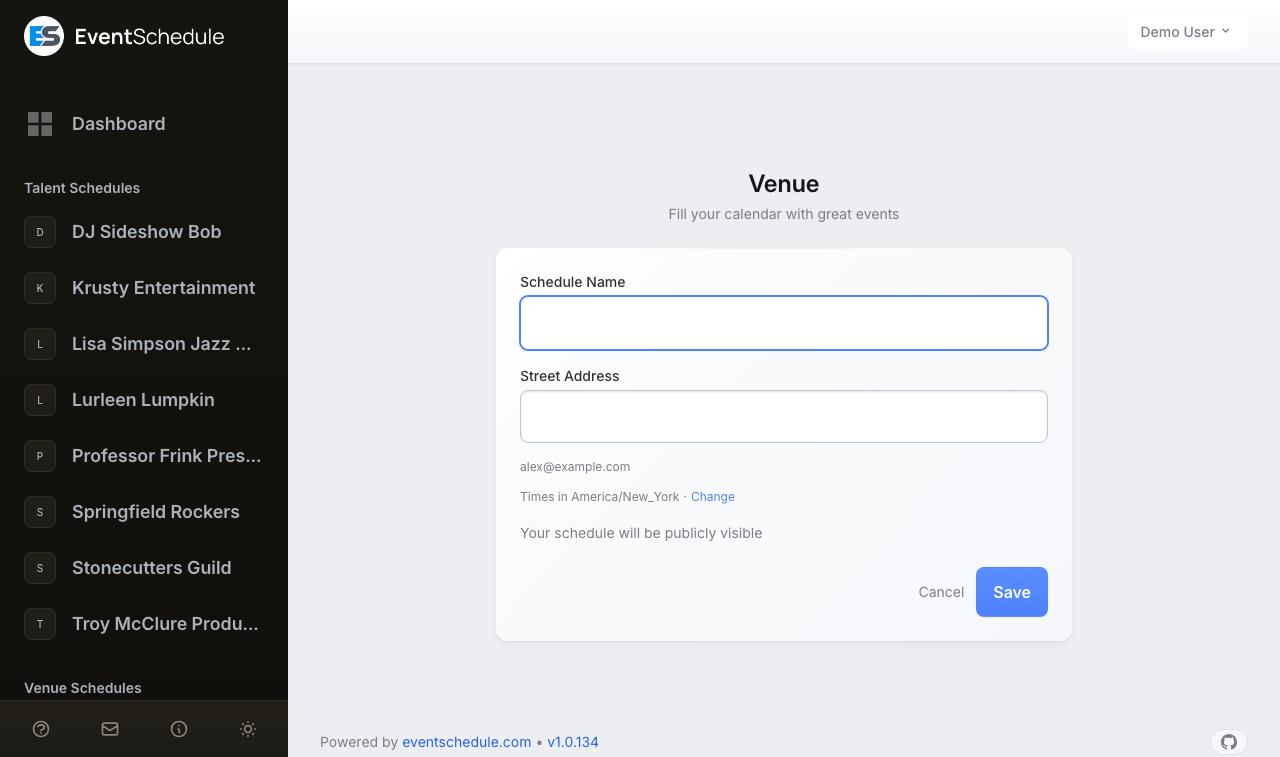
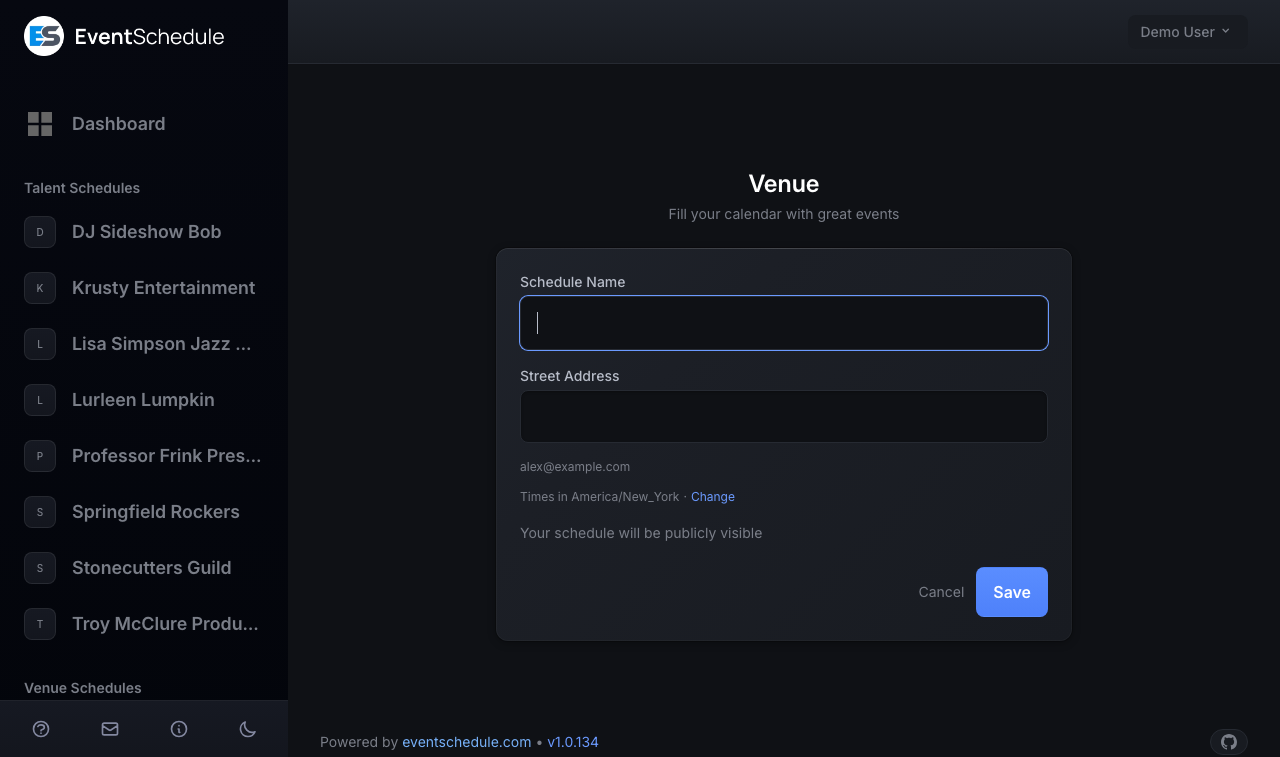
Already have an account and want another schedule? Use the "New Schedule" menu at the top of the dashboard (on a phone it is behind the three-dot button beside Add Event): it offers the same three types and opens the same form, where the button says "Save" and you land on the new schedule's own page.
You do not pick the URL on the create form. It is generated from the schedule name, so a schedule called "Blue Note Jazz" becomes https://blue-note-jazz.eventschedule.co.za. To change it afterwards, open Edit Schedule → Settings and click Edit beside Schedule URL. Do it early: changing the URL breaks any link you have already shared.
Schedules are public, and the create form says so: your schedule will be publicly visible. If you want to work on events before anyone sees them, save them as Drafts rather than trying to hide the schedule.
The contact email has to be verified
On eventschedule.com a schedule is only live while its contact email is confirmed. A new schedule takes your account's email, which you confirmed when you signed up, so it is live from the start. If you change the address later (Edit Schedule → Details → Contact Info), Event Schedule emails the new one a verification link and shows a "Please verify the email address" banner with a Resend Email button on the schedule's pages until you click it. Until then the public page shows visitors a page-not-found, you and your team are taken into the app when you open it signed in, and the schedule's address with its View link is left out of the top of its pages. (A verified phone number counts too, but the email is the route almost everyone takes.) A selfhosted install treats the address as verified.
Schedule Types
There are exactly three schedule types. The quickest way to choose is to ask what stays the same across your events: the performer, the place, or neither.
| Type | Best For | Pattern | Example |
|---|---|---|---|
| Talent | Musicians, DJs, performers, speakers | Your events at various venues | A band listing their upcoming shows |
| Venue | Bars, clubs, theaters, event spaces | Various events at your venue | A club listing everything on its stage |
| Curator | Promoters, bloggers, community organizers | Various events at various venues | A local music blog listing concerts in the area |
The type is not just a label: it changes which tabs the schedule's own page has and which sections its form offers.
- Talent schedules prefill the schedule name with your own name, and add an Availability tab to the admin panel for marking the days you can be booked Enterprise - Requires the Enterprise plan
- Venue schedules get an Address section, so visitors can find you and your event pages can show a map. Street Address is the one extra required field. They also get a Seating plans tab for drawing a reusable plan of the room and selling reserved seats from it Enterprise - Requires the Enterprise plan
- Curator schedules get an Event Sources section that pulls in every event published by the talent and venue schedules you pick, a Videos tab for matching YouTube videos to the talent you list, and they ask visitors to sign in before submitting an event. That is the Require Account switch in the Requests row of the form's Engagement section, which starts on for curators and off for venues. Talent schedules do not have it.
There is no setting for changing a schedule from Talent to Venue later. While you are still on the create form for your first schedule, the "Choose a different type" link beside the save button takes you back to the chooser. After saving, create a second schedule of the other type instead: one account can run all three.
Customize Your Schedule
Everything below lives on one page, the schedule form. Choose the schedule in the sidebar and click "Edit Schedule" at the top of its page, then use the list on the left to move between sections. What everyone fills in is on the page as a section opens; the rest sits in rows that open in place and say their current setting while closed. One Save, in the bar at the bottom, saves every section. Nothing here is required to publish, so start with Details and Style and come back later. The table follows the form's order.
| Section | What you set there | Shown for |
|---|---|---|
| Details | The name, Short Description, the Markdown Description and an announcement bar Pro - Requires the Pro plan . Two rows under them: Language and time holds the language, an optional second language to offer translations in, the timezone your event times are read in, and a 24-hour clock switch. Contact Info holds the email, phone and website. | Every schedule |
| Event Sources | Pick talent and venue schedules, and every event they publish appears on yours automatically. | Curator schedules |
| Address | Street address, city, state, postal code and country, with View Map and Validate Address. The address is shown on your page and on your events, where it can also draw a map. | Venue schedules |
| Style | Your Square Profile Image (your logo), accent colour and font, with a preview beside them. Three rows under them: Event animation, Background, and Header and layout, which holds the header style, header image, default event layout and custom CSS. Full reference in Schedule Styling. Custom CSS requires Pro - Requires the Pro plan | Every schedule |
| Gallery | Photos of your venue, past events or your team, shown on your schedule page. Requires Pro - Requires the Pro plan | Every schedule |
| Videos & Links | Your featured YouTube videos and your social links. Each social link also answers at a short address on your schedule URL, which counts its clicks. | Every schedule |
| Customize | Four rows. Sub-schedules creates colour-coded parts such as "Live Music", "DJ Nights" or "Comedy" that visitors can filter by; they organize and colour-code, and do not hide anything. The other three are Custom Fields, Categories and Custom Labels. Custom fields and custom labels require Pro - Requires the Pro plan | Every schedule |
| Settings | The Schedule URL, with rows for Notifications and Advanced. | Every schedule |
| Engagement | Event requests from visitors, fan content, post-event feedback, carpooling and sponsor logos, each in its own row. | Every schedule |
| Gift Cards | Sell balance-tracked gift cards that buyers send to a recipient by email. Requires Pro - Requires the Pro plan | Every schedule |
| Auto Import | Read events from a list of web pages once a day. An optional list of cities keeps only the events held there. | Selfhosted installs |
| Integrations | Rows for Google Calendar, Outlook Calendar, CalDAV Calendar and Calendar text and feeds, with Email Settings first on eventschedule.com. | Every schedule |
Every one of these sections is covered field by field in Creating Schedules.
Almost nothing on this page needs a paid plan. The free plan runs unlimited events, syncs calendars, takes unlimited RSVPs and free registrations, embeds your calendar and makes event graphics. Putting a price on a ticket is what needs Pro, and Pro also adds the live check-in dashboard (scanning tickets at the door is free on every plan), custom fields, custom CSS and removing the Event Schedule branding. There is no platform fee on any plan, and money always goes to your own Stripe, PayPal or other account. Enterprise adds custom domains, extra team members, availability and the AI generation features. Compare them on the pricing page. A selfhosted install resolves to Enterprise, so nothing is held back there.
Your Dashboard
The dashboard is the page you land on after signing in, and the first entry in the sidebar. It covers every schedule you own or administer. Each number on it is a link to the page that explains it.
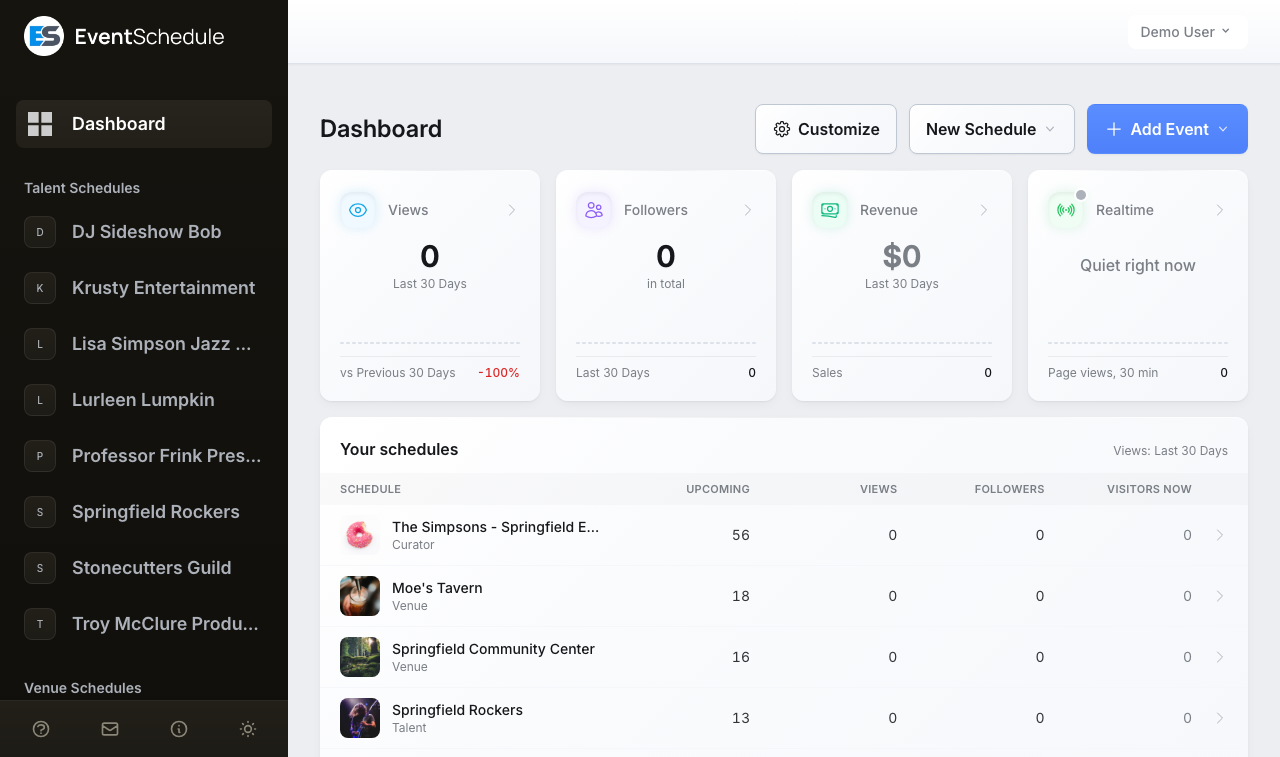
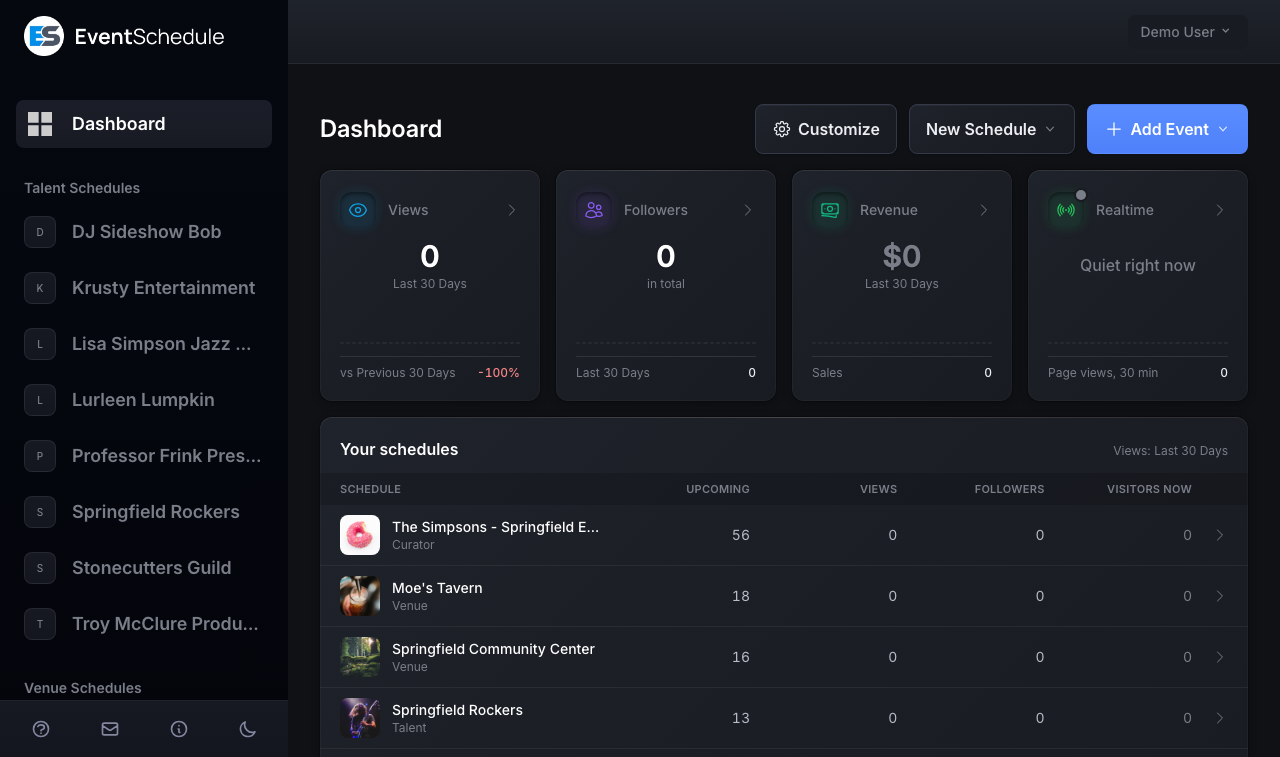
From top to bottom:
| Part | What it shows | Where it leads |
|---|---|---|
| Title row | View page (with one schedule), Customize, New Schedule and, last, Add Event, the main button. On a phone the first three are behind a three-dot button. | Add Event opens the event form. With several schedules it asks which one first. |
| Needs attention | One chip for each thing waiting on you, such as event requests or an overdue payment. With several schedules a chip says which one. Shown only while something is waiting. | The page where you deal with it |
| Views | Page views of your schedules in the period, a bar for every day, and the change against the same number of days before | Analytics |
| Followers | Followers in total, a bar for every day, and how many are new in the period | Your followers. With several schedules, the list of schedules below, where each one's are a click away. |
| Revenue | Money taken in the period, in the currency it was taken in, a bar for every day, and the number of sales | Sales |
| Realtime | Page views of your pages in the last 5 minutes and visitors on them now, or Quiet right now, with a bar for every minute of the last half hour. Where live traffic is not switched on for the site, this place shows your number of upcoming events. | The Realtime tab of Analytics. Upcoming events opens the calendar below, while the calendar is on the page. |
| Your schedules | With two or more schedules, a row for each with its upcoming events, views, followers and visitors now | That schedule's own page |
| Coming up | Your next five events, soonest first. A weekly or other repeating event is listed once, at its next date. Each row shows tickets sold or sign-ups and its views. | The event. An event on today that takes tickets or sign-ups also offers Check-in Pro - Requires the Pro plan |
| Recent Activity | The latest sales, new followers and newsletters | All sales, at the foot of the card |
| Calendar | The month view of all your events | Each event |
Customize chooses the period the numbers cover (7, 14 or 30 days; 30 unless you change it) and which cards sit under them: Coming up, Recent Activity, Top Events, Traffic Sources, Newsletters, Boosts and the Calendar. The four numbers are always shown.
The setup guide
For the first 30 days after you create your first schedule, a Setup guide card sits under the dashboard's title, with a picture of your own page beside its steps. Creating your account and your schedule are already ticked. The next step, your first published event, is what makes the page live. Three more follow, and each can be skipped:
- Add more events - done at three events, or one that repeats
- Share your schedule - done when you copy your link or the code that puts your events on your own website
- Tickets or free entry? - done when an event of yours has tickets or sign-up, or you answer that it needs none. A curator that only lists other schedules' events is not asked
A ring fills as you go, and a line says how close you are, for example One step from live. On the other pages of that schedule it is a small ring that leads back to the card, and a Setup guide line under Dashboard in the sidebar does the same from anywhere. Hide setup guide puts it away, and the sidebar line brings it back. Once the guide is gone, the same place on the dashboard holds Next steps: suggestions such as publishing a draft or connecting a payment method, each of which you can dismiss.
When there is nothing to count yet
Until your pages have had a first view, follower or sale, the numbers are left out: you see your event and, where live traffic is switched on for the site, a card that waits for your first visitor. If you only have view access to a schedule, the dashboard lists the schedules you were given and what is coming up on them, without numbers. If you run no schedule, it shows the tickets you hold and what the schedules you follow have coming up.
Frequently Asked Questions
Can I have multiple schedules?
Yes. One account can own up to 50 schedules on eventschedule.com, and a selfhosted install has no limit. This is how you run several bands, venues or organizations side by side, and how you mix types, since a schedule's type cannot be changed after it is saved.
How do I change my schedule URL?
Choose the schedule in the sidebar, click "Edit Schedule", open the Settings section and click Edit beside Schedule URL. See Schedule URL for details. Changing it breaks existing links, so do it before you start sharing.
What is the difference between the schedule types?
Talent is your events at various venues, and adds an Availability tab (Enterprise). Venue is various events at your venue, and adds an Address section and a Seating plans tab (Enterprise). Curator is various events at various venues, and adds Event Sources and a Videos tab. Pick carefully: the type is fixed once you save.
Can I import events from my existing calendar?
Yes, and it is free. Connect a calendar under Edit Schedule → Integrations, which has a row for Google Calendar, Outlook Calendar and CalDAV Calendar. For each one you pick a direction: push your events to the calendar, pull its events in, or both. For a one-time copy instead, import events by pasting a link to a calendar or an events page, some text or a photo of a flyer.
Is Event Schedule free?
Yes, with no time limit and no credit card. The free plan covers unlimited events, your own schedule URL, calendar sync, analytics, unlimited RSVP with capacity limits, embedding your calendar, one appointment type, and 10 newsletter emails a month (each recipient counts as one email, so one send to 100 followers uses 100). Selling a ticket that carries a price is a Pro feature: Pro is R199 a month, Enterprise is R499 a month for custom domains and team features, and both start with a 7-day free trial. There is no platform fee on any plan.
How do I get paid for tickets?
Connect your own account under Settings → Payment Methods: Stripe, PayPal, Payfast (South African rand only) or Invoice Ninja. A payment link, or cash at the door, works too. You pick the method on each event, and the money goes to your own account with no platform fee on any plan. A Stripe or PayPal sale can be refunded in full or in part from the Sales page, and the money goes back through the provider; any other sale can be marked as refunded there. See Payment Methods and Managing Sales.
How will people hear about my new events?
Share your schedule link, or embed the calendar on your own site. Visitors can leave their name and email in the sign-up panel on your schedule page, and once they confirm they get a digest of the new events your schedule publishes, at most one every few days. Anyone can also subscribe to your calendar feed, which keeps your events current in their own calendar app, and if you switch on the “Notify me” card, a visitor can press Tell me when tickets go on sale on an event that is not on sale yet to hear about that event alone. See Sharing Your Schedule.
Someone already made a page for my act or venue. How do I claim it?
If a promoter, venue or curator listed you on an event before you had an account, Event Schedule created a page for you at that moment. Open it and press Claim this page. Signed out, you are taken to sign up, and signing up with the email address on the page hands it to you. Signed in with a verified account on that email address or phone number, you confirm and the page is yours; signed in with a different one, the page shows the contact it answers to in masked form, so you know which account to use. Claiming makes you the owner, and the schedules that already listed you keep listing you. If you cannot reach that contact, ask whoever listed you to correct it. If the page is not about you at all, press This is not me instead. See Pages Created for Others.
My schedule page will not open. What is wrong?
Almost always an unverified contact email. A schedule stays offline until its email address is confirmed, so check your inbox for the verification link, or use the Resend Email button on the yellow banner at the top of the schedule's pages.
Next Steps
Your schedule has its address. What makes it worth sharing is an event on it, which is where the setup guide sends you next.
- Add your first events - Create events by hand, clone them, or import them
- Configure your schedule - Settings, sub-schedules, event requests, and calendar sync
- Style your schedule - Colors, fonts, headers, and backgrounds
- Share your schedule - Embed it on your website and post it to social media
- Set up ticketing - Sell tickets through Stripe, PayPal or another payment method with no platform fee; a ticket that carries a price needs Pro
- Account settings - Your profile, password, payments, and API access