Outlook Calendar
Set up and use the Microsoft 365 / Outlook Calendar integration for bidirectional sync between Event Schedule and Outlook through Microsoft Graph.
Feature overview: Outlook calendar sync
Overview
This page is for whoever runs the install. Outlook Calendar sync needs one app registration in Microsoft Entra ID and five environment variables, two of them optional. Once they are set, a schedule's owner can connect their Microsoft account and keep the schedule and one Outlook calendar in step, in one direction or both, through Microsoft Graph. Nothing is configured per schedule on the server.
Where It Lives in the App
| Screen | What is done there, and by whom |
|---|---|
| Settings → Integrations → Outlook Calendar | A user connects their own Microsoft account here with Connect Outlook Calendar, and later disconnects it. Only a schedule owner's connection is ever used for sync |
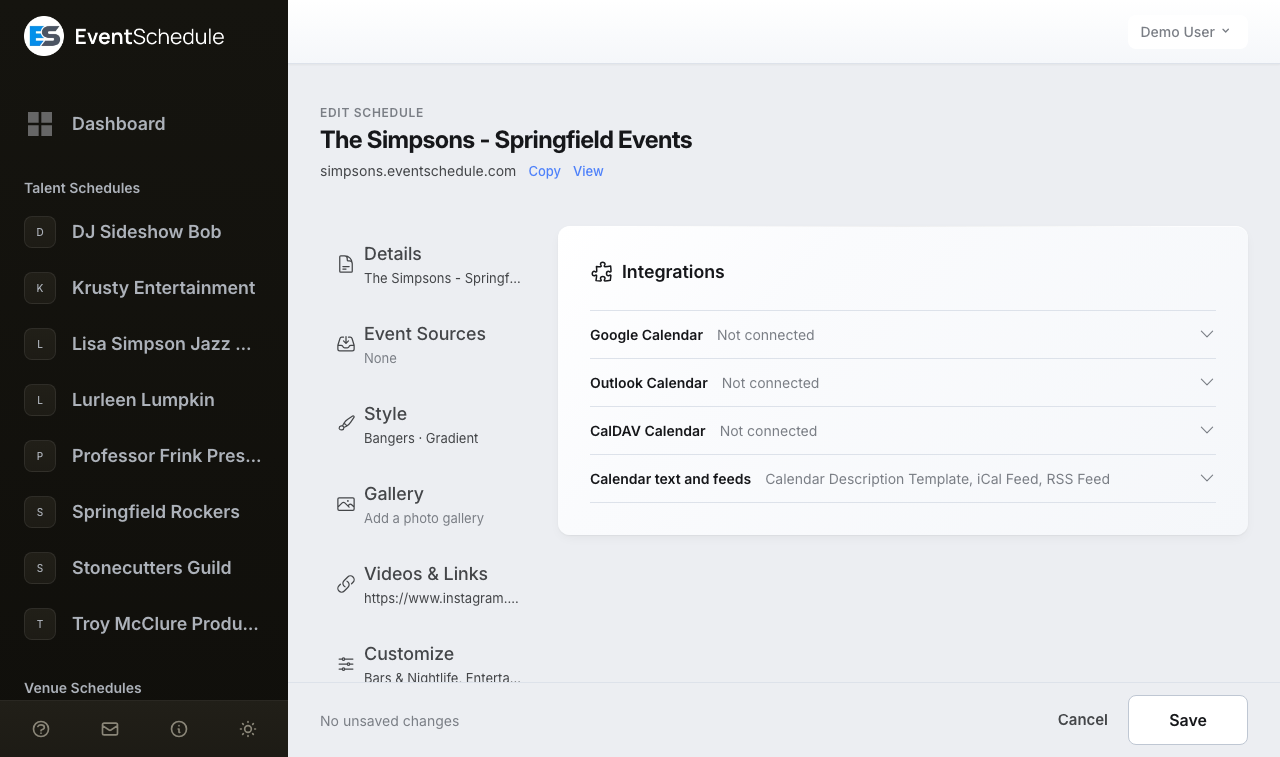
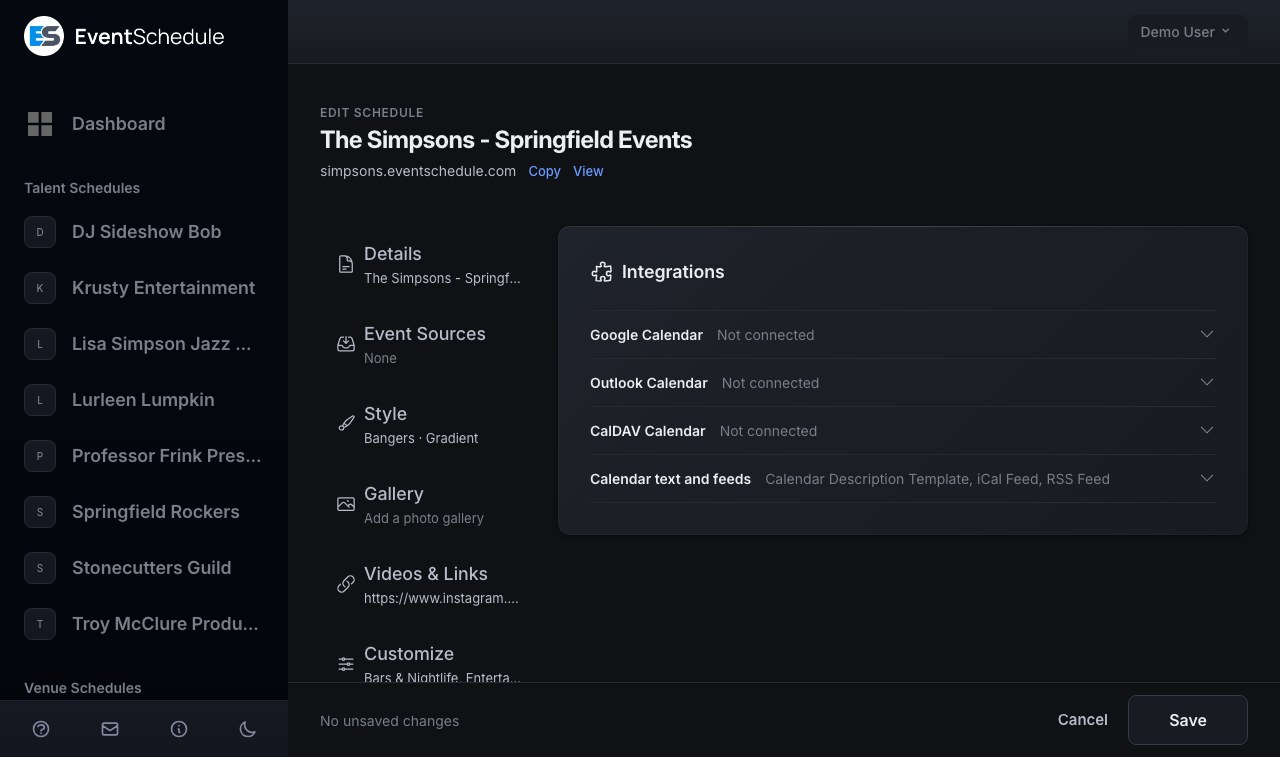
| Edit Schedule → Integrations → Outlook Calendar row | The schedule's owner picks the calendar, the sync direction, whether new events from it are published automatically and what a deletion in Outlook does here, and can turn on Create Teams meetings for online events |
| The schedule's Schedule tab → Review | Events read in from Outlook wait here as drafts. The owner and the schedule's admins publish them or keep them hidden. See Events from your calendar |
| Event form → Listing → Calendar sync | Shows whether this event has a copy in Outlook. Sync Now and Remove are the owner's to use |
| Admin → Manage → Private calendars | The install's administrators. Lists schedules whose synced events show meeting details or an email thread, and can hide those events or pause the sync. See Private calendars |
Outlook Calendar sync is a free-tier feature, so no plan gate applies. Once the server credentials below are in place, every schedule on the install can use it.
Prerequisites
- A Microsoft Entra ID (Azure AD) tenant or an Azure account to register an application
- Access to the Azure Portal to create an app registration
- A redirect URI that matches your app registration exactly, so users can complete the OAuth sign-in
- The Laravel scheduler cron from Installation, which drives the inbound poll, the subscription renewals and the queue
- For near-real-time inbound sync, a publicly reachable HTTPS URL, because Microsoft Graph must be able to call the webhook endpoint on your server
- For near-real-time inbound sync,
QUEUE_CONNECTION=database
The queue matters because inbound sync is dispatched to it, so that Microsoft Graph gets a fast response. On database, the scheduler's minutely queue worker runs the sync within about a minute; keep php artisan queue:work running as well only if you want it sooner. On the shipped sync connection the sync runs inside the webhook request, which can be slow enough that Graph deprovisions the subscription. Either way, the 15-minute poll catches anything a notification missed.
Installs without a public HTTPS URL still work. Instead of near-real-time webhooks, inbound changes are picked up by the 15-minute microsoft:sync polling fallback.
Setup Instructions
1. Azure App Registration
- Go to the Azure Portal and open Microsoft Entra ID → App registrations → New registration
- Enter a name for the application (for example, "Event Schedule")
- Under Supported account types, choose "Accounts in any organizational directory and personal Microsoft accounts" (this matches
MICROSOFT_TENANT=common) - Under Redirect URI, select the Web platform and enter:
{APP_URL}/microsoft-calendar/callback - Click Register
2. API Permissions
Event Schedule requests delegated permissions only, so it acts as the signed-in user and never gains tenant-wide calendar access.
- In the app registration, open API permissions → Add a permission → Microsoft Graph → Delegated permissions
- Add these five delegated permissions:
Calendars.ReadWrite,offline_access,openid,emailandprofile - If your tenant requires it, grant admin consent for the permissions
The scope list is fixed: Event Schedule always requests exactly these five. offline_access is the one that yields a refresh token, so without it users are pushed back through sign-in as soon as the access token expires.
3. Client Secret and Client ID
- Open Certificates & secrets → New client secret, then copy the secret Value immediately (it is only shown once)
- Open the Overview page and copy the Application (client) ID
4. Environment Configuration
Add the following environment variables to your .env file. .env.example carries the same five, commented out, in its "Outlook / Microsoft 365 calendar sync (optional)" block:
MICROSOFT_CLIENT_ID=your_application_client_id
MICROSOFT_CLIENT_SECRET=your_client_secret_value
MICROSOFT_REDIRECT_URI=https://your-domain.com/microsoft-calendar/callback
MICROSOFT_TENANT=common
MICROSOFT_WEBHOOK_SECRET=a_long_random_string
If you cache your configuration, run php artisan config:cache after editing .env, or the new values will not be picked up.
Variable Reference
| Variable | Required | Description |
|---|---|---|
MICROSOFT_CLIENT_ID |
Yes | The Application (client) ID from the app registration Overview page. Until it is set, the Settings page shows "Outlook Calendar is not configured on this server" instead of a connect button |
MICROSOFT_CLIENT_SECRET |
Yes | The client secret Value created under Certificates & secrets |
MICROSOFT_REDIRECT_URI |
Yes | Must exactly match the redirect URI registered in Azure ({APP_URL}/microsoft-calendar/callback). It is sent on both the authorization request and the token exchange |
MICROSOFT_TENANT |
No, defaults to common |
Use common for multi-tenant plus personal accounts, or your specific tenant id for a single-tenant app |
MICROSOFT_WEBHOOK_SECRET |
Only for webhooks | Any long random string. It is the clientState that authenticates inbound Microsoft Graph notifications. Not needed for polling-only installs |
The webhook secret is the only authenticity check on a notification. Graph subscriptions cannot be created at all while MICROSOFT_WEBHOOK_SECRET is empty: the attempt is refused rather than made without a clientState. Once set, Graph echoes the value back on every change notification, and Event Schedule ignores any notification whose value does not match, answering 401 when none of them do.
Features
How Sync Works
| Part | What happens |
|---|---|
| Connect an account | A user connects their Microsoft account through OAuth under Settings → Integrations → Outlook Calendar. The tokens are stored on that user record |
| Pick a calendar and a direction | The schedule's owner picks one Outlook calendar and a sync direction in the Outlook Calendar row of Edit Schedule → Integrations |
| Outbound | Publishing, editing or deleting an event pushes the change to the selected calendar |
| Inbound | Microsoft Graph subscriptions notify the webhook endpoint, and a queued job pulls the changes in with a Graph delta query. New entries arrive as drafts unless the owner publishes them automatically |
| Polling fallback | A 15-minute microsoft:sync command catches anything webhooks miss, and is the only inbound path on installs without a public URL |
| Subscription renewal | A daily microsoft:refresh-webhooks command renews Graph subscriptions, which are created with a 60-hour (about 2.5 day) expiry |
Outlook Sync Uses the Schedule Owner's Account Only
The calendar selection, the Graph subscription, and every outbound and inbound sync run on the schedule owner's connected Microsoft account. Team members do not get their own Outlook sync, and the Outlook Calendar row only shows the settings to the owner: anyone else, and an owner who has not connected yet, sees a Connect Outlook Calendar button there instead. Per-member calendar sync is a Google Calendar feature.
Sync Direction
Each schedule picks one of four options under Sync Direction. Saving the schedule creates or removes the Graph subscription for you. To start reading from Outlook the owner has to choose a calendar: the account's default calendar is never read without being chosen, and a save that starts reading without one is refused with "Choose the calendar to read events from."
| Option | What it does | Graph subscription |
|---|---|---|
| To Outlook Calendar | Published Event Schedule events are pushed to the selected Outlook calendar | Not created |
| From Outlook Calendar | Outlook events come in to Event Schedule, as drafts unless Publish new events automatically is on | Created |
| Bidirectional Sync | Both of the above: new events and edits flow in each direction. Deleting an event here removes its Outlook copy; deleting one in Outlook follows the deletion setting | Created |
| No Sync | Outlook sync is turned off for this schedule. Events already in Outlook are left alone | Removed |
Event Information Synced
- Event name, as the Outlook subject
- Description. By default the event description is sent as plain text; if the schedule has a Calendar Description Template set under Integrations → Calendar text and feeds, the rendered template is sent instead (see the available variables). On an update with no template and an empty description, no body is sent at all, so notes you typed on the Outlook copy survive
- Start time in the schedule's timezone, and an end time calculated from the event duration: two hours when no duration is set, and an all-day entry when the duration is 0, which is how a one-day all-day Outlook entry is stored when it arrives here
- Location, taken from the venue's best available address
- Privacy: an unlisted event is marked Private in Outlook, everything else is normal
- A Microsoft Teams join link, for online events when the toggle is enabled
What Is Not Sent
- Drafts. A Draft or Internal event is never pushed by a save, so an event first appears in Outlook when you publish it
- Recurrence. Recurring events are sent as a single Outlook entry on the series start date rather than as an Outlook recurrence. Use the schedule's iCal feed when you need every date of a series in a calendar app
Microsoft Teams Meeting Links
Enable Create Teams meetings for online events in the schedule's Outlook Calendar row. Every event with no venue is then created in Outlook as a Teams for Business meeting, and the join link is written into the event's Event URL field, but only when that field is still empty so a link you entered yourself is never overwritten.
Personal Microsoft accounts usually cannot create Teams for Business meetings. When Graph rejects the request, Event Schedule retries immediately without the Teams flags, so you get a normal Outlook event and no join link rather than a failed sync.
An event the sync read in from Outlook is a copy of the owner's own entry, and the entry belongs to the owner's calendar. Publishing it does not create a second Outlook entry or a new Teams meeting, and hiding it as a draft or cancelling it never deletes the owner's original. Deleting it deletes the original only when it is published and the schedule's direction sends events to Outlook (Bidirectional Sync, or To Outlook Calendar); with From Outlook Calendar the original stays.
Events That Arrive From Outlook
Inbound sync uses a Graph delta query over a window running from 30 days ago to 365 days ahead. On the first run, or after you switch calendars, the whole window is read; after that only changes are fetched. Each schedule that reads from Outlook also gets one more full read of the window, so entries read in before the private-entry rules existed are judged by them too: it takes an entry off the page or puts back one it took off, never rewrites what the owner edited here, and only the scheduled microsoft:sync runs it, at most ten schedules per run.
What the owner sees is described once, in the schedule guide: new entries arrive as drafts unless Publish new events automatically is on, they wait under Events from your calendar, and some entries are never read in at all (What stays off your page). In Outlook's terms, an entry is skipped when it is cancelled, when its sensitivity is private, confidential or personal, when the calendar's owner declined it, or when it shows as out of office or working elsewhere. An entry that shows meeting details or an email thread is held as a draft even with automatic publishing on. Events brought in:
- Are added to the schedule as its own events, and use the schedule's slug pattern and default category
- Take their name, description, start time and duration from the Outlook entry. The description is converted from HTML to Markdown
- Convert the Outlook location into a venue, reusing one of your existing venues when the name or address matches. An event that already has a venue keeps it. A Teams link, a dial-in number or "Microsoft Teams Meeting" is never made into a venue
- Are matched to an existing event by name and start time when there is no stored mapping yet, so an event you pushed out does not come back as a duplicate
- Never overwrite an appointment booking. An event created by a booking is owned by Event Schedule: inbound sync does not rewrite its name, description or time, so moving the Outlook copy will not move a customer's booking
When an Event Is Deleted in Outlook
Schedules that read from Outlook also choose When an event is deleted in the connected calendar: Keep it here (the default), Mark as cancelled, or Delete it here. The three choices, and what is never deleted, are described in the schedule guide. It is one setting shared with Google and shown in one place only: if the owner has also connected Google Calendar, it appears in the Google Calendar row instead of this one, and only while that row's own direction is From Google Calendar or Bidirectional Sync.
Only a real deletion in Outlook triggers it. An event that merely moves outside the sync window is left untouched. Marking an event cancelled this way notifies nobody: the notice to ticket buyers goes out only from Cancel event in the event editor.
Calendar Sync on an Event
Once a schedule has a calendar selected and a direction that includes To Outlook Calendar, the Listing tab of a saved event ends with Calendar sync, with an Outlook Calendar line. Its Synced and Not synced states, Sync Now and Remove are described in the event guide. Sync Now is not offered, and the server refuses it, for a Draft, Internal or cancelled event.
For an operator, one detail matters: the status is the schedule owner's copy, while Sync Now and Remove act with the Microsoft account of whoever is signed in, so they are the owner's buttons to use.
Real-Time Sync and Polling Fallback
- Graph sends one notification per changed event; Event Schedule collapses them to at most one inbound sync per schedule per minute, then reads every pending change in a single delta request
- The 15-minute
microsoft:synccommand polls the schedules whose direction is From Outlook Calendar or Bidirectional Sync, and is the primary path when no public URL is available - The daily
microsoft:refresh-webhookscommand extends any subscription due to expire within the next day, and recreates any that Graph has already dropped
Usage
Step by Step
Steps 1 and 2 turn sync on, and are done by the schedule's owner.
-
Connect Outlook Calendar
- Open Settings in the sidebar and choose the Integrations tab
- In Outlook Calendar, click Connect Outlook Calendar
- Authorize the application in the Microsoft sign-in flow. You come back to the same section, which now reads Outlook Calendar Connected
If the section shows "Outlook Calendar is not configured on this server" instead of the button,
MICROSOFT_CLIENT_IDis still missing from.env. Connecting is half of it: nothing syncs until a schedule is told to. -
Choose a Calendar and Sync Direction
- Open the schedule, click Edit Schedule, choose the Integrations tab and open the Outlook Calendar row
- Pick which Outlook calendar to sync with under Select Outlook Calendar. A calendar made after the page opened appears after Refresh list. Choosing the account's main calendar shows a warning, because a main calendar usually holds meetings and appointments: make a calendar just for public events in Outlook and choose that one
- Choose the Sync Direction: To Outlook Calendar, From Outlook Calendar, Bidirectional Sync, or No Sync
- With From Outlook Calendar or Bidirectional Sync selected, decide on Publish new events automatically. Off (the default), new events wait as drafts for you to review; on, they go onto the public page as they arrive, with a warning that says so
- With the same two directions, choose When an event is deleted in the connected calendar, unless your Google Calendar is connected too, in which case it is in the Google row
- Click Save
Only the schedule owner sees these controls. When the save starts reading from Outlook, the Schedule tab says that the calendar's events will arrive within 15 minutes.
-
Push Events to Outlook
Create and publish events as usual. Every event published or edited from then on is pushed to the selected calendar automatically. Events that already existed when you turned sync on are not pushed in bulk, so add them one at a time with the next step.
-
Sync a Single Event by Hand
Open the event's form and choose the Listing tab; Calendar sync is at its end. On the Outlook Calendar line, click Sync Now, or Remove to delete the Outlook copy. It only appears once a calendar is selected and the direction includes To Outlook Calendar. Sync Now is for an event guests can see: publish a Draft or Internal event first.
-
Enable Teams Meeting Links
In the schedule's Outlook Calendar row, turn on Create Teams meetings for online events and save. Events with no venue are created as Teams meetings, and the join link is saved to the event when it has no link yet.
Automatic Sync
Once the schedule owner has connected Outlook and the direction includes To Outlook Calendar, publishing, editing, cancelling and deleting an event change its Outlook copy with no extra step, and Draft and Internal events are never pushed. Cancelling an event the sync read in from Outlook leaves the owner's entry, as described above. The event guide's Calendar Sync section says what is copied when.
Inbound polling and subscription renewal run through the scheduled commands below, so the Laravel scheduler cron has to be active.
API Endpoints
These are the application's own session-authenticated routes, not part of the public REST API. "Signed in" means a signed-in user with a verified email address.
| Endpoint | Access | Description |
|---|---|---|
GET /microsoft-calendar/redirect |
Signed in | Start OAuth flow |
GET /microsoft-calendar/callback |
Signed in | OAuth callback |
GET /microsoft-calendar/reauthorize |
Signed in | Re-run consent to obtain a refresh token |
POST /microsoft-calendar/disconnect |
Signed in | Disconnect Outlook Calendar. Deletes the Graph subscriptions on the schedules you own, clears their sync direction and calendar selection, drops the stored event mappings, and clears the tokens |
GET /microsoft-calendar/calendars |
Signed in | Get the user's calendars as JSON. This is what fills the calendar dropdown |
POST /microsoft-calendar/sync/{subdomain} |
Signed in | Sync a whole schedule with the caller's own Microsoft connection, so it is the schedule owner's to call. Send sync_direction as to, from or both, which also saves it as the schedule's direction, or omit it to use the saved one. There is no button for this, so it is the way to backfill events that predate the connection |
POST /microsoft-calendar/sync-event/{subdomain}/{eventId} |
Signed in | Sync a specific event, with the caller's own Microsoft connection. This is what Sync Now calls. Refused for a Draft, Internal or cancelled event |
DELETE /microsoft-calendar/unsync-event/{subdomain}/{eventId} |
Signed in | Remove the event's Outlook copy and drop its mapping. This is what Remove calls |
GET /microsoft-calendar/webhook |
Public, rate limited to 10 requests per minute | Microsoft Graph subscription validation handshake |
POST /microsoft-calendar/webhook |
Public, rate limited to 60 requests per minute, clientState |
Microsoft Graph change notifications (also handles the validation handshake) |
Scheduled Commands
These Artisan commands keep inbound sync and Graph subscriptions healthy:
| Command | Frequency | Description |
|---|---|---|
microsoft:sync |
Every 15 minutes | Polls Outlook for changes (inbound sync fallback). Add --role= with a schedule id to poll just one schedule |
microsoft:refresh-webhooks |
Daily | Renews any Microsoft Graph subscription due to expire within the next day. Add --role= with a schedule id or subdomain to target one schedule, or --force to renew them all |
These commands run through the Laravel scheduler, which requires the following cron entry:
* * * * * php artisan schedule:runTroubleshooting
Common Issues
Pick the line that matches what you see.
"Outlook Calendar is not configured on this server"
MICROSOFT_CLIENT_IDis not set, so Settings shows this notice in place of the connect button- If the variable is in
.envand the notice stays, the configuration is cached: runphp artisan config:cacheagain
No refresh token, or repeated re-authentication
- Make sure the
offline_accessscope is granted in the app registration - Visit
/microsoft-calendar/reauthorizeto force a fresh consent prompt, which is what returns a new refresh token - If that fails, disconnect and reconnect the account
Sync stopped, and the schedule is back on No Sync
- Microsoft ended the grant: access was removed in the Microsoft account, or a password change or sign-in policy invalidated it. When Microsoft reports that on the next token refresh, Event Schedule forgets the tokens and switches every schedule that user owns to No Sync, clearing its subscription and sync cursor and turning Publish new events automatically off
- The calendar choice and the record of which event became which Outlook entry are kept, so reconnecting does not copy everything again
- Connect again under Settings → Integrations → Outlook Calendar, then set the sync direction on each schedule and save
- If only the reading stopped, see the next question
Reading stopped, and Bidirectional Sync became To Outlook Calendar
- Either an administrator paused the sync on Private calendars, or the schedule changed owner. Either way reading stops: From Outlook Calendar becomes No Sync, Bidirectional Sync becomes To Outlook Calendar, and pushing out carries on
- The Outlook Calendar row says which it was, and automatic publishing is off again
- The owner starts again by choosing a calendar that holds only public events and a direction, and saving. An administrator can also undo a pause from the same admin page, unless the owner has changed the direction since
Events from Outlook are not on the schedule's page
- New entries arrive as drafts unless Publish new events automatically is on. They wait on the schedule's Schedule tab under Review; see Events from your calendar
- Cancelled entries, entries marked private, confidential or personal, invitations the owner declined, and out-of-office or working-elsewhere blocks are not read in at all. An event already on the page is taken off it when Outlook starts saying so
- An entry with meeting details or an email thread stays a draft even with automatic publishing on, and is published one at a time
- The schedule's Outlook Calendar row shows when the calendar was last read, how many events were added and how many were left out
Events are not appearing in Outlook
- The direction must be To Outlook Calendar or Bidirectional Sync, and a calendar must be selected
- Only the schedule owner's connected account is used, so check who owns the schedule
- Draft, Internal and cancelled events are not pushed, and Sync Now is not offered for them. Publish the event
- Events created before sync was enabled are not pushed in bulk. Open each one and use Sync Now under Calendar sync on its Listing tab
Calendar sync is missing from an event's Listing tab
- It only appears on a saved event, when the schedule has an Outlook calendar selected and its direction includes To Outlook Calendar
- Select a calendar under Edit Schedule → Integrations → Outlook Calendar and save the schedule
Teams meeting link not created
- Personal Microsoft accounts may not support Teams for Business meetings
- In that case the app falls back to creating a normal event without a Teams link
- The event must have no venue, and its Event URL must be empty for the join link to be saved
Inbound changes not updating
- The direction must be From Outlook Calendar or Bidirectional Sync, otherwise no subscription exists
- Confirm the app has a public HTTPS URL so Graph can reach the webhook endpoint
- Inbound sync is queued, so if the cron entry stops, taking the queue worker with it, a working webhook looks exactly like a broken one
- Without a public URL, rely on the 15-minute
microsoft:syncpoll and confirm the scheduler cron is running - Outlook changes outside the window of 30 days back to 365 days ahead are not imported
An event deleted in Outlook is still here
- This is the default. When an event is deleted in the connected calendar starts on Keep it here
- The control only appears once the direction is From Outlook Calendar or Bidirectional Sync. If your Google Calendar is connected too, it sits in the Google Calendar row instead, and only while that row's direction is From Google Calendar or Bidirectional Sync
- Events with ticket sales or ad boost spend are marked cancelled rather than deleted, even when the policy is Delete it here
Subscription creation fails
- Ensure
MICROSOFT_WEBHOOK_SECRETis set, as subscription creation is refused without it - Ensure the notification URL is publicly reachable over HTTPS, because Graph validates it before the subscription is created
- The schedule still saves when the subscription cannot be created. The failure is only in the log, and inbound changes fall back to the 15-minute poll
After switching calendars
- The stored delta token belongs to one calendar, so changing the calendar clears it and the next run reads the whole window again
- An expired or rejected delta token does the same thing once, automatically
- Events already mapped, or matching an existing event by name and start time, are updated rather than duplicated
- Copies pushed before the switch stay on the calendar they were created on and keep being updated there. Only events pushed for the first time land on the new calendar
Logs
Sync operations are logged in the application logs. Check storage/logs/laravel.log for detailed information about sync operations, and storage/logs/scheduler.log for the scheduled sync and subscription-renewal runs.
Security Considerations
| Safeguard | What it does |
|---|---|
| Token storage | Microsoft access and refresh tokens are encrypted at rest per user, and are never included in API responses |
| Rotating refresh tokens | Microsoft rotates the refresh token on each refresh, and the app stores the latest one under a per-user lock so two workers cannot rotate at once |
| OAuth state check | The sign-in flow carries a random state value that must match the one held in the session, so a callback that was not started by the user is rejected |
| Webhook authentication | MICROSOFT_WEBHOOK_SECRET (the clientState) authenticates inbound Graph notifications, and mismatched notifications are rejected. The endpoint is public by necessity and is rate limited |
| Delegated access only | The app requests delegated Calendars.ReadWrite, so it can only reach the calendars of the user who signed in, not the whole tenant |
| Clean disconnect | Disconnecting deletes the Graph subscriptions of the schedules the user owns, switches them to No Sync with automatic publishing off, and deletes the stored tokens, event mappings and calendar selections. Nothing already in the Outlook calendar is deleted |
| Audit trail | Connecting, disconnecting and syncing a whole schedule are written to the audit log |
Secrets in .env |
Keep the client secret and webhook secret in .env, and never commit them to source control |