Schedule Styling
Customize your schedule's visual appearance with colors, fonts, backgrounds, and more. Most changes show in a live preview before you save.
Feature overview: Custom CSS
Overview
How your public schedule and event pages look is decided in one place, the Style section of the schedule form. Everything in it is free on every plan except two things: Custom CSS, which needs Pro, and the AI Style Generator, which needs Enterprise.
- Choose the schedule in the sidebar and click Edit Schedule at the top of its page.
- Choose Style in the section list on the left (or from the accordion on mobile).
- Set the branding at the top, then open the rows under it, watching the preview beside the form.
- Click Save, in the bar at the bottom of the page. Nothing is applied to your public page until you do.
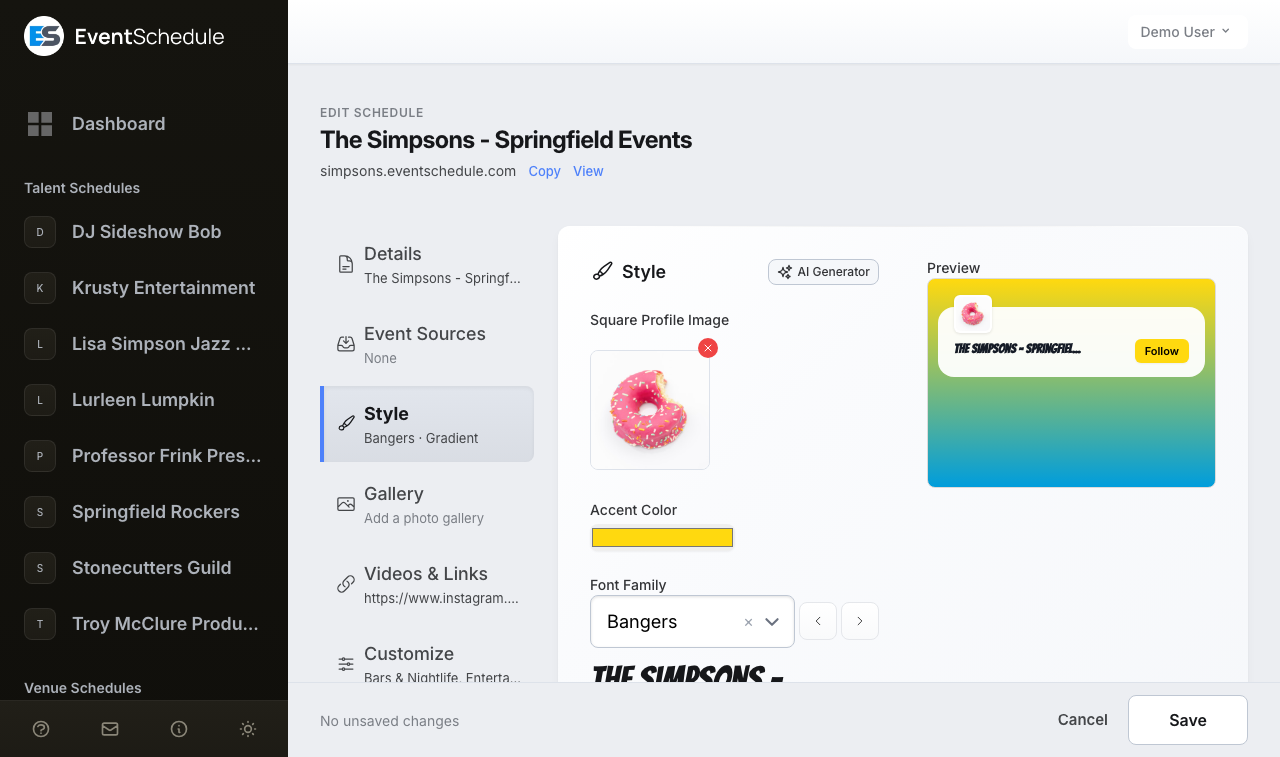
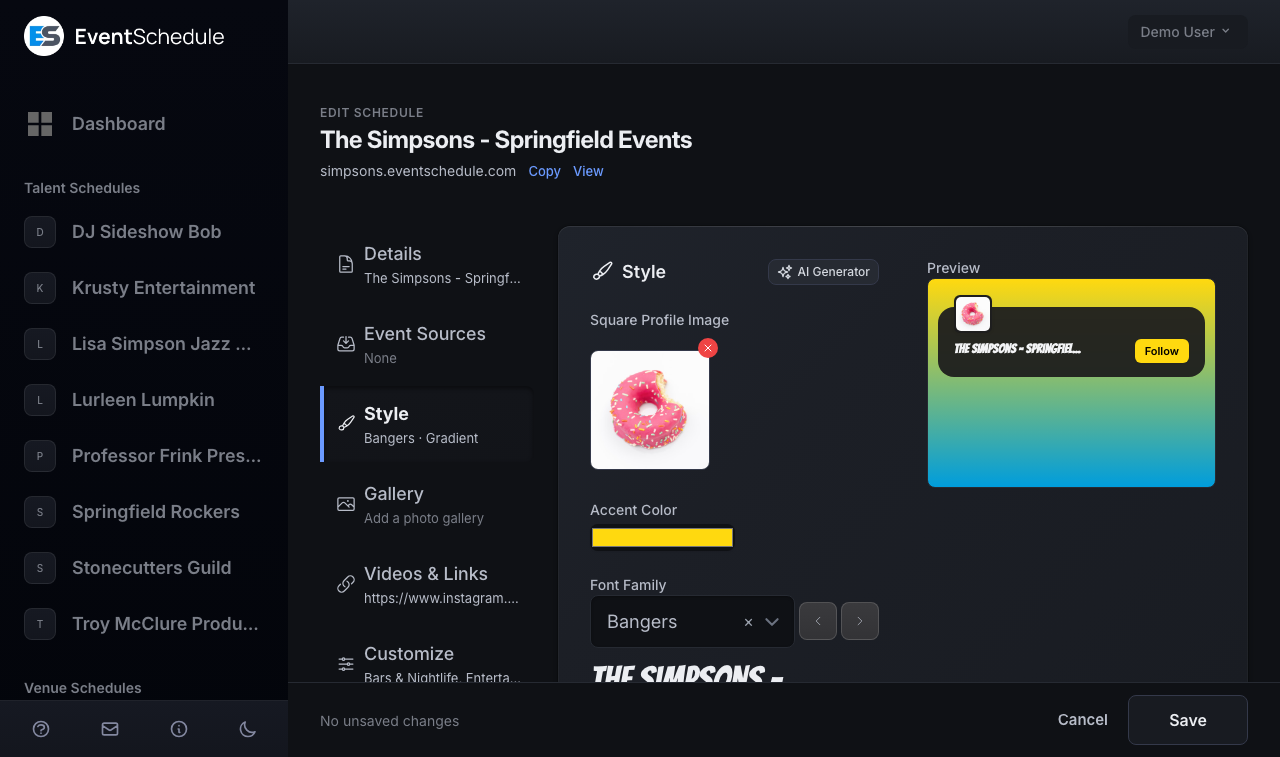
The Style section opens on its branding fields, with three rows under them that open in place. Each row says its current choice, so most never need opening. This page follows the same order:
| Where | What it holds |
|---|---|
| Always shown | Square Profile Image, Accent Color, Font Family |
| Event animation | How event cards arrive as visitors scroll your schedule |
| Background | Background Type (Gradient, Solid or Image) and the controls for whichever you pick: gradient colors and rotation, a solid color, or a background image |
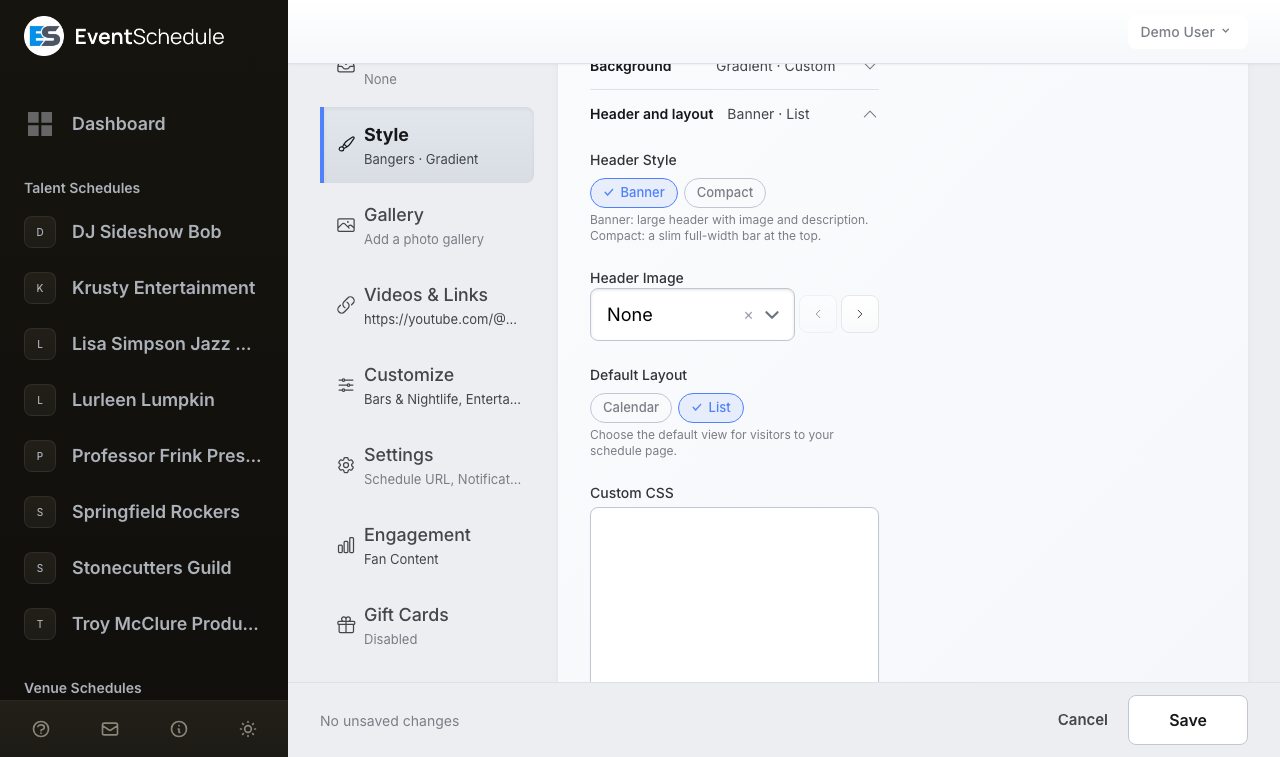
| Header and layout | Header Style, Header Image, Default Layout, Custom CSS |
If you have not created your account and first schedule yet, start with Getting Started. To set the schedule's name, description, links and other non-visual details, see Creating Schedules.
Profile Image
Upload a logo, photo or avatar that represents your schedule under Edit Schedule → Style → Square Profile Image. It does three jobs:
Your header
A large logo in the Banner header style, or a small square avatar beside your name in the Compact style.
Your social preview
It becomes the preview image when your schedule page is shared to a chat app or social network, unless your header image is one you uploaded, which is wider and so goes first. With neither, a background image you uploaded is used, and with none of them the page offers no preview image, so most apps show the link without a picture (Facebook may pick one from the page itself). It is never an Event Schedule image.
Talent and venue logo walls
It is the logo other schedules show for you in their logo wall header. A connected schedule with no profile image is skipped there.
Use a square image (1:1 aspect ratio). Recommended minimum size is 400x400 pixels. PNG and JPG are accepted, and uploads must be under 2.5 MB. Use the small red cross on the thumbnail to remove an image you have already saved.
It becomes your favicon too Pro - Requires the Pro plan
On Pro, your profile image also becomes the icon in the browser tab on your public pages, including ticket pages. On every plan it becomes the home-screen icon when a visitor saves your schedule to their phone, and a schedule that has uploaded no image gets a plain calendar glyph there rather than the Event Schedule logo. Nothing to configure: upload a profile image and it is used automatically. This is the same reason a square image matters, since a tab icon is cropped to a square either way.
Accent Color
One Accent Color picker at the top of the Style section drives every highlighted element on your public pages. New schedules start on a standard blue.
Where it appears
Buttons and calls to action, the follow and submit controls, the calendar and list layout toggles, the filter button, and highlights on your event pages.
Text on top of it is calculated
Event Schedule measures the brightness of your accent color and puts black text on light accents and white text on dark ones, so a button label stays readable whatever you choose. There is nothing to set.
The automatic black-or-white text keeps buttons legible, but it cannot rescue an accent that disappears into your background. Check the preview with your chosen background, and pick a saturated color that clearly separates from it.
Font Family
The Font Family dropdown at the top of the Style section offers more than 230 Google Fonts. It sets the typeface your schedule's name is written in: in the header of your schedule page, and on the cards that name you on event pages. The rest of the page keeps the standard font.
Finding a font
The dropdown is searchable, so you can type a name you already know. The arrows beside it step to the previous or next font alphabetically, which is the quickest way to browse.
Live sample
Your schedule's own name is rendered in the chosen font directly under the dropdown, and the preview panel updates too, so you can judge readability on your real text before saving.
This setting styles web pages. Event graphics are drawn as images on the server with a bundled Noto Sans family (including Hebrew and Arabic variants), so changing your font here will not change them.
Event Animation
The Event animation row of the Style section, the first one under the branding fields, brings your events to life as visitors scroll your schedule: each event card animates into place as it comes into view, then its details follow one after another: the title, the date (which flips down like a tear-off calendar page), the venue, the price and the performers. The first screen plays as an entrance when someone opens your link. It is off (None) until you pick a style, and it is available on every plan.
| Style | Mood | What visitors see |
|---|---|---|
| Rise | Clean | Events float gently into place, their details rising in a soft wave while the image settles. |
| Focus | Dreamy | The image sharpens first, then each line of text comes into focus in turn. |
| Slide | Energetic | Events glide in from the side, each detail following like a ticker, with the text and the image meeting in the middle. |
| Deal | Playful | Events land like playing cards being dealt, then the venue and ticket badges are dealt onto the card and the performers pop in. |
| Shine | Glowing | A sweep of your accent color lights up each event, and every badge glints as the light passes. |
| Curtain | Theatrical | Panels in your accent color pull back to reveal each event's image, and the text is unveiled line by line. |
Preview before you save
The preview above the styles plays your choice on your own events, in your accent color and font, and updates as you change them. Use Replay to watch it again, or See it on your schedule to open your real page with the style you picked, even before saving.
Phones and computers
A phone lists your events in both layouts (in the Calendar layout, under a small month that jumps to a day), so it always shows the animation. On a computer it plays in the list layout; if your default layout is Calendar, visitors see it after switching to the list. The setting offers a one-click switch to the list layout.
After you save a new style, the Schedule tab shows your link with a Copy button (and Share, where the device supports it), ready to send to your audience.
Visitors who turn off animations on their device, or with the accessibility menu on your schedule, see every event right away with no motion. Events a visitor has already scrolled past, returns to with the back button, or prints are never hidden or replayed.
Background
The Background row starts with a Background Type choice of Gradient, Solid or Image. Picking one reveals its own controls and hides the others.
Gradient
Pick a preset from the searchable Colors dropdown, or choose Custom at the top of it to mix your own.
Preset gradients
Over 380 named gradients from uiGradients, listed alphabetically: Cosmic Fusion, Emerald Water, Netflix, Omolon, Purple Dream, Sunset and many more. The arrows beside the dropdown step through them so you can watch the preview change.
Custom two-color gradient
Choosing Custom reveals two color pickers and a swatch of the result, so you can match your brand colors exactly.
Rotation
A slider from 0 to 360 degrees sets the gradient angle, so you can make it vertical, horizontal, diagonal or anything between. It applies to preset and custom gradients alike.
Solid
A single Background Color picker. Use your operating system's color picker or type a six-digit hex code such as #1a1a2e.
Image
37 preset backgrounds
Ready-made backgrounds listed alphabetically, including Abstract Sunrise, Bookshelf, Desert Retreat, Flower Field, Greyscale, River of Dreams and Stormy Night. Selecting one shows a thumbnail below the dropdown.
Custom upload
Choose Custom at the top of the dropdown to upload your own. PNG or JPG, under 2.5 MB. Dark, low-contrast images work best, because your event cards and text sit on top of them.
Header Style
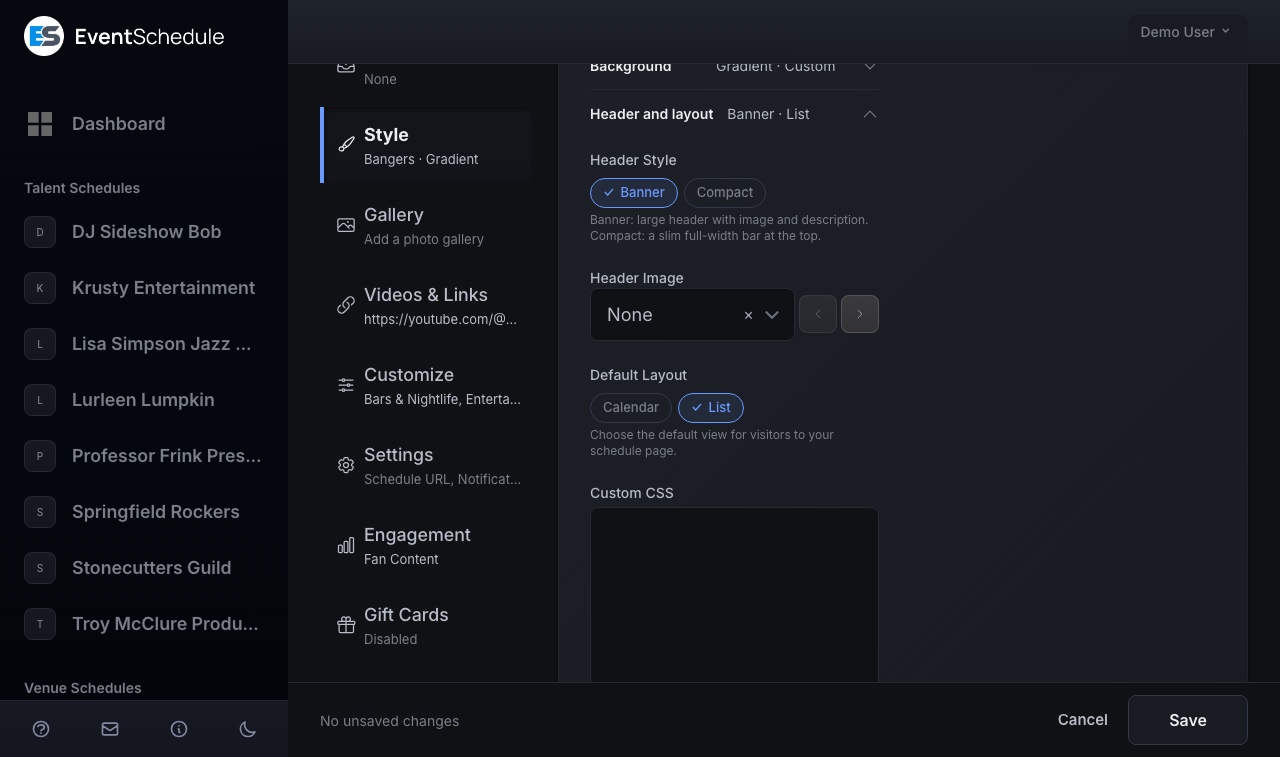
Choose how the header appears at the top of your public schedule page under Edit Schedule → Style → Header and layout → Header Style. Schedules use Banner unless you change it, and the live preview updates as you switch between the two.
Banner
A large header carrying your header image, a prominent logo, the schedule name, description and social links. The most spacious option, and the only one that can show a header image or a logo wall.
Compact
A slim full-width bar at the top of the page with a small logo and the schedule name on one side, and the action cluster on the other: follow, submit and manage buttons, the filter button, and the calendar or list toggle. Your description and social or contact links move to a strip just beneath the bar.
The header image applies to the Banner style only. Compact draws no header image at all, but nothing is lost: the description and social links appear in the strip below the bar. If a schedule was set to the old Minimal style, it now reads as Compact, which is the same slim row under a clearer name.
Header Image
The Header Image dropdown, under Header Style in the Header and layout row, creates the visual banner at the top of your schedule page. It offers four kinds of option, in this order:
None
The default. A cleaner look with no header image, so your profile image and name take centre stage.
Venue logo wall (or Talent logo wall)
A grid of logos instead of a picture. On a talent or curator schedule the option is called Venue logo wall and shows the venues hosting your approved events; on a venue schedule it is called Talent logo wall and shows the talent performing at them. Each logo links to that schedule's page, and you can drag the list under the dropdown to set the order. Only connected schedules that have a profile image appear, so the wall stays empty until at least one does, and the edit page warns you when that is the case.
Custom
Upload your own header. Use a wide image, around 1200x400 pixels or a similar aspect ratio. PNG or JPG, under 2.5 MB. It is also the picture a shared link to your schedule shows, ahead of your profile image.
31 preset headers
Ready-made headers listed alphabetically, including 5am Club, Arena, Fitness Morning, Music Potential, Networking and Bagels, Ready to Dance, The Stage Awaits and Yoga and Wellness. Use the arrows beside the dropdown to flick through them with the preview open.
Header images and the logo wall are drawn by the Banner header style only, so the Header Image field is on the form only while Banner is chosen. Switch to Compact and the field is put away, with your choice kept for when you switch back.
Default Layout
Choose how your events are displayed on your schedule page, under Edit Schedule → Style → Header and layout → Default Layout. Two layouts exist:
Calendar
Events laid out on a month grid, one cell per day, loaded one month at a time. Best when the shape of the month matters, such as a venue with something on most nights.
List
Events in date order as full-width cards, loaded well beyond the current month. Best when each event deserves its own space, or when they are spread thinly across the year.
A new schedule starts on List. Either way this is only the default: visitors can switch between the two with the layout toggle in the header, and their choice is remembered in their own browser for that schedule. It never changes what anyone else sees, and it does not change your setting. On a phone, events are always shown as a list.
Embeds ignore the visitor's saved preference, so the site doing the embedding stays in control. An embed can also override your default with ?layout=calendar or ?layout=list, so one page can carry the same schedule twice in both layouts. See Embed URL Parameters.
Custom CSS Pro - Requires the Pro plan
Pro - Requires the Pro plan The Custom CSS box is editable on Pro and Enterprise, and on selfhosted installs, which count as Enterprise. Below Pro the box is shown read-only: CSS you saved earlier is kept, not deleted, but it is not applied to your pages until the schedule is back on Pro, when it also becomes editable again.
When the built-in controls do not reach far enough, write your own CSS under Edit Schedule → Style → Header and layout → Custom CSS, the last field of that row. It is added to every public page drawn in your schedule's own style: your schedule page, event pages, embeds, and the pages visitors reach from them such as booking, event requests and gift cards. Ticket, order and installment payment pages use the app's standard layout, so your CSS does not reach them.
- Override any of the built-in styles for complete control
- Fine-tune spacing, borders, radii and shadows
- Add your own animations and effects
- Up to 10,000 characters per schedule
Saved CSS is cleaned before it is stored, so a few constructs are silently removed rather than rejected with an error. Do not rely on @import, @font-face, @charset, expression(), javascript: URLs, behavior or binding, or any url() pointing at an http:, https: or data: address. Everything else, including modern layout and animation properties, is kept as written. If a rule seems to vanish after saving, check it against that list first.
Hiding Sections Pro - Requires the Pro plan
Every panel on your schedule page and on your event pages carries a stable id that starts with gp-. To remove one from the public page, add a display: none rule for that id in Edit Schedule → Style → Header and layout → Custom CSS. Nothing else has to change, and you can put back what you hid by deleting the line.
#gp-talent-list { display: none; }The “Notify me when tickets go on sale” card is off unless you turn it on, and the Stay up to date sign-up panel can be turned off. Both switches are under Settings → Advanced and work on every plan, so neither needs CSS.
A common example
The performer list is the compact list of names under the Talent heading, for acts that were typed in or picked up by AI import and have no page of their own. If the names on your events are often wrong or incomplete, hide the list and let the event description carry the lineup instead.
#gp-talent-list { display: none; }Rules can be combined, and one rule can hide several panels at once:
#gp-upcoming-events,
#gp-talent-list,
#gp-reviews {
    display: none;
}A display: none rule removes a panel from the page. It does not disable what sits behind it. People who already signed up to be notified are still notified, a hidden subscribe panel still accepts a submission posted to its address, and a hidden reviews panel does not delete the reviews. Where a real on/off setting exists, use that instead: videos, fan photos, fan comments, feedback, carpooling, accommodation and the “Notify me” card each have their own switch on the schedule edit page, and so does the sponsor grid (Show sponsors), which hides it without deleting a sponsor. The Show Sign-Up Panel switch is the exception: like this rule, it only hides the panel, and sign-ups through your follow link, and on eventschedule.com the Follow button, still arrive.
Schedule page sections
| ID | Section |
|---|---|
#gp-announcement | Your announcement bar |
#gp-language-switcher | The language switcher row |
#gp-header | The whole header card or bar |
#gp-header-image | The header image behind the name |
#gp-logo-wall | The logo wall header |
#gp-profile-image | The profile picture tile |
#gp-header-body-mobile, #gp-header-body-desktop | Name, description, social links and buttons inside the header. Two ids because the header is laid out separately for narrow and wide screens, so hide both. |
#gp-below-bar | The description and contact strip under the compact header |
#gp-video-carousel | The strip of videos from upcoming events |
#gp-sponsors | The sponsor logo grid (also on event pages) |
#gp-map | The venue map: its band and the map it opens |
#gp-map-sheet | The full-window venue map, on a phone and when a visitor enlarges it |
#gp-events | Everything from the events heading down, including the calendar |
#gp-next-event | The card above the month calendar that shows your next event |
#gp-calendar | The calendar or event list panel on its own |
#gp-subscribe | The follow and subscribe panel (also on event pages) |
#gp-gallery | Your photo gallery (also on event pages, for an event's own gallery) |
#gp-videos | Your own video grid |
Event page sections
| ID | Section |
|---|---|
#gp-status-bar | The bar that says an event is cancelled, draft, internal or awaiting review |
#gp-event-hero-image | The large square picture that stands in for a flyer when an event has none |
#gp-talent | All performer cards |
#gp-talent-list | The compact list of performer names |
#gp-venue | The venue card |
#gp-venue-socials | The venue's social links |
#gp-venue-map | The map at the foot of the venue card |
#gp-accommodation | The places-to-stay map |
#gp-create-your-own | The “create your own schedule” card |
#gp-upcoming-events | The schedule's other upcoming events, down the left column |
#gp-event-details | The main card: title, date, venue, price and buttons |
#gp-back-link | The “back to schedule” link |
#gp-event-title | The event title |
#gp-event-short-description | The one-line summary under the title |
#gp-event-date | The date and time row |
#gp-event-location | The venue row |
#gp-event-price | The price or free-entry row |
#gp-event-cta | The main buttons on wide screens. On a phone only its carpool button is drawn, and the rest are in #gp-mobile-cta |
#gp-mobile-cta | The button bar pinned to the bottom on phones |
#gp-event-carpool | The carpool button |
#gp-event-share | The share button |
#gp-event-interest | The “notify me when tickets go on sale” card |
#gp-event-form | The ticket or RSVP form |
#gp-flyer | The flyer image |
#gp-about | The event description panel |
#gp-gallery | The event's photo gallery. It takes the flyer's place at the top when there is no flyer |
#gp-agenda-image | The agenda image |
#gp-agenda | The agenda or setlist |
#gp-fan-content | Polls, fan photos, videos and comments |
#gp-reviews | Public reviews |
Styling, not just hiding
The same ids work for any rule, not only display: none. #gp-about { padding: 3rem; } gives the description panel more room, and #gp-venue { order: -1; } moves the venue card to the top of the sidebar. See Custom CSS for what the sanitizer removes and where your rules land in the cascade.
A rule on the panel itself always wins, because an id outranks the styling the page already puts on that element. Text is the exception: headings and body copy carry their own size on an inner element, and a size inherited from the panel never beats one set directly. So #gp-about { font-size: 1.125rem; } changes nothing, while #gp-about p { font-size: 1.125rem; } does. If a rule seems to be ignored, check whether you are styling the panel when you meant to style what is inside it.
Smaller hooks inside the calendar
A few elements inside the calendar carry older names that do not start with gp-: #calendar-app, #month-year-title, #events-carousel and #event-popup. They are useful for small adjustments, but they are internals rather than sections, and unlike the gp- ids above they may change. Prefer a gp- id whenever one covers what you want.
Live Preview
A Preview panel sits beside the Style form on wide screens and below it on narrow ones. It stays visible whichever row is open and redraws as you change the header style, images, background, accent color and font, so you can experiment freely without publishing anything half-finished.
The preview is only a preview. Click Save in the bar at the bottom of the page to apply your changes, then open your schedule page in a new tab to see the real thing, including any custom CSS, which the preview panel does not render.
AI Style Generator Enterprise - Requires the Enterprise plan
Enterprise - Requires the Enterprise plan AI style generation needs the Enterprise plan. A selfhosted install counts as Enterprise, so nothing here is held back by plan there, but it does need its own AI keys (see below).
Let AI put together a coherent look for your schedule from its name, type and description, so the color, font and images belong to each other rather than being chosen one at a time.
- Click AI Generator, at the end of the Style section's title row.
- Tick which of the five elements to generate: profile image, header image, accent color, font, or background image. The dialog marks the ones you have already set with a dot, so you can leave them alone.
- Optionally add Style instructions, for example "modern and minimal with blue tones", and tick Save as default for this schedule to keep them for next time. View/edit AI prompt shows the prompt that will be sent and lets you adjust it for this run.
- Click Generate, then review the previews in the dialog. Regenerate redoes one item, Accept drops the results into the Style form, Discard throws them away, and nothing reaches your public page until you click Save on the form itself.
Color and font come first
The accent color and font are generated in one step, then the images are generated with that color passed in, so they share a palette. If you leave the profile image out of the selection, the existing one is described to the model instead, so a new header still matches it.
Daily limits
On the hosted platform, AI text and AI image generation each have a daily allowance per schedule, shared with the other AI features. A selfhosted install has no such limit. AI generation is disabled in demo mode.
Selfhosted installs supply their own keys. The accent color and font need a Gemini API key. Image generation uses an OpenAI API key when one is set and falls back to Gemini when it is not, so a Gemini key alone is enough to use every part of the generator. The button does not appear at all until at least one key is configured. On the hosted platform, a schedule below Enterprise sees the button greyed out.
Remove Branding Pro - Requires the Pro plan
Free schedules on eventschedule.com carry a small "Event Schedule" credit chip in the corner of their public pages. There is no switch for it: it is removed automatically the moment the schedule is on Pro or Enterprise, and it returns if the plan lapses. The one exception is an Enterprise plan an admin granted by hand, which keeps it.
What a paid plan removes
Five surfaces at once: the corner chip, the "create your own" card on your event pages, the credit line printed under your embed snippets, the same line inside a ticket or RSVP embed, and the footer of your newsletter emails. Ads, where a platform runs them on free schedules, follow the same tier. Embeds of your calendar never carry any of it, on any plan.
White-label your schedule
With those gone, a hosted schedule reads entirely as your own to visitors. Pair it with a custom domain on Enterprise and nothing on the page points back at Event Schedule. Event graphics are the exception: an image generated on the hosted platform carries a small eventschedule.com credit in its bottom-right corner on every plan.
A single-tenant selfhosted install has no plan tiers at all, so the event-page card, the embed and newsletter lines and ads are all absent by default, with nothing to buy. If instead you run your own multi-tenant platform on Event Schedule, those surfaces follow each tenant's tier exactly as they do on eventschedule.com, and your free tier also carries a footer strip pointing at your own marketing site, because that strip is the growth prompt of whoever runs the platform.
On every install that is not eventschedule.com itself, upgrading never removes that corner chip. It is the attribution the Attribution Assurance License asks for in return for the application, so there is no setting that removes it. On a single-tenant selfhost it is on every page. On a platform of your own it is on every schedule you charge for, and a free schedule there carries the operator's footer strip in its place, because a page never shows both credits at once.
See Also
- Creating Schedules - Configure details, settings, sub-schedules, and integrations
- Managing Schedules - Plans, team members, and booking requests
- Event Graphics - Generate shareable images for social media
- Sharing Your Schedule - Embed and share your schedule
- Creating Events - Add events to see your styling in action