Selling Tickets
Free registration on every plan, paid ticketing on Pro, and zero platform fees either way. Connect payment processing and create ticket types; only your processor's fee comes off a paid ticket.
Feature overview: Event ticketing software
General
Sell tickets directly from your event pages with secure payment processing, automatic confirmation emails, and a QR code on every ticket. Free registration is unlimited on every plan, charging for a ticket is a Pro feature, and Event Schedule takes no cut of a sale on any plan.
Ticketing is set up and run in three places:
- The Tickets tab of an event. Open an event for editing and choose Tickets. It holds how people sign up, the ticket types, and the Payment, Options, Promo Codes and Add-ons rows.
- Admin Panel → Sales. Every order and registration, with refunds, the door scanner, the check-in dashboard, and tabs for the waitlist, feedback, passes, installments and gift cards. See Managing Sales.
- Admin Panel → Settings → Payment Methods. Where you connect Stripe, PayPal and the other payment methods, once for your account. See Payment.
No plan takes a platform fee. On eventschedule.com the checkout charge is created on your own connected Stripe account with no application fee attached, and a selfhosted install charges through its own Stripe keys. On Free, Pro and Enterprise alike you pay only your payment processor's own fees.
The Tickets tab
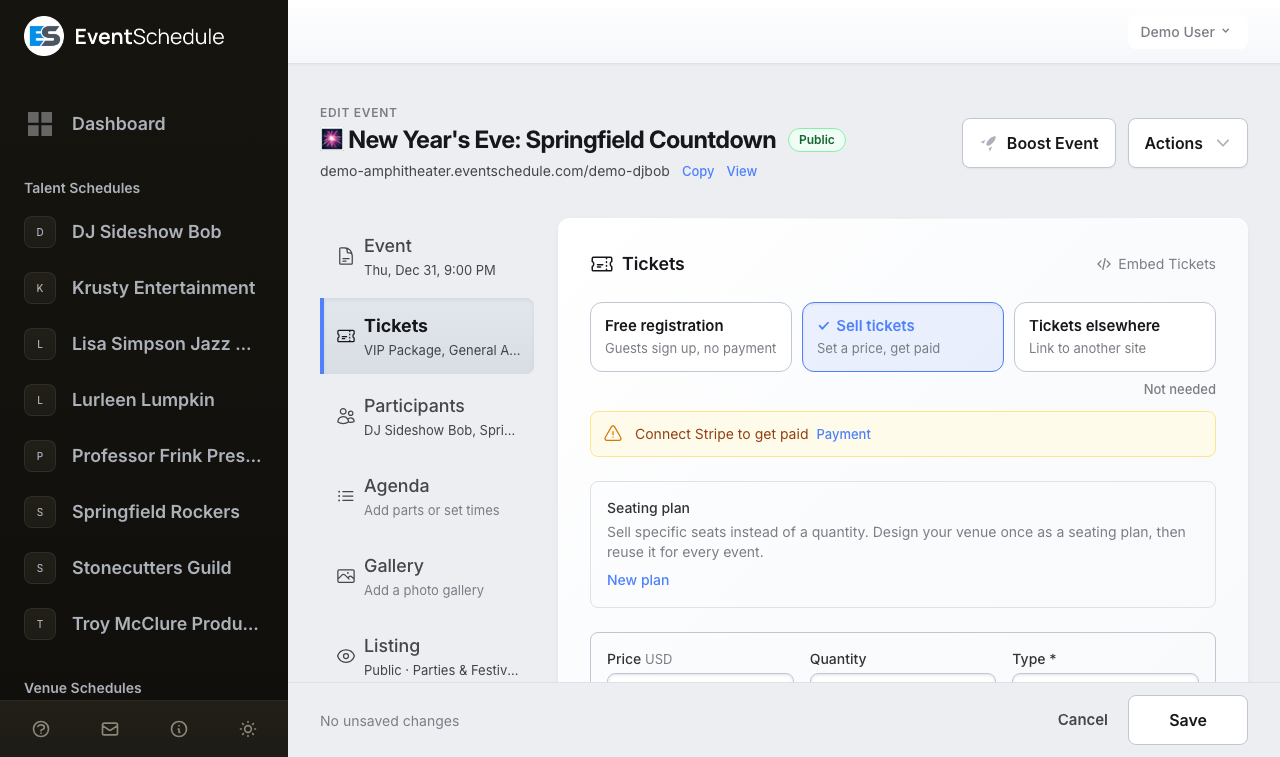
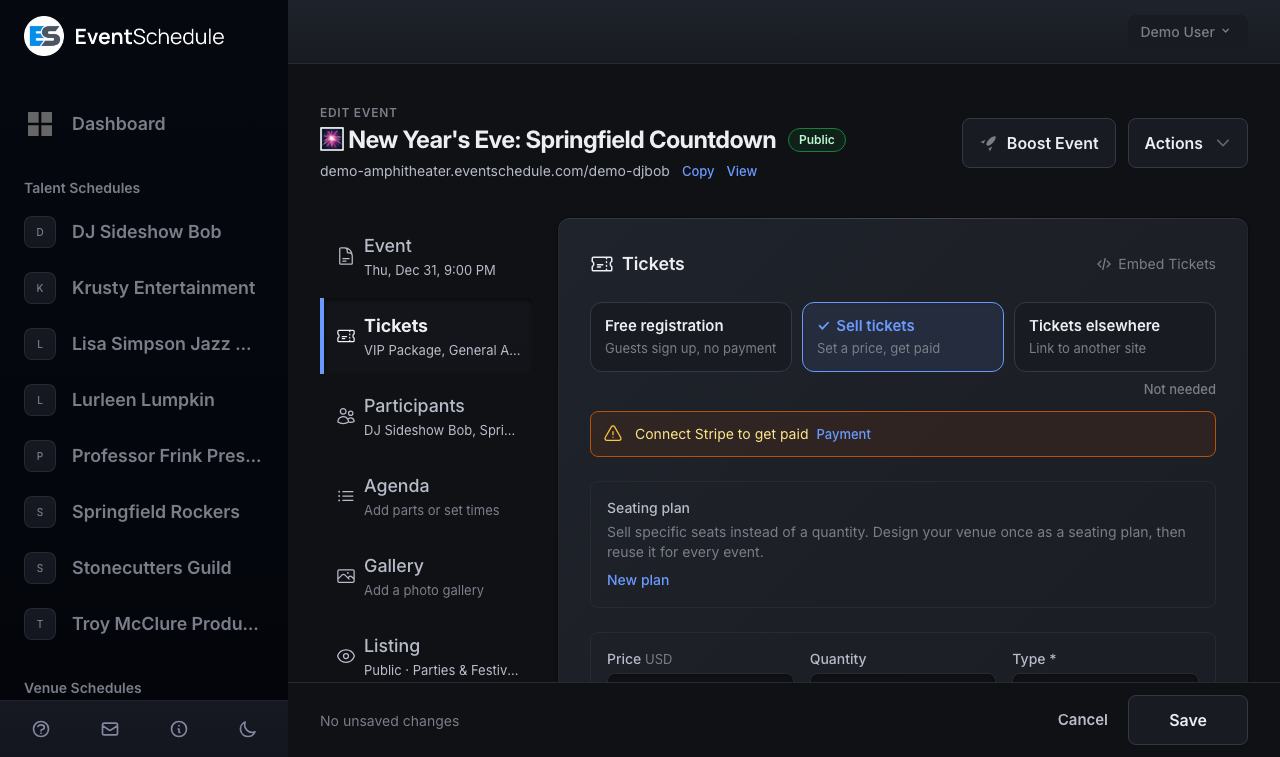
The tab opens on three tiles. Press the one that fits the event, and what it needs appears under it:
| Tile | What it does | Plan |
|---|---|---|
| Free registration | Guests sign up with a name and an email, with no payment. An optional limit caps the sign-ups per date. | Free |
| Sell tickets | Ticket types with prices, quantities and a checkout. A ticket type priced at zero is unlimited on every plan; charging for one needs Pro. | Free, Pro to charge |
| Tickets elsewhere | Links the event page to someone else's ticketing page. Event Schedule handles no money. | Free |
Not needed, under the tiles, switches ticketing off. It carries a tick while none of the three is on, and with nothing chosen the event has no ticketing at all. Pressing a tile that is already on does nothing: Not needed is the only way to switch off.
- If anyone has already bought or registered, leaving Sell tickets or Free registration first asks People have already signed up for this event. Change how sign-up works?
- The link, price and coupon typed under Tickets elsewhere stay with the event when you press another tile, and pressing the tile again shows them. Saving on Not needed clears them.
- Once the event has sold anything, the tab's title row shows the count (for example Sold: 42/120) and a Sales link that opens the Sales page filtered to this event's name.
If an event was saved with ticket types and you save it again on Free registration, Tickets elsewhere or Not needed, its ticket types and its add-ons are removed. The save bar says so before you press Save: Saving removes this event's ticket types. Orders already taken stay on the Sales page, and promo codes are kept.
Which plan you need
The line runs between giving a ticket away and charging for one. A ticket type with a price needs Pro or Enterprise, and a selfhosted install resolves to Enterprise, so paid selling is open there from the day you install it.
Everything that does not charge money is on every plan, with no monthly count to watch:
- Free registration and RSVP - unlimited, with an optional capacity limit per date
- Zero-price ticket types - a $0 tier sells without limit, and goes on selling on a Free schedule even where the event also carries paid tiers
- QR codes and scanning at the door - on every ticket, on every plan, with the live check-in dashboard the Pro part
- Appointment bookings - one free type, with its own allowance; charging for one needs Pro, like a priced ticket
On a Free schedule the paid rows of an event do not go on sale, whichever payment method they are set to: free registration and free ticket tiers keep working, and an event with nothing left to sell falls back to an Add to Calendar button rather than a dead buy button. The Tickets tab says so as soon as a price is typed, in a banner titled Selling paid tickets is a Pro feature. Subscribing opens the paid rows immediately, with no re-publishing and no change to the event.
Try selling free for 7 days
On eventschedule.com, that banner offers a 7-day selling trial: press Sell tickets free for 7 days, there or on the schedule's Plan tab. It needs no card and changes nothing about your plan: for seven days the schedule's priced tickets go on sale as if it were on Pro, so you can take your first real sales before deciding. It covers paid tickets only. Passes, installments, add-ons and the other Pro features stay on Pro.
- Only the schedule owner can start it, and each account gets one, on one schedule
- The Tickets tab and the Plan tab show the days left, and you get an email 3 days before it ends and on the last day
- When it ends, priced tickets stop selling until you subscribe. Everyone who bought keeps their ticket, check-in keeps working, and you can still refund any sale
What each plan includes
A selfhosted install resolves to Enterprise, so nothing in the right-hand column is held back there.
| Capability | Free | Pro and above |
|---|---|---|
| Free registration, with a limit per date and a waitlist on a full date | Unlimited | Unlimited |
| Ticket types priced at zero | Unlimited | Unlimited |
| Ticket types with a price | Not included, except during the selling trial | Unlimited |
| Platform fee on a sale | None | None |
| Any number of ticket types, with quantities, sales windows, volume discounts, a cap per order and questions asked per ticket type | Yes | Yes |
| A QR code on every ticket and scanning at the door | Yes | Yes |
| Refunds from the Sales page, full or partial | Only for sales taken while on Pro or on the selling trial | Yes |
| The interest list, the multi-event cart and the RSVP embed | Yes | Yes |
| Sale notification emails | The first paid sale of each event | Every sale |
| Live check-in dashboard | No | Yes |
| Promo codes, add-ons, gift cards | No | Yes |
| Passes, installments, individual tickets, custom checkout fields asked once per order | No | Yes |
| Ticket waitlist, CSV export, bulk import, ticket embed | No | Yes |
| Post-event feedback | No | Yes |
Free registration
The first tile. Guests sign up with a name and an email, with no payment and nothing to connect. It suits meetups, community events and open gatherings where you want to know who is coming.
- Edit your event and open the Tickets tab
- Press Free registration
- Optionally set a Registration Limit, the most sign-ups each date takes. Leave it blank for unlimited
- Optionally open the More options row under it to ask for a phone number, write Registration Notes or add custom fields. See Options
- Save the event
Visitors then see a Register button on your event page. After registering they receive a confirmation email with a QR code for check-in, and the registration appears in your Sales list, where its total reads Registered. Whatever you write in Registration Notes (directions, parking, a dress code) goes into that email and onto their ticket.
Registrants can cancel themselves from the ticket page linked in their email, which frees the spot again.
The Registration Limit is per date. On a recurring event each occurrence keeps its own count, so a limit of 30 means 30 people per date, not 30 across the series.
Registration never asks which plan you are on: the sign-ups, the limit, the waitlist on a full date and the RSVP embed widget are free on every plan. Two things in the More options row need Pro: custom fields, and Individual tickets, which the form locks below Pro.
If you have
webhooks
configured, registrations fire sale.created and cancellations fire sale.cancelled.
Sell tickets
The middle tile, for paid events and for free ones that need more than one ticket type. The ticket types appear under the tiles, and four rows under them hold everything else. Creating ticket types and giving tickets away work on the Free plan; charging for one needs Pro.
Setting up ticket sales
- Connect a payment method first, under Admin Panel → Settings → Payment Methods. Without one, buyers can only pay cash at the door. See Payment.
- Edit your event and open the Tickets tab
- Press Sell tickets
- Fill in the first ticket type (its fields are described below), then use + Add Type for each further one
- Open the Payment row and choose a payment method and currency
- Save the event
| Field | What to enter |
|---|---|
| Price | In the event's currency, which is shown beside the label and set in the Payment row. Leave it blank (or enter 0) for a free ticket. |
| Quantity | Leave it blank for unlimited. On a recurring event the count is per date. |
| Type | The name shown to buyers, such as General Admission or VIP. Optional on a single ticket type, required as soon as there is more than one. |
| Description | Optional. Choose + Add Description under the ticket type; it supports Markdown. |
A Buy Tickets button then appears on your event page, or Get Tickets when every type is free. Both labels can be reworded under Customize → Custom Labels Pro - Requires the Pro plan on the schedule's edit page.
The four rows
Under the ticket types, each row says what it holds on one line, or None while it holds nothing. Press a row to open it in place; one is open at a time.
| Row | What it holds | Plan |
|---|---|---|
| Payment | The payment method, the currency, payment instructions for cash, and monthly installments on Stripe. Its line reads, for example, Stripe · USD. | Free; installments are Pro |
| Options | Checkout switches, custom fields, ticket notes and a terms link. | Free; two settings are Pro |
| Promo Codes | Discount codes. The line lists the codes. | Pro |
| Add-ons | Optional extras buyers can attach to an order. The line lists their names. | Pro |
The Promo Codes and Add-ons rows still open on the Free plan: they show what the feature does and an upgrade panel in place of the editor. On a Venue schedule with allocated seating, a Seating plan selector sits above the ticket types.
At the bottom of the Tickets tab, turn on Save as default before saving. New events on this schedule then start with the same ticket types, payment method, currency, options, promo codes and add-ons.
Ticket Types
A ticket type is a name, a price and a quantity. Add as many as the event needs:
| Example | Use case |
|---|---|
| General Admission | Standard entry |
| VIP | A higher price, with the extras spelled out in the description |
| Early Bird | A cheaper type with a small quantity, or a sales end time |
| Student / Senior | A concession price for a specific group |
| Group of 4 | A volume discount that unlocks at four, rather than a separate type |
| Season Pass | A pass reused across the whole run Pro - Requires the Pro plan |
A ticket type sells by the number, not by the seat: the buyer takes three, not seats 12, 13 and 14. To sell the seats themselves, see Allocated Seating. There is no pay-what-you-wish pricing either: every ticket type has one fixed price, and a blank price means free.
Ticket settings
A ticket type carries more than its Price, Quantity and Type: a line of links under those fields adds one more setting each. In the form's order:
| Setting | What it does |
|---|---|
| Quantity | How many of this type exist. Blank means unlimited. On a recurring event the count is tracked per date, so a quantity of 50 is 50 per occurrence. |
| Custom Fields (Per Ticket) | Questions that belong to one ticket type, such as a meal choice on the dinner ticket. A buyer is asked them once when their order includes that type, or once for each guest when Individual tickets and Collect ticket fields per guest are on. Added with + Add Field, up to 10 per ticket type. |
| Volume Discount | A percentage or fixed amount off once a buyer takes a minimum quantity. Added with + Add Discount. |
| Max Per Order | A cap on how many of this type one order may hold. Added with + Add Limit. |
| Description | Text shown to buyers under the ticket type. Added with + Add Description; supports Markdown. |
| Pass or subscription Pro - Requires the Pro plan | The switch This is a pass or subscription (multi-use) turns the type into a multi-use pass. See Subscriptions & Passes. |
| Ticket sales start | One absolute date and time at which this type goes on sale. Appears once Set when sales start and end is on, in the Options row. |
| Ticket sales end | One absolute date and time at which this type stops selling. Appears with the start. |
Everything in this table works on the Free plan except the pass switch, which is locked below Pro. A ticket type is removed with Remove, which appears once the event has more than one.
A sales start or end is a single date and time, not "two hours before the event". On a recurring event that one instant governs the whole series, so it is best used for a one-off pre-sale window rather than a per-occurrence cutoff. To stop selling at each occurrence automatically, leave the dates blank: sales close at the start time by default, or at the event's end if Allow sales after event starts is on.
Individual quantities or one combined pool
When an event has two or more ticket types and they all carry the same quantity, a choice appears under the list:
- Individual Quantities - each ticket type is counted separately, so the capacity is the sum. This is the default.
- Combined Total - all types draw on a single pool of that size. Use it when 100 means 100 people through the door however they split between General and VIP.
The choice is hidden when the quantities differ, when any quantity is blank, when there is only one seat-selling type, or when the event uses a seating plan. Passes are ignored in that judgement, since a pass does not define seat capacity.
Volume discount
Choose + Add Discount on a ticket type to reward buying in bulk. Set the Minimum quantity that unlocks it (two or more), then the Type (Percentage or Fixed amount) and the Discount value. A group of four booking together gets the discount; a single buyer does not.
The discount comes off the line for that ticket type, not the whole order, and never off add-ons: four discounted tickets plus a parking add-on means the four tickets are discounted and the parking is not. A promo code stacks on top. The volume discount is taken off first and the code is then worked out on what is left, so the two never double-count the same money.
Max per order
Choose + Add Limit to cap how many of one ticket type a single buyer can take in one order. This is what keeps a two-for-one early bird from being bought out by the first person through the door, and it is separate from the ticket type's total Quantity: the quantity is how many exist, the limit is how many one order may hold. Add-ons take the same limit.
Passes & subscriptions Pro - Requires the Pro plan
Turn on This is a pass or subscription (multi-use) to make a ticket type one purchase a guest reuses across many events. Four types are offered: a visit pass with a fixed number of visits, an unlimited membership, a festival pass good once per event, and - on a recurring event only - a season pass.
Advance booking is off by default, which makes a pass scan-at-the-door only. Turn on Let holders book seats in advance first, and the per-date seat cap and the cancellation-deadline settings appear with it. Passes also keep one shared inventory bucket rather than a count per date. See Subscriptions & Passes for the full guide.
Free Tickets
A free event that needs more than one ticket type (General and VIP, say), a quantity per type or a cap per order uses Sell tickets with the price left blank:
- Press Sell tickets on the Tickets tab
- Create a ticket type
- Leave the Price blank, or enter
0 - Set a Quantity if you have capacity constraints
- Save the event
Visitors take a free ticket through the same checkout, with nothing to pay, and the button on the event page reads Get Tickets. They receive a confirmation email with a QR code, and you have a list of who is coming. Add Ticket Notes (in the Options row) to include directions or other instructions in that email. A holder of a free ticket can cancel it themselves from their ticket page, which releases the spot; paid orders are cancelled by you from the Sales page.
A ticket type priced at zero sells on every plan, Free included. On a Free schedule whose event mixes a free tier with paid ones, the free tier stays on sale and only the paid rows sit out until you subscribe.
The three tiles are one choice, so an event cannot have Free registration and ticket types at once. For a plain headcount, Free registration is the shorter route, and its per-date limit and waitlist are free on every plan. For free and paid options side by side, use Sell tickets with a zero-price type beside the paid ones.
Tickets elsewhere
The third tile. Use it when tickets are sold somewhere else (Eventbrite, Ticketmaster, a box office of your own). Event Schedule handles no money here: the event page links out. It is available on every plan.
| Field | What it does |
|---|---|
| Registration URL | The external ticketing page. It becomes a View Event button on your event page, opening in a new tab. |
| Price | A display-only price, with its currency beside it. Leave it blank if you do not know it; enter 0 and the event page reads "Free entry". It only shows once a Registration URL is set. |
| Coupon Code | Shown under the price so attendees can use it on the external platform. Event Schedule never validates it. |
| Discount | What the coupon is worth, as a percentage or an amount in the event's currency. Shown beside the code, so the event page can read Coupon Code: SAVE20 • 15% off rather than sending guests to the external site to find out. Leave it blank if the coupon has no fixed value. |
Buying Several Events at Once
A visitor browsing your schedule can collect tickets to more than one event and pay for the lot in a single checkout. On any event with tickets they choose their quantities and select Add to cart instead of Checkout, then carry on browsing. A cart button appears in the corner with a running count; opening it lists everything gathered so far with a running total, and one Checkout pays for all of it. A gift card can be applied to the whole order.
Afterwards the buyer lands on a page listing every event they bought, each linking to its own ticket. There is no combined ticket: every event is scanned with its own code, because each door only knows about its own event. The confirmation emails arrive one per event for the same reason, and where wallet passes are enabled each live event on that page gets its own Add to Google Wallet button.
What can share a cart
- Events that agree on three things: the same owner, the same ticket currency and the same payment method. A single payment cannot be split across payment accounts, currencies or payment rails, and the cart says so when an event cannot join.
- Stripe, PayPal and cash. Invoice Ninja, Payfast and a payment link are not supported, since each sends the buyer to a page built for one event.
- Not events using individual tickets. They keep their own checkout: the cart collects one name and email for the whole purchase and has nowhere to put a guest list.
- Two dates of one recurring event count as two entries, so a visitor can take Friday and Saturday in one order.
Nothing about the cart is trusted at checkout. Prices shown in the panel are for orientation: every ticket is re-read and re-priced from your event when the buyer checks out. If any part of the order can no longer be filled, the whole order is refused rather than charged in part, and the cart names the event so the buyer can remove it and continue.
Payment
Before you can take money online you need to connect a payment method. Payment methods belong to your account, not to a single event: you connect them once under Admin Panel → Settings → Payment Methods, where each has a row that says whether it is connected, and you pick one per event in the event's Payment row. Six methods are offered, listed here in the order the event form shows them:
| Method | How the buyer pays | Refund on the Sales page | Multi-event cart |
|---|---|---|---|
| Cash | At the door. The order is created unpaid and you mark it paid. Always available, with nothing connected. | Mark as Refunded | Yes |
| Stripe | By card. The money goes straight to your own Stripe account. The only method that offers monthly installments. | Refund Ticket, in full or in part | Yes |
| Invoice Ninja | Through an invoice or a payment link in your own Invoice Ninja company. | Mark as Refunded | No |
| Payment Link | On a link you already use, such as a Venmo, Cash App or bank transfer page. Event Schedule never hears from that provider, so any refund happens there too. | Mark as Refunded | No |
| Payfast | By card, Instant EFT, Capitec Pay and the other South African methods. Offered on events priced in rand (ZAR) only. | Mark as Refunded | No |
| PayPal | From a PayPal balance or by card. The ticket is issued as soon as the buyer returns. Offered on events priced in a currency PayPal settles. | Refund Ticket, in full or in part | Yes |
Connecting each method is also covered, row by row, in Account Settings.
The Payment row of an event
With Sell tickets on, the Payment row is the first of the four under the ticket types. It holds:
| Field | What it does |
|---|---|
| Payment Method | Cash, plus every method you have connected that can settle the event's currency. Manage payment methods under it opens Settings in a new tab. A method the event was saved with that can no longer be used stays in the list marked no longer available until you pick another. |
| Currency | The currency of every price on the event. It locks once the event has taken money, with a note saying why. See why it locks. |
| Payment Instructions | Shown for Cash only. Guests see the text when they check out. |
| Let buyers pay in monthly installments Pro - Requires the Pro plan | Shown for Stripe only. See Installment Payments. |
The row warns you when a priced ticket has nowhere to send its money, and the same warning appears under the three tiles with a Payment link that opens the row:
- Connect Stripe to get paid when no payment method is connected. Opening the row shows a panel with a Connect Stripe button, which opens Settings in a new tab; reload the event page once you are connected.
- No payment method for EUR (with your event's currency) when you have a method connected but none that can settle that currency. Change the event's currency or connect one that can.
An event still saves and publishes in either state, and buyers can pay cash at the door, so connect a method before you announce a paid event.
Connecting Stripe
- Go to Admin Panel → Settings → Payment Methods and open the Stripe row
- Click Connect Stripe
- Complete the Stripe onboarding process
- Once connected, Stripe appears as a payment method in the event's Payment row
Stripe verifies a new account asynchronously, so there is a short window after onboarding where the account is linked but not yet ready to charge. The Stripe row in Settings reads Setup not finished and the event's Payment row shows a "verifying" notice during that time. If you finish onboarding in another tab, reload the event page to pick up the change.
A selfhosted install has no Connect button: Stripe is set up once for the whole install by its administrator, and the Stripe row says whether it is configured. See the Payments guide.
Invoice Ninja Modes
We recommend using Stripe with Invoice Ninja for the best experience. Invoice Ninja provides additional features like invoicing, payment reminders, and financial reporting.
Once Invoice Ninja is connected, its row under Settings → Payment Methods offers a Checkout mode with two choices, Invoice and Payment link. Connecting it is covered in Account Settings.
Invoice
Ticket selection and promo codes are handled in Event Schedule. An invoice is created in Invoice Ninja for each purchase. Supports multiple promo codes and per-ticket promo targeting. Buyers can optionally create an Event Schedule account during checkout.
Payment link
Buyers select tickets and enter promo codes on the Invoice Ninja purchase page. Invoices are grouped in Invoice Ninja, making bulk management easier. Supports one promo code per event (applied to all tickets). Buyers can optionally create an Event Schedule account during checkout. See the Invoice Ninja payment link docs for more details.
| Invoice | Payment link | |
|---|---|---|
| Ticket selection | Event Schedule | Invoice Ninja |
| Promo code entry | Event Schedule | Invoice Ninja |
| Multiple promo codes | Yes | One per event |
| Per-ticket promo targeting | Yes | No |
| Invoices grouped in Invoice Ninja | No | Yes |
| Account creation | Yes | Yes |
Start with Invoice mode for maximum flexibility. Switch to Payment link mode if you want invoices grouped together in Invoice Ninja.
Connecting Payfast
Payfast is a South African gateway, useful where Stripe is not available. It settles in rand (ZAR) only, so Payfast appears as an option only on events priced in ZAR. If an event is later switched to another currency, or its method is set through the API, checkout refuses rather than charging the wrong currency. See When a Payfast checkout is refused.
- In Payfast, open Settings and note your Merchant ID and Merchant Key
- Set a passphrase in the same Payfast screen if you have not already
- Go to Admin Panel → Settings → Payment Methods and open the Payfast row
- Enter all three values and press Connect
- Payfast now appears in the Payment row of any event priced in ZAR
The passphrase is required rather than optional. It is what lets us verify that a payment notification genuinely came from Payfast, so without one there is no way to tell a real payment from a forged one. Setting it on your Payfast account also makes Payfast reject unsigned checkout requests, which protects your merchant account beyond this integration.
On a selfhosted site, the administrator can configure one Payfast account for everyone. If the Payfast row says Provided by this installation, skip the steps above: Payfast is already available on your ZAR events and payments settle into the site's account. Entering your own details there still works and takes precedence, so you are paid into your own account instead; disconnect them to go back. Selfhost administrators: see the Payments guide.
By default Payfast shows buyers every method your account supports. To send them straight to one instead, tick exactly one entry under Payment methods. Ticking several, or none, leaves the choice to Payfast.
Testing with the sandbox
Turn on Test mode to send payments to Payfast's sandbox instead of taking real money. Payfast's public sandbox credentials are merchant ID 10000100 and merchant key 46f0cd694581a. You still need a passphrase: set one in your
Payfast sandbox account
and enter it here alongside them, because all three are required whether or not test mode is on.
While test mode is on, the payment page shows buyers a clear test-mode notice, and the payment method appears with a test-mode label on the event form. Turn test mode off before you sell real tickets.
Payfast cannot reach a notification URL on localhost, so a sandbox purchase only completes end to end on a publicly reachable install. Selfhosted installs need no extra configuration for the notification to be accepted: it is authenticated by its signature and by asking Payfast to confirm it, not by the address it arrives from, so running behind Cloudflare, a reverse proxy or Docker changes nothing.
When a Payfast checkout is refused
Two orders never reach Payfast, because it would reject them on its own page after the seats were already held: an order under R5.00, Payfast's minimum, and any event whose currency is not ZAR. In both cases the buyer is returned to the ticket page with a message, and the seats go straight back on sale. If you see that on your own event, check the event's Currency in the Payment row: an event can keep Payfast selected after its currency is changed, and it then shows in the dropdown marked no longer available until you pick something else.
Refunds
Refunds are issued from your own Payfast dashboard. On a Payfast sale the Sales page offers Mark as Refunded, which records the refund without moving money. Stripe and PayPal are the exceptions: those sales are refunded from the Sales page and the money goes back automatically. See Refunds.
What Payfast does not do
A Payfast event cannot be combined with others in the multi-event cart, since a Payfast payment covers one event, and it cannot offer monthly installments, which need a card the gateway can charge again later. Gift cards cannot be sold through Payfast either. Everything else works normally: promo codes, add-ons, volume discounts, per-attendee tickets.
Connecting PayPal
PayPal is worth connecting where Stripe is not available, or where your buyers would rather pay from a PayPal balance than type a card into a page they have not seen before. Like Stripe, it confirms the payment and issues the ticket with no manual step.
- Sign in at developer.paypal.com and open Apps & Credentials
- Stay on the Live tab (the Sandbox tab issues a different pair, for testing), and create an app if you have not already
- Copy its Client ID and Secret
- Go to Admin Panel → Settings → Payment Methods and open the PayPal row
- Paste both and press Connect. We check them with PayPal before storing them, so a typo is caught here rather than by a buyer
- PayPal now appears in the Payment row of any event priced in a currency it settles
PayPal settles a fixed list of currencies, and an event priced in anything else will not offer it. Three currencies PayPal does support (the Hungarian forint, the Japanese yen and the New Taiwan dollar) are deliberately left out. PayPal will not accept an amount with decimals in any of them, and a percentage discount here can produce one, so an event priced that way would have money taken and the ticket withheld. Rather than let that happen, PayPal is not offered for those three at all.
Payments that PayPal holds for review are the one case where a ticket is not issued at once. The sale stays unpaid, its seats stay held rather than expiring, and the buyer is told the payment is being reviewed rather than being asked to pay again. That holds on every event of the order, so nobody can accidentally pay twice for the same basket. We also ask PayPal not to accept funding that takes days to settle, such as an eCheck, so this should be a short wait rather than an open-ended one.
Finishing a reviewed payment (issuing the ticket if PayPal clears it, or letting the buyer try again if PayPal declines it) depends on PayPal notifying us, which needs a webhook. We register one for you when you connect your own PayPal account, so there is nothing to do. If your site provides one PayPal account for everyone, that registration does not happen and the administrator has to add a listener themselves; without it a reviewed payment on such a site stays unresolved. Selfhost administrators: see the Payments guide.
On a selfhosted site, the administrator can configure one PayPal account for everyone, exactly as with Payfast. If the PayPal row says Provided by this installation, skip the steps above. Entering your own details still takes precedence, so you are paid into your own account instead; disconnect them to go back. Selfhost administrators: see the Payments guide.
Testing with the sandbox
Turn on Test mode to use PayPal's sandbox instead of taking real money. Unlike a single on/off flag, the sandbox is a separate environment with its own credentials: open Apps & Credentials at developer.paypal.com, switch to the Sandbox tab, and paste that app's Client ID and Secret. Your live pair will not work in test mode and the sandbox pair will not work outside it, so the tab you copied from has to match the toggle.
You also need somebody to play the buyer. PayPal's sandbox creates a personal test account alongside your business one: sign in with that at the checkout. While test mode is on, the payment method reads PayPal (Test mode) on the event form and the event's Payment row shows a warning, because a test ticket otherwise looks exactly like a real one. Turn it off before you sell.
One thing PayPal makes easier than Payfast: the whole purchase works on a laptop. A PayPal payment is confirmed by a call we make out to PayPal rather than by a notification PayPal has to reach us with, so a sandbox purchase completes end to end on localhost with no tunnel and no public hostname.
When a PayPal checkout is refused
Some orders never reach PayPal, because it would reject them on its own page after the seats were already held. These are an event priced in a currency PayPal does not settle (or in one of the three left out above) and an order PayPal declines to create. In both cases the buyer is returned to the ticket page with a message and the seats go straight back on sale, so nothing is lost.
If you see that on your own event, check the event's Currency in the Payment row: an event can keep PayPal selected after its currency is changed, and it then shows in the dropdown marked no longer available until you pick something else. The same happens if you disconnect PayPal while an event still names it. There the buyer is returned to the ticket page, so an event left that way is worth catching before a real buyer finds it.
Two more outcomes are worth recognising. A buyer who approves the payment, closes the tab and comes back much later may find the reservation has already expired; nothing is charged in that case. And if PayPal reports a total that does not match the order, the sale is held as an amount mismatch for you to look at rather than being completed: the money is with PayPal and the ticket is not issued, so it needs a person.
Refunds
PayPal is one of only two methods (Stripe is the other) where Refund Ticket on the Sales page sends the money back for you. You can return the whole amount or part of it, and the sale's PayPal reference is shown there as a link into your PayPal activity. Refund from the Sales page rather than from PayPal itself: a refund made in your PayPal account is not reported back, so the sale stays paid and its ticket keeps scanning. See Refunds for partial refunds and for what happens when a refund cannot be confirmed.
What PayPal does not do
PayPal cannot offer monthly installments, which need a card the gateway can charge again later, and gift cards cannot be sold through it. It is also not offered on events priced in Hungarian forints, Japanese yen or New Taiwan dollars, or on appointment bookings. Everything else works normally (promo codes, add-ons, volume discounts, per-attendee tickets), and unlike Payfast a PayPal event can be combined with others in the multi-event cart, because the whole basket is taken as one payment.
Installment Payments Pro - Requires the Pro plan
Let buyers spread the cost of an expensive ticket over monthly payments. Useful for courses, retreats and multi-day events announced well in advance: a buyer pays the first installment at checkout and gets their ticket straight away, and the rest is charged automatically to the same card each month.
Setting it up
Open your event, go to the Tickets tab, open the Payment row, and turn on Let buyers pay in monthly installments. The option appears only when the event is paid through Stripe, because Stripe is the only payment method that can charge a saved card automatically.
| Setting | What it does |
|---|---|
| Number of payments | How many monthly payments the order total is split into: 2, 3, 4, 5, 6, 8, 10 or 12. The first is taken at checkout. Amounts that do not divide evenly put the odd cent on the first payment, so 1,000 over three is 333.34 then 333.33 twice. |
| Last payment due before the event | How much runway you want to chase a failed payment before the doors open, in days: at least 7, and we recommend at least 14. The editor shows you live whether the schedule you have chosen actually finishes in time, and warns you if it would not. |
| Only offer installments on orders over | Optional. Keeps the option off small orders, so you can offer it on a full course but not a single tasting. Leave it blank to offer it on every order. |
Every individual payment has to clear Stripe's minimum charge of roughly $0.50, so splitting a small order too many ways withdraws the option. A promo code or gift card applied at checkout can take an order under that line, or under your own minimum, and the buyer will not be offered monthly payments. Installments are also not offered for a basket spanning several events, or for one containing a pass.
What the buyer sees
At checkout the buyer chooses between paying in full and paying monthly. Paying in full is selected by default. If they choose monthly they see every payment date and amount before committing, confirm that they authorise the future charges, and are charged only the first payment. There is no interest and no fee: the total is the same either way.
Their ticket is valid from the first payment. Two days before each following payment we email them a reminder naming the card and the amount. Every one of those emails links to their own payment plan page, where they can pay early, clear the whole balance or change their card. That page is the only place their saved card is shown: the ticket page is what the QR code opens, and door staff scan it.
Tracking payments
The Installments tab on your Sales page opens on the figures for each currency (plans, collected, outstanding, and overdue when any are) and an Expected by month forecast. Under them, one row per buyer shows how far through their plan they are, the card on file, what has been collected and what is outstanding, when the next payment is due and the plan's status. Overdue plans sort to the top, and once a plan has a payment reference its row opens to list every payment with its date, amount, status and reference.
You get one daily summary of the payments due in the next couple of days, rather than an email per buyer, and an immediate email whenever a payment fails.
Sales totals count the full ticket price at the moment of purchase, because the ticket is issued then. So your Sales and Analytics figures include money you have not collected yet while plans are still running. The Installments tab is the one that shows what has genuinely been taken.
When a payment fails
If a card is declined we retry it three more times over the following nine days, emailing the buyer each time and telling them plainly that their ticket is still valid. If their bank asks them to confirm the payment (common in Europe) we send a different email asking them to approve it, and do not count it as a decline.
If the balance is still unpaid after that, the ticket goes on hold: it stops scanning at the door until they pay, and paying makes it valid again immediately. A week before the event everyone with an outstanding balance gets a final notice, and you get a list of them, so nobody is surprised at the door.
Running out of retries is the common route to a hold, but not the only one. A plan also goes on hold if a bank authentication request goes unanswered for a week, or if your own Stripe connection is disconnected so nothing can be collected at all. That second one is worth knowing: the buyer has done nothing wrong and cannot fix it, so you are the one we email, and reconnecting Stripe is what restarts collection. For the ordinary routes, the buyer replacing or re-confirming their card lifts the hold and puts the remaining payments back on schedule.
One state deliberately waits for a person: if a charge is interrupted and we cannot tell whether the money moved, we stop rather than retry, because retrying a payment that may already have succeeded is how a buyer gets charged twice. The same applies to a payment that arrives but does not match anything we can apply it to. Both show on the Installments tab as needing your attention, with the Stripe reference to check against your dashboard, and neither is resolved by the buyer changing their card.
Scanning a ticket that is on hold shows your door staff an amber Overdue balance screen with the attendee's name, the amount outstanding and how much of the total has been paid, rather than a red rejection. The scan does not check them in, so taking payment or letting the guest in is your call.
Cancelling or refunding an order, cancelling the event, or deleting the schedule all stop the remaining payments immediately. A payment plan can only be refunded in full: Refund Ticket returns each payment that was already collected, one at a time, and the Installments tab still lists every payment reference so you can check them against your own Stripe dashboard.
Installments are available on every schedule, and payments settle through your own Stripe keys rather than a connected account. They do depend on the scheduler: the first payment is taken at checkout either way, but nothing charges the second and later payments unless schedule:run is running on a cron. See selfhosting for setting that up.
Options
The second row of the Tickets tab holds the checkout settings that are not about money. On a Free registration event it is titled More options and holds only the phone number, Individual tickets, the custom fields and the notes. The row reads None until something in it is on, then names what is. Top to bottom:
| Setting | What it does | Plan |
|---|---|---|
| Ask for phone number | Adds a phone field to the checkout form. Two tick boxes appear once it is on: Required and Country code. The number is stored on the sale, shown in the Sales list and included in the CSV export. | Free |
| Individual tickets | Each attendee gets their own confirmation email and QR code instead of one per order. A second switch under it, Collect ticket fields per guest, then asks each ticket type's custom fields once per attendee. | Pro |
| Allow sales after event starts | Keeps selling until the event ends (start time plus duration) instead of stopping at the start time. | Free |
| Set when sales start and end | Reveals the sales start and end fields on each ticket type, described under Ticket Types. | Free |
| Show unavailable tickets | Displays sold out and expired ticket types to visitors in a disabled state, so they can see what was offered. | Free |
| Expire unpaid tickets | Releases unpaid reservations after the number of hours you enter, returning them to stock. Only appears when at least one ticket type has both a price and a limited quantity, since there is nothing to release otherwise. | Free |
| Custom Fields (Per Order) | Your own questions, asked once for the whole order. See below. | Pro |
| Ticket Notes | Text included in the confirmation email and printed on the attendee's ticket (directions, parking, dress code, what to bring). Supports template variables such as {event_name} and {venue}. On a Free registration event the same field is labelled Registration Notes. |
Free |
| Terms URL | A link to your own terms and conditions, printed on every ticket under Terms & Conditions. Leave it blank and the ticket links the installation's own terms of service instead. Buyers are not asked to accept it at checkout. | Free |
The four switches from Allow sales after event starts to Expire unpaid tickets, and the Terms URL, belong to ticket sales and are not shown on a Free registration event. The form locks Individual tickets below Pro, with a See what Pro adds link under it.
Custom Checkout Fields Pro - Requires the Pro plan
Collect additional information from attendees during checkout: dietary requirements, a T-shirt size, a company name, an emergency contact, how they heard about the event. Fields added here, under Custom Fields (Per Order), are asked once for the whole order, and an event takes up to 10 of them.
- Edit your event
- On the Tickets tab, open the Options row
- Under Custom Fields (Per Order), choose + Add Field
- Give it a Field Name and a Type: Text, Multi-line Text, Yes/No, Date, Dropdown or Multi-select. The last two take a list of Options
- Tick Required if buyers must answer, and drag the fields into the order you want them asked
- Save the event
Responses are stored with each sale, shown when you open the sale's row on the Sales page, and included in the CSV export as one column per field.
To ask something of one ticket type only, add the field on the ticket type itself: choose + Add Field under it. Those fields are asked once per order that includes the type, each ticket type takes up to 10 of them, and they work on every plan. To have every attendee answer individually (a meal choice, a name for a badge), turn on Individual tickets and Collect ticket fields per guest above.
Promo Codes Pro - Requires the Pro plan
Offer discounts to attendees with promo codes. Buyers enter a code during checkout to receive a discount on their purchase. On the Free plan the row opens on a description of the feature and an upgrade panel.
Adding a Promo Code
- Edit your event
- On the Tickets tab, open the Promo Codes row
- Click + Add Promo Code
- Fill in the code, the discount type and its value (the fields are below)
- Save the event
Promo Code Settings
| Field | What it does |
|---|---|
| Promo Code | Required. What the buyer types, such as EARLYBIRD or VIP50. Up to 50 characters, shown in capitals. |
| Discount Type | Percentage (20% off) or Fixed amount (a flat amount off, in the event's currency). |
| Discount Value | Required. A percentage is capped at 100, and a fixed amount can never discount more than the eligible subtotal. |
| Max Uses | How many times the code can be used. Leave it blank for unlimited. Once a code has been used, Times Used shows the count beside the Active switch. |
| Expires At | A date and time when the code stops working. |
| Active | A switch that turns the code off without deleting it. |
| Applies To | Shown when the event has more than one ticket type: All Tickets, or Specific Tickets to tick the types it covers. |
Under each promo code, Link that applies this code shows a shareable URL that pre-fills the code at checkout, with a copy button beside it. Remove deletes the code when the event is saved.
A promo code never discounts add-ons, and it is worked out after any volume discount on the same line, so the two never double-count the same money.
With Invoice Ninja in Payment link mode, an event takes one promo code and it applies to every ticket type: the Applies To choice and + Add Promo Code are hidden once it has one. Use Invoice mode for several codes with per-ticket targeting.
Checkout also accepts a gift card code, which spends a prepaid balance instead of applying a discount. A buyer can use a promo code and a gift card on the same order. See Gift Cards.
Add-ons Pro - Requires the Pro plan
Add-ons are optional purchasable items that customers can include with their ticket order, such as parking passes, merchandise, or meal packages. On the Free plan the row opens on a description of the feature and an upgrade panel.
Creating an Add-on
- Edit your event
- On the Tickets tab, open the Add-ons row
- Click + Add add-on
- Fill in the add-on details and save the event
Add-on Fields
- Name (required): The name displayed to customers (e.g., "Parking Pass", "Event T-Shirt")
- Price: The price per unit (leave blank or set to 0 for free add-ons)
- Quantity: The total number available (leave blank for unlimited)
- Description: An optional description with additional details
- URL: An optional link, for a size chart or a product page
- Image: An optional picture of the item
- + Add Limit: Caps how many of this add-on one order may hold, the same as Max Per Order on a ticket type
How Add-ons Work
- Add-ons appear in the checkout form only after the customer selects at least one ticket
- Customers choose a quantity for each add-on (or leave it at 0 to skip)
- Add-on totals are added to the ticket total at checkout
- Promo codes and volume discounts do not apply to add-ons
- Add-ons are tracked separately in sales records, the CSV export and confirmation emails
- Add-ons are a Pro feature, as are the priced tickets they ride alongside
- Saving the event with Sell tickets switched off removes its add-ons, and the save bar says so first: Saving removes this event's add-ons.
Allocated Seating Enterprise - Requires the Enterprise plan
Everything above sells by the number. If your venue has rows, you can sell the seats themselves instead: draw the room once as a seating plan, attach it to an event, and buyers pick where they sit. Your box office gets the same map to hold seats back, take a booking over the phone, move somebody or release a single seat.
It has a guide of its own: Allocated Seating.
Managing Sales
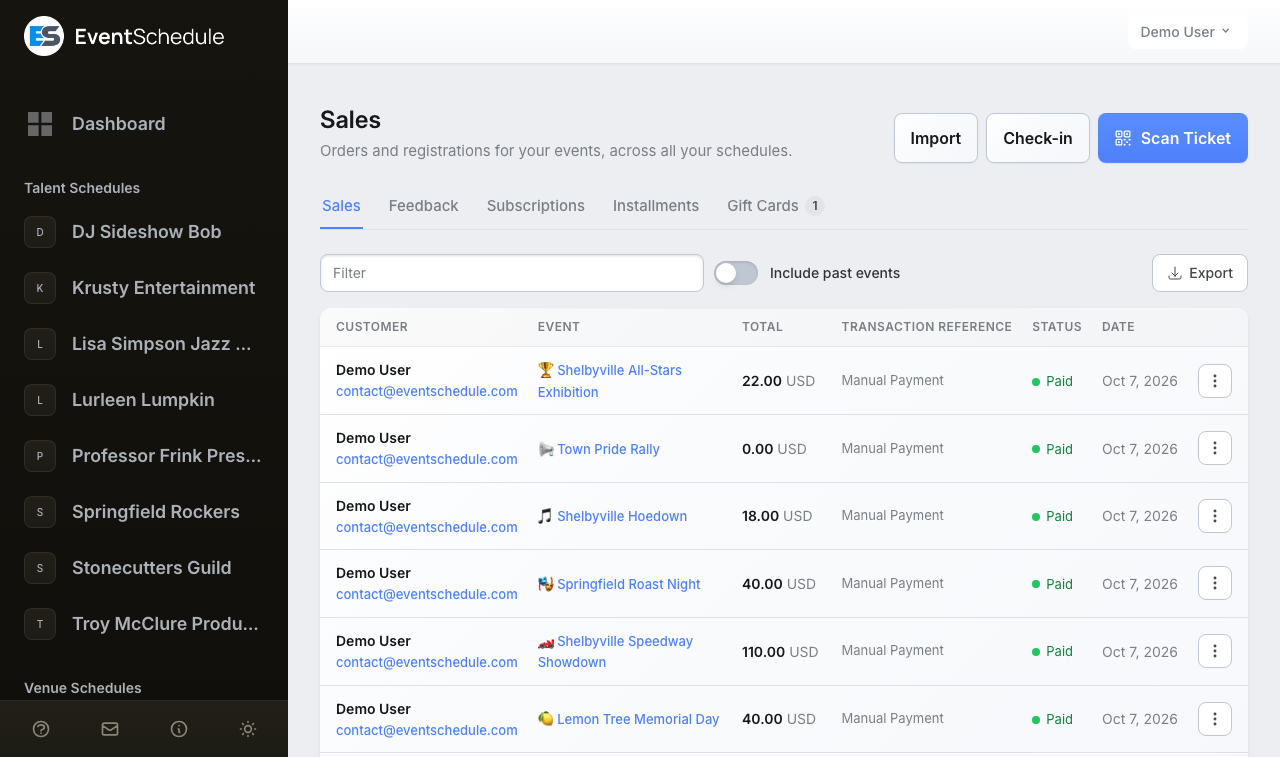
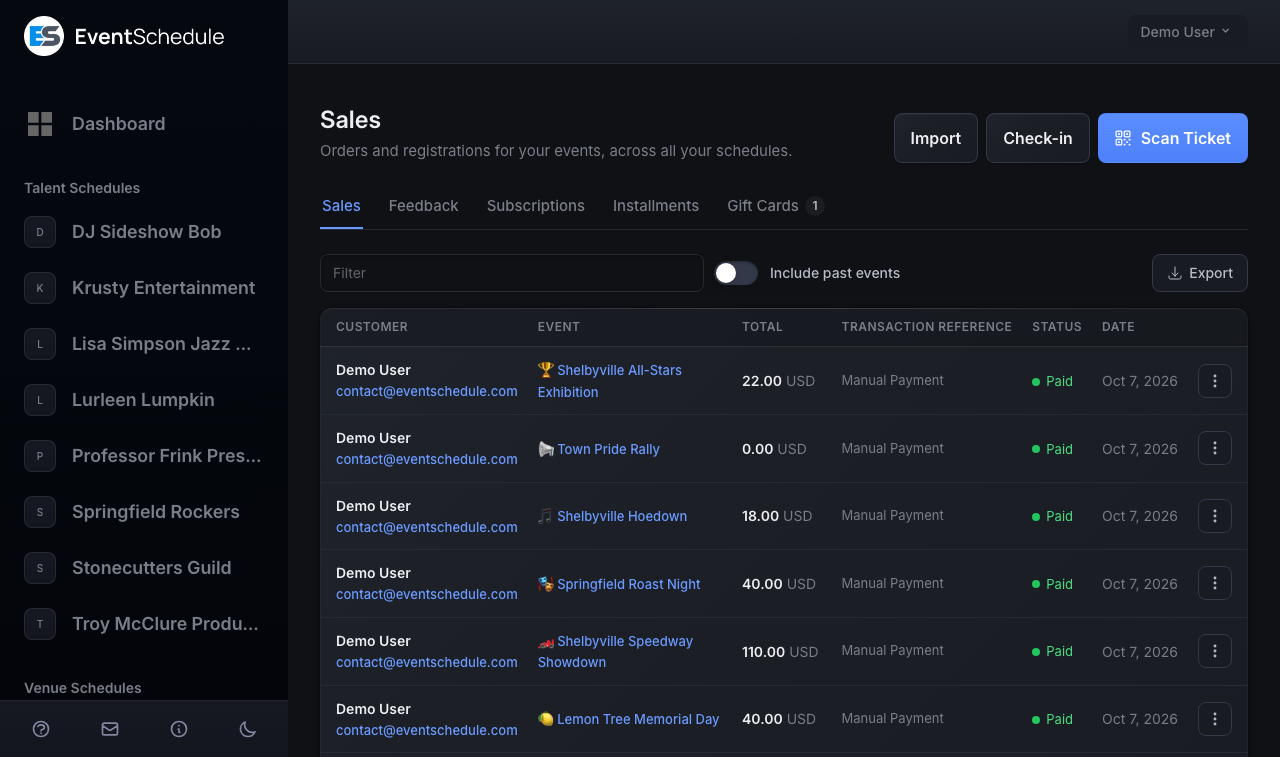
Open Admin Panel → Sales. The page lists the orders and registrations for every event you manage, across all your schedules, newest first and 50 to a page. (The sidebar's Tickets entry is a different page: the tickets you hold yourself as an attendee.)
The page at a glance
The title row ends with the page's actions, the forward one last:
- Import Pro - Requires the Pro plan opens Import Attendees
- Check-in Pro - Requires the Pro plan opens the check-in dashboard
- Scan Ticket opens the door scanner, on every plan
Under it sit the tabs. From a tablet up they are a strip, on a phone a dropdown, and a tab with something in it carries a count. A tab only appears when it has something to show:
| Tab | What it lists | Shown |
|---|---|---|
| Sales | Orders and registrations. Described below. | Always |
| Waitlist | People waiting for a place at a sold-out date. | While anyone is waiting or has been notified |
| Feedback | Feedback requests still to send, sent and answered. | On Pro |
| Subscriptions | Passes sold and the visits made on them. | On Pro, or once a pass has been sold |
| Installments | Payment plans, what has been collected and what is due. | On Pro, or once a plan exists |
| Gift Cards | Gift cards sold, their balances and where they were spent. | On Pro, or once a card has been sold |
"On Pro" here means at least one schedule you manage is on Pro or above. The same goes for Import, Check-in and Export, which are hidden rather than shown locked on a Free account.
The Sales list
The list is a table from a tablet up and a stack of rows on a phone. Click a column heading to sort by it, and again to reverse the order.
| Column | What it shows |
|---|---|
| Customer | The buyer's name, with their email and phone under it. An order with individual tickets adds a chip counting its guests. |
| Event | The event's name, linked to its public page for the date that was bought. |
| Total | The amount and currency, or Registered for a free registration. A promo code and the discount it took, and a gift card and what it paid, show as chips under the amount. |
| Transaction Reference | The payment's reference, linked to your provider's dashboard where there is a page to link to. A sale you marked paid reads Manual Payment, an imported attendee Manual import and a box office sale Box office. |
| Status | Paid, Unpaid, Cancelled, Refunded or Expired, or amount mismatch for a payment held for review. Beside it: the star rating if the buyer left feedback, Refunded so far once any money has gone back, and a warning while a refund is waiting to be confirmed by the provider. |
| Date | The day the order was placed. |
An arrow before the customer's name opens the row when there is more to see: the buyer's answers to your custom fields, and on an order with individual tickets each guest, with their own View Ticket and Send Email links. The ticket types, add-ons, event date and check-in time of each order are in the CSV export.
Filtering Sales
Type in the Filter box above the list to search by buyer or guest name, email, phone, event name, status or transaction reference. The list updates as you type.
Past events are hidden by default. Turn on Include past events, beside the filter, to bring older sales back into the list. Export, at the end of the same row, downloads exactly what the filter and the switch are showing.
Actions
Open the three-dot menu at the end of a sale's row. It offers only what applies to that sale:
| Action | What it does | Offered on |
|---|---|---|
| View Ticket | Opens the attendee's ticket page, with its QR code. | Every sale |
| Send Email | Sends the confirmation email again. | Every sale |
| Mark Paid | For cash or other payments taken outside the app. The buyer is then sent their confirmation email. | Unpaid sales |
| Refund Ticket | Sends money back on a Stripe or PayPal sale, all of it or part. See Refunds. On an appointment booking it reads Refund. | Paid Stripe and PayPal sales |
| Mark as Refunded | Records a refund you make yourself, and moves no money. | Paid sales on every other method, except free registrations |
| Cancel Ticket | Cancels the sale without recording a refund. | Paid and unpaid sales |
| Delete | Removes the sale from the list. A live sale is cancelled first, so its tickets go back on sale. | Every sale |
A full refund, a cancellation or a deletion returns the sale's tickets and any allocated seats to stock, gives back any promo code use, credits any gift card balance the buyer spent, stops any remaining installment payments, and notifies the next person on the waitlist. A partial refund does none of that: the sale stays paid and every ticket on it stays valid. On an order with individual tickets these actions belong to the buyer's row, not to a guest's.
Refunds
Refunds come with paid ticketing on the Pro plan, and a schedule that has since dropped back to Free can still return the money for sales it took. What the action does depends on how the sale was paid:
- Stripe and PayPal: Refund Ticket sends the money back through the provider, and the status here changes only once it has gone. A dialog shows Available to refund and asks for a Refund Amount, so you can return all of it or part.
- Every other method (Invoice Ninja, Payfast, a payment link, cash, or any sale you marked paid by hand) shows Mark as Refunded instead. It records the refund and adjusts your revenue figures, and you return the money in your provider's own dashboard.
A partial refund leaves the sale paid and its tickets valid, and the row shows Refunded so far. Refund the rest later and the sale becomes refunded, with its tickets and seats back on sale. Until then your Analytics revenue still counts the sale in full.
A payment plan on installments can only be refunded in full: Refund Ticket returns each payment already collected, one at a time, and stops the rest.
A refund you make in Stripe or PayPal directly is not reported back to Event Schedule. The sale stays paid, its revenue stays counted and its ticket keeps scanning at the door. Refund Stripe and PayPal sales from this page instead.
Four more things to know before you refund:
- Refund first, cancel after. The refund action only appears while a sale is still paid. Cancel Ticket and Delete never move money, and once a sale is cancelled the money has to go back in your provider's own dashboard.
- A refund that cannot be confirmed is not retried. The sale is left for you to check against your provider's dashboard, with a warning on its row, because retrying a refund that may already have gone through is how one refund becomes two. A refund the provider actively rejects is different: nothing moved, so the amount is released and you can try again.
- The buyer is not emailed. Event Schedule does not tell the buyer about a refund, so tell them yourself if you want them to know.
- Webhooks. Mark Paid, a full refund and a cancellation fire the matching
webhook
:
sale.paid,sale.refundedorsale.cancelled. A partial refund does not fire one, because the sale is still paid.
The currency locks once an event has taken money
That means a sale that is paid, refunded or awaiting payment review. A sale records no currency of its own, so changing the event's currency afterwards would relabel its past sales and work a later refund out in the new currency. The event's Payment row greys out the Currency selector with a note saying why, and the API refuses the change too. Unpaid, cancelled and expired sales took no money, so they leave the currency open.
Sale Notification Emails Pro - Requires the Pro plan
Opt in to receive an email notification every time a ticket sells. Each notification includes:
- Buyer name and email
- Ticket type and quantity
- Total amount
- Payment status
- Discount or promo code applied
How to Enable
Open Admin Panel → Schedule → Edit Schedule, choose the Settings tab, open its Notifications row and turn on New ticket sale. Each owner and admin of the schedule opts in separately. If push notifications are enabled, the same alert is mirrored to the browser.
Ongoing sale notifications are a Pro feature, but the first paid sale on each event notifies you on every plan, including Free, as long as the toggle is on.
On eventschedule.com, sale notification emails go out only once the schedule has its own email settings, and they are sent from that address. Until then the New ticket sale toggle stays greyed out, unless the schedule is on Pro and push notifications are set up: the push goes out without email settings, so the toggle stays usable for it. A selfhosted install only needs a working mailer. Every notification email includes an unsubscribe link.
Exporting Sales Data Pro - Requires the Pro plan
Export your sales data for accounting, tax purposes, or to import into other systems. The export covers every schedule you own or administer.
- Go to Admin Panel → Sales
- Narrow the list with the filter box, and turn on Include past events if you need older sales. The export contains exactly what the list is showing, on every page of it.
- Click Export, at the end of the filter row. A CSV file named after today's date downloads.
What the file holds
One row per sale, and on an order with individual tickets one row per guest as well:
- Buyer name, email and phone
- Event, event date and purchase date
- Ticket types and quantities, and add-ons, as separate columns
- Amount and currency
- Promo code and discount amount, gift card code and gift card amount
- Transaction reference, payment method and status
Group ID, shared by the guests of one order with individual tickets, andOrder ID, shared by the events of one cart purchase- Check-in status and check-in time
- Pass type, visits used and expiry, for pass sales
- Seats, for allocated seating sales
- Custom field responses, per order and per ticket type, one column per field
The file starts with a byte order mark, so Excel opens it with accents and non-Latin names intact.
Importing Attendees Pro - Requires the Pro plan
Bulk-add attendees who paid out-of-band (cash, sponsored, or through a third-party system) instead of checking them out through the public ticket page. Up to 5,000 attendees per import.
- Go to Admin Panel → Sales and click Import, in the page's title row. The Import Attendees page has a Sales link above its title to take you back
- Pick a schedule (if you manage more than one) and an event. On a recurring event, also pick the Event Date the attendees are coming on
- Either type rows on the Form Entry tab, using + Add attendee for each further row, or switch to Upload CSV
- When uploading, drop the file on the page, match each of its columns to a field under Map Columns (or Skip it), then click Next to bring the rows into the form for review
- Optionally turn on Send Email to send a confirmation email to each paid attendee
- Click Save Attendees. You land back on the Sales page, which says how many were imported and how many rows were skipped
Supported CSV columns
- Name, Email (required), Phone
- Ticket Type (matched by name to existing ticket types)
- Quantity, Amount, Status (paid / unpaid)
- Any custom fields you have defined, on the event or on a ticket type
Email is the only required column. Everything else auto-detects from the header name, and rows with no ticket type fall back to the type you picked. Comma, semicolon, and tab delimiters are all supported, as are UTF-8 CSVs exported from Excel. Duplicate emails within the same import are skipped automatically, as is any row that would push a ticket type past its remaining quantity.
Imports never take money. Imported attendees are recorded with their own payment method, shown as Manual import in the Sales list, so nothing is charged through Stripe or PayPal on the way in: the row is a record of a sale that already happened somewhere else.
With Send Email on, each attendee imported as paid gets the same confirmation email a checkout sends; unpaid rows are not emailed. On eventschedule.com it comes from our address until the schedule has its own email settings, then from yours. A selfhosted install needs a working mailer, and without one the save button stays disabled while Send Email is on.
Check-in at the Door
Use your phone to scan tickets at the door. No special hardware is needed, and scanning is on every plan, Free included, for every ticket and registration. The live check-in dashboard is the part that needs Pro or above.
- Go to Admin Panel → Sales on your phone and tap Scan Ticket, at the end of the title row
- Allow the camera, and point it at the QR code on the ticket
- The result appears with the event, its date and the attendee's name, and the ticket is checked in
- Tap Scan Another Ticket for the next person
The Scanning at event picker at the top of the scanner matters for passes, which work at several events. An ordinary ticket is always checked against its own event. The page's title row has a Sales link back and a Check-in button for the dashboard.
What the scanner shows
| Result | What it means |
|---|---|
| Ticket Scanned Successfully! | Checked in. One scan admits every ticket on the order, each shown as a green square (carrying its seat on an allocated event). With Individual tickets each attendee has their own code. |
| Warning: This ticket has already been used | Shown under the result when the code was scanned before. The box turns orange, and so do the squares that were already checked in. |
| Overdue balance | An installment plan is on hold. The screen names the attendee, the amount outstanding and how much has been paid. The scan does not check them in. |
| Check-in opens 24 hours before the event starts. | It is too early. A ticket can be scanned from 24 hours before its date's start time. |
| The check-in period for this event has ended. | The date is over: its start plus its duration, or two hours when no duration is set. |
| This ticket is not paid This ticket is cancelled This ticket is refunded This ticket has expired This ticket is awaiting payment review |
Only a paid order is admitted. A partial refund leaves the order paid, so its ticket keeps scanning. |
| This ticket is not valid | The code matches no order on this event, or the order was deleted. |
| You are not authorized to scan this ticket | The ticket is for an event on a schedule you are not a member of. |
Any team member with access to your schedule can scan tickets, including viewers: have them log in on their own phone.
On the buyer's side, the confirmation email and the ticket page show the QR code on every plan. An unpaid or cancelled order shows its QR code struck through, marked Unpaid or Void.
Check-in Dashboard Pro - Requires the Pro plan
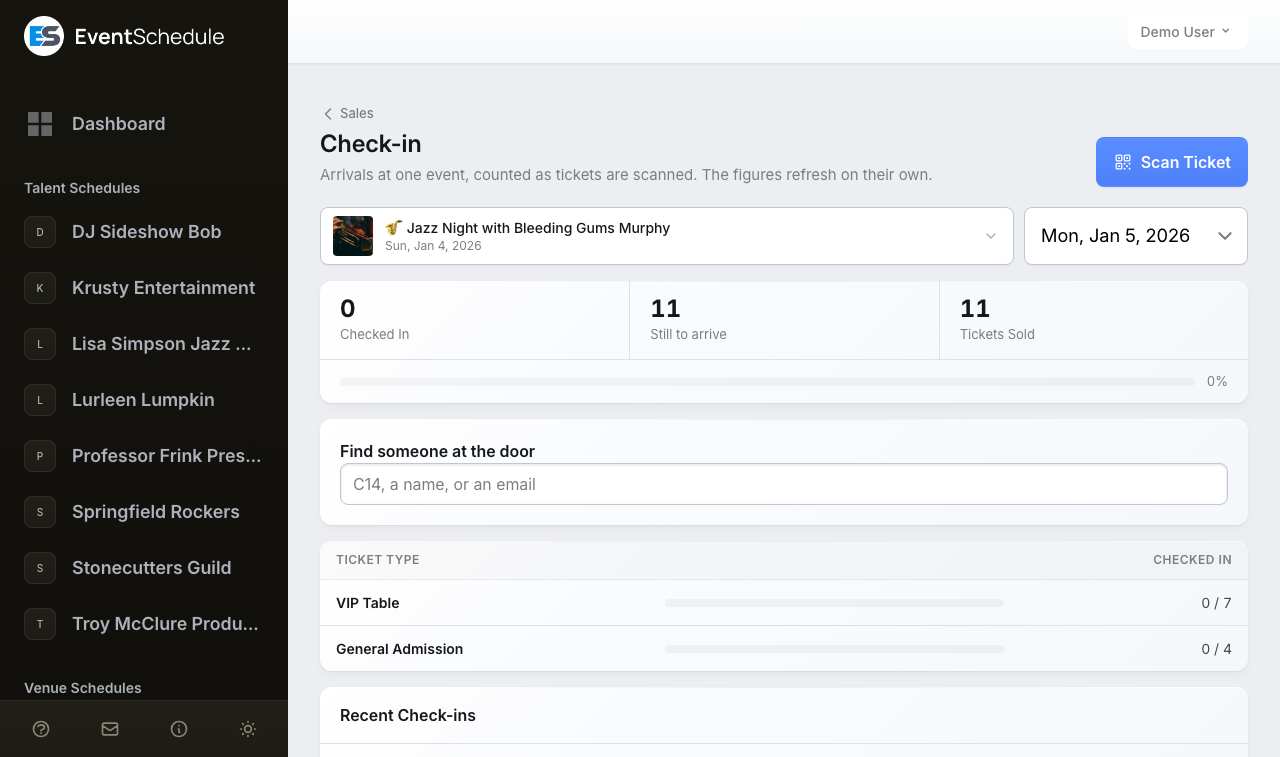
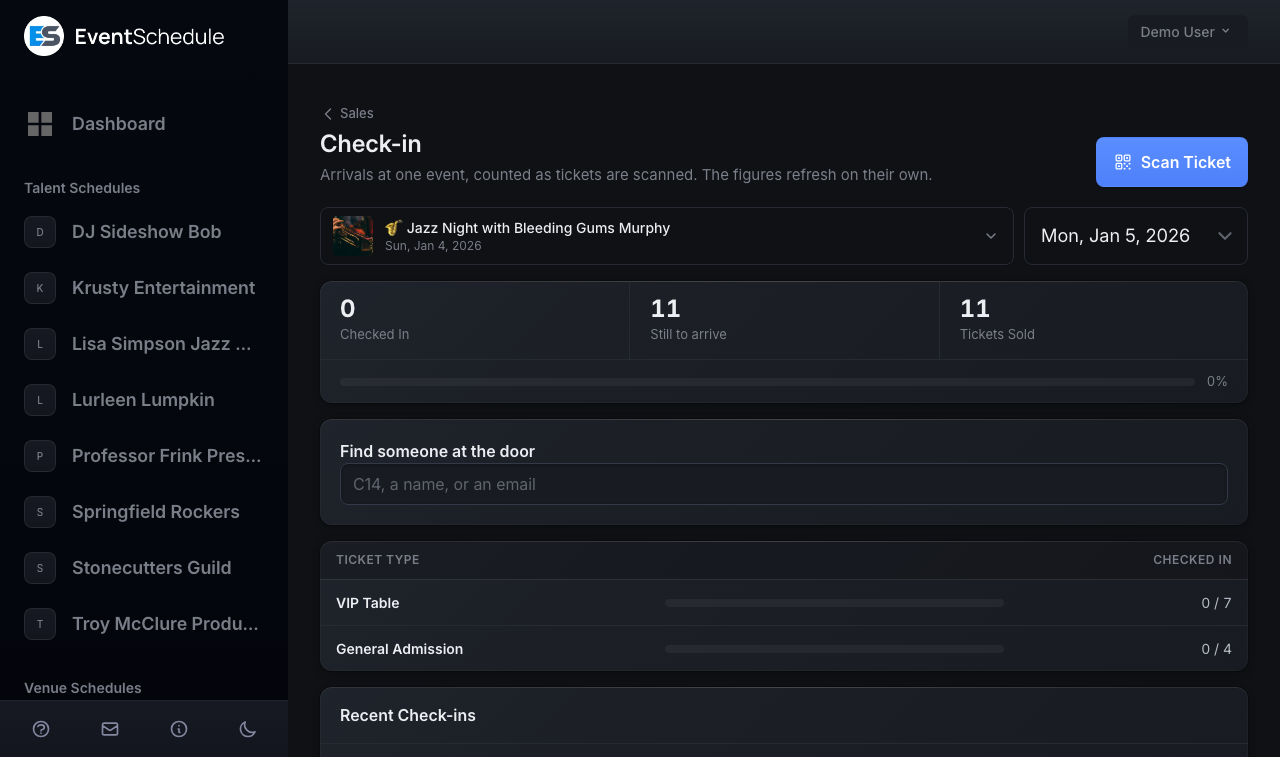
Watch arrivals at one event as tickets are scanned. Open Admin Panel → Sales and choose Check-in in the title row, or use the Check-in button on the scanner. The page is built for a phone at the door, with Scan Ticket in its own title row. Top to bottom:
| Part | What it shows |
|---|---|
| Event and date | Which event you are counting, and which of its dates. It opens on an event with sales today, otherwise your most recent. Events that sell tickets or take registrations on a Pro schedule are listed. |
| Three figures | Checked In, Still to arrive and Tickets Sold, with a progress bar and percentage under them. When a pass admits guests, a headcount including guests sits under Checked In; when pass holders have booked ahead, Seats reserved in advance sits under Tickets Sold. |
| Find someone at the door | On an allocated seating event, type a seat (C14), a name or an email to see who holds a seat and whether they have arrived. It only looks; admitting somebody is still done by scanning. |
| Ticket types | Checked in out of sold for each ticket type, with a bar. Shown when the event has more than one type. |
| Recent Check-ins | The last 10 arrivals, with name, ticket type, how long ago, and the seat on an allocated event. |
Counts are keyed to the venue's own calendar date, so an evening event west of UTC reports correctly rather than rolling over at the wrong midnight. Only redemptions count as checked in: a pass holder who booked a seat in advance appears in the reserved count until they actually arrive. The figures refresh every 10 seconds while the tab is in the foreground, so a phone in a pocket is not drained.
Wallet Passes
Ticket buyers can save their ticket into Google Wallet from the ticket page, from the order page of a multi-event purchase, or from the confirmation email. The pass carries the same QR code the ticket page shows, so it scans at the door exactly like any other ticket, and it works offline once saved.
- Event details on the pass - name, venue, date and time, attendee name, ticket type and seat
- Arrival reminder - when the venue has map coordinates, Google can notify the attendee as they arrive nearby
- One pass per event - a multi-event order gets a separate pass for each event, since each is scanned with its own code. A single order for several people is one pass showing the number it admits, unless the event issues individual tickets
- Passes and registrations too - a pass or subscription of any type saves as one undated pass rather than one per date, and shows how many people it admits at each event when that is more than one. If the pass has an expiry, Google Wallet archives it once that date passes. Free registrations get a wallet pass on the same terms as a paid ticket
- Not for every order - there is no wallet button for an appointment booking, on an event you have cancelled, or while an installment plan is behind on its payments
At the door a wallet pass is scanned exactly like any other ticket: the attendee opens it and you scan it from Scan Ticket as usual. On an allocated event the seat is printed on the pass.
The pass is a snapshot taken when the attendee saves it. Cancelling or fully refunding an order does not remove a pass already on someone's phone, but the code stops working: the door scanner checks the order's live status, and a cancelled or refunded ticket is refused there just as it is on the ticket page. A partial refund leaves the order paid, so its pass keeps working.
Wallet passes need a Google Wallet issuer account, so the button appears only once the person running the installation has connected one. On a selfhosted install that is a one-time setup step; with nothing configured, no button is shown and nothing is sent to Google. It is free on every plan. There is no per-schedule setting: if you are unsure whether it is on, open a paid ticket and look for the badge.
Waitlist
When an event date fills up, fans can join a waitlist to be notified when spots become available.
The waitlist on a full Free registration date works on every plan. The waitlist on a sold-out ticketed event needs Pro or above Pro - Requires the Pro plan .
How It Works
- When all tickets sell out for an event date, a Join Waitlist button appears on the event page
- Guests enter their name and email
- When a spot opens up (a sale is cancelled, fully refunded or expires unpaid, a pass holder cancels a booked date, or your box office releases a seat), the next person in line is notified by email. A partial refund frees no spot
- They receive a link that is valid for 24 hours
- If they don't purchase in time, the next person in line is notified
Only one person is notified at a time, to prevent overselling. The next is notified only after the current person's 24-hour window expires or they complete their purchase.
Managing the Waitlist
Open Admin Panel → Sales and choose the Waitlist tab. The tab is there while at least one person is waiting or has been notified, and carries their count.
- Each row shows the person's name with their email under it, the event, the date they are waiting for, a status and when they joined
- The status is Waiting, Notified (their 24 hours are running), Purchased or Expired
- Remove, at the end of a row, takes that person off the list after asking you to confirm
- Click a column heading to sort, and turn on Include past events to see dates that have passed
Interest List
Most people who look at an event page are not ready to buy that minute. The interest list lets them leave an email address and hear from you when it matters, with no account and no sign-up.
How It Works
- On the schedule's edit page, turn on Show “Notify Me” Card under Settings → Advanced. It is off until you do. The switch that counts is the one on the schedule that created the event, and it applies wherever that event is listed
- On a public event page, a visitor opens the Add to Calendar menu and chooses Tell me when tickets go on sale, or Tell me if anything changes once tickets are on sale. An event that is already selling tickets or taking registrations also shows a Not buying today? Tell me if anything changes link beside the buy button
- They type an email address and press Notify me. No name, no account and no confirmation email to click
- Three emails go out automatically: one when that date's tickets go on sale, a reminder about 48 hours before it starts, and a cancellation notice if you cancel the event. Someone who asks once tickets are already on sale skips the first one
- A change reaches them only if you send it. When you save a new date or time on a one-off event, or a new venue or online link on any event, the editor asks Notify attendees of this change?, and the list is emailed only if you choose Notify attendees
- Every message carries a one-click unsubscribe, and unsubscribing deletes the address rather than keeping it on a suppression list
Each date of a recurring event keeps its own list, so someone who asks about one Friday hears about that Friday's tickets and that Friday's reminder. Nothing else is sent: the list never receives your newsletters or news of your other events.
Turning the card off again removes it and every link to it, and stops new sign-ups. Anyone already on a list still gets the emails they asked for.
The interest list is free on every plan and is not counted against your newsletter allowance. It exists to help you find out whether anyone wants tickets before you go to the trouble of selling them.
On eventschedule.com, once more than 50 people are waiting, these emails go out only if the schedule has its own email settings or its owner has verified a phone number. A selfhosted install needs a working mailer.
Seeing Who Is Waiting
The event's Tickets tab says how many people asked, for example "12 people asked to be told when tickets go on sale", counting each address once across every date. The line sits above the ticket types, so it shows once Sell tickets is pressed. While a schedule has upcoming events and no ticket type, the dashboard suggestion reads "12 people are waiting to buy - add a ticket type". You see how many, not who, and neither number is shown publicly.
Asking about one event is not subscribing to your schedule. Those people hear about that event and nothing else. Someone who wants everything you publish can sign up to your schedule or subscribe to its calendar feed. The interest list is also not the waitlist: it is for a date that is not on sale yet, or a visitor who is not ready to buy, while the waitlist is for a date that has sold out.
Post-Event Feedback Pro - Requires the Pro plan
Automatically collect ratings and comments from attendees after your events end. Feedback emails are sent to ticket buyers and RSVP attendees, linking to a simple form where they can rate their experience.
Enabling Feedback
- Open Admin Panel → Schedule → Edit Schedule and choose the Engagement tab
- Open the Feedback row
- Turn on Post-event feedback
- Under Send feedback request after, choose how long after the event ends the emails go out: 1, 2, 6, 12, 24 or 48 hours. The default is 24
- Optionally turn on Show feedback publicly to display ratings and comments on the event page, and use Send test feedback email to send yourself the request
- Save your changes
On eventschedule.com the switch stays disabled until the schedule has its own email settings configured, since feedback requests are sent from your address rather than ours. A selfhosted install only needs a working mailer.
One event can differ from its schedule. On the event's edit page, open the Engagement tab and its Feedback row, and choose Enabled or Disabled to override, or Same as schedule to follow the schedule's setting.
How It Works
- After an event ends and the configured delay passes, feedback request emails are automatically sent to attendees. The queue is checked hourly, so times are approximate
- Each email contains a link to a feedback form branded with your schedule's logo and colors
- Attendees rate their experience from 1 to 5 stars and can leave an optional comment
- Each attendee can only submit feedback once
Viewing Feedback
Open Admin Panel → Sales and choose the Feedback tab. Four figures run across the top: Pending (with when the next batch goes out), Sent and awaiting a response, Responded (with the average rating) and the Response Rate. Under them, the three stages a request passes through:
| Card | What it lists | What you can do |
|---|---|---|
| Pending Feedback Emails | Requests still to be sent, by event, with the number of attendees and an estimated send time. Open a row to see who. | Send now sends the ones that are ready without waiting for the hourly run. Cancel all calls the queue off. |
| Sent - Awaiting Response | Attendees who were emailed and have not replied, with when the request went out. | Resend sends one attendee the request again, if it was missed or landed in spam. |
| Responses | Each answer: attendee, event, date, star rating, the whole comment and when it was submitted. The headings sort. | Export Feedback downloads the responses as a CSV file. |
The first two cards only appear while they have something in them. A sale with an answer also shows its star rating beside its status in the Sales list.
Feedback Notifications
To receive an email when new feedback is submitted, turn on New feedback in the Notifications row of the schedule's Settings tab. Each notification includes the event name, attendee name, star rating, and comment.
Financial Information
What happens to the money around a sale: refunds, taxes, fees, cancelled events and payouts.
Refunds
Refunding a Stripe or PayPal sale on the Sales page sends the money back through the provider, in full or in part, and then updates the sale here. Every other method (Invoice Ninja, Payfast, a payment link or cash) is recorded here with Mark as Refunded, and you process the money in that provider's own dashboard. A Payfast reference is shown as plain text rather than a link, so you will need to search for it in your Payfast dashboard. Stripe refunds appear on customer statements within 5-10 business days. See Refunds.
Taxes
Event Schedule does not automatically calculate or collect sales tax. Set your ticket prices inclusive of any applicable taxes. For tax reporting and your own records, export your sales data from the Sales page. Consult a tax professional for your specific obligations.
Payment Processing Fees
Stripe charges their standard processing fees (typically 2.9% + $0.30 per transaction in the US). These fees are deducted from your payouts. Event Schedule adds no platform fee on any plan, Free included.
Cancelled or Deleted Events
An event with any sales cannot be deleted: the app asks you to cancel it instead, so buyers keep their records. Cancel event keeps every sale and refund record, stops any remaining installment payments, and emails the people there are to tell: ticket holders and registrants (on eventschedule.com, only when the schedule has its own email settings) and anyone on the interest list. It does not refund anyone, and the sales stay paid, so refund them from the Sales page. A cancelled event can be restored later.
Payout Schedule
Stripe pays out on a rolling basis (typically 2 business days in the US, varies by country). View your payout schedule and history in your Stripe Dashboard. Invoice Ninja follows your configured payment terms.
Embed Widget
Embed a ticket purchase or RSVP form directly on your own website using an iframe. Visitors can buy tickets or register without leaving your site.
The rsvp=true widget works on every plan, including Free. The tickets=true widget needs Pro or above
Pro
- Requires the Pro plan
.
Getting the Embed Code
- Open your event for editing and go to the Tickets tab
- Press Sell tickets or Free registration and save the event
- Click the Embed Tickets (or Embed Registration) link at the end of the tab's title row
- Copy the iframe code and paste it into your website's HTML
The link that opens the snippet only appears on a saved event of a Pro schedule. On the Free plan you can still embed the RSVP form by building the URL yourself from the parameters below.
URL Parameters
You can customize the embed URL with these parameters:
| Parameter | Description |
|---|---|
tickets=true |
Show the ticket purchase form Pro - Requires the Pro plan |
rsvp=true |
Show the RSVP registration form Free - Available on the Free plan |
embed=true |
Enable embed mode (compact layout, no navigation) |
dark=true |
Force dark mode |
promo=CODE |
Pre-fill a promo code |
lang=xx |
Set the widget language (e.g., lang=es for Spanish) |
What to Expect
- Payment leaves the frame. Every payment method except cash sends the buyer out of the iframe to pay: Stripe, PayPal, Payfast, Invoice Ninja and a payment link all open in the full browser window, since payment pages generally refuse to load inside another site's frame. Stripe, PayPal and Payfast bring the buyer back to their ticket page afterwards. Cash and free ticket checkouts complete inside the embed.
- Hidden events do not embed. The Tickets tab does not offer the embed link on an Unlisted event, and Draft and Internal events are open to schedule members only. A password-protected event only embeds for someone who has already entered the password.
- One event per widget. The multi-event cart is not offered inside an embed.
See Also
- Creating Events - Add events to sell tickets for
- Gift Cards - Sell prepaid gift cards redeemable at checkout
- Subscriptions & Passes - Sell one pass reused across many events
- Appointments - Take bookings for a time slot, with their own allowance
- Sharing Your Schedule - Promote your events
- Event Graphics - Create promotional images
- Analytics - Track conversion rates and revenue per view
- Account Settings - Set up your payment method
- Newsletters - Send newsletters to promote ticket sales
- Embed Tickets - Embed a ticket form on your website