Creating Schedules
Set up and configure your schedule - from basic details and contact info to short links, sub-schedules, notifications, event requests and calendar sync.
The Schedule Form
A new schedule is created with a name and nothing else (see Getting Started). Everything else about it is set on one page, the schedule form, and this guide follows that form from top to bottom.
To open it, choose the schedule in the sidebar and click Edit Schedule at the top of its page. On a phone the same entry is in the Actions menu. The schedule's owner and its admins can open the form; a team member with view access cannot.
The form's sections are listed down the left, and on a phone they are stacked, each opening when you tap it. Under a section's name is one line saying what it holds now, and a dot appears beside the name once you have changed something in it. Inside a section, what everyone fills in is on the page as it opens. The rest sits in rows: a row shows its name and its current setting, opens in place when you click it, and one row of a section is open at a time.
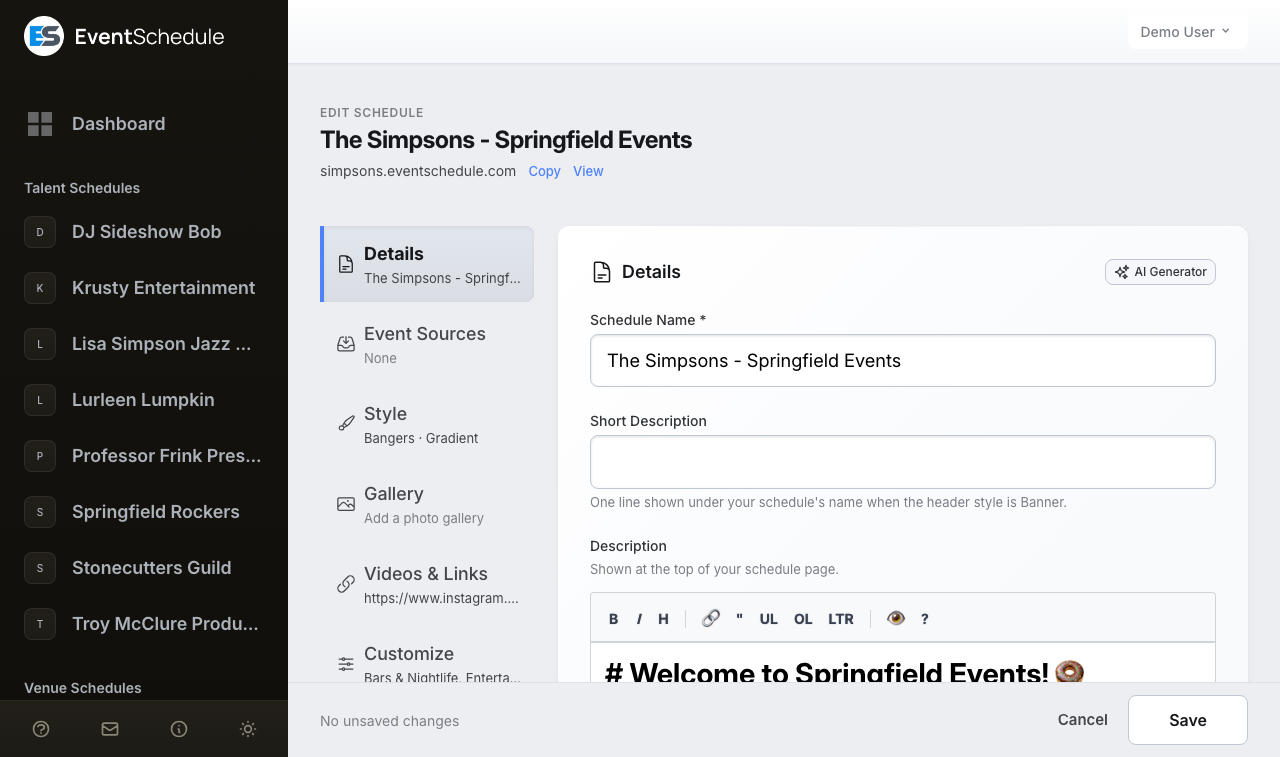
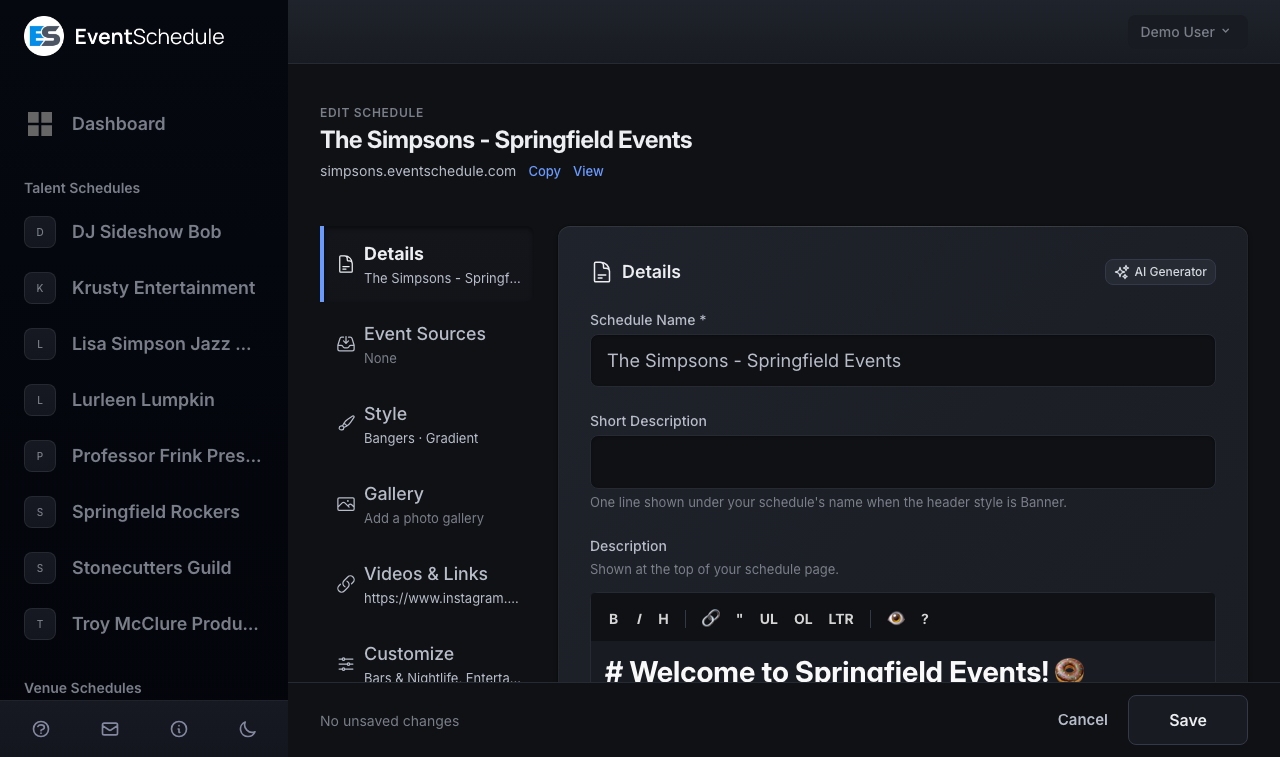
Not every section is offered to every schedule. In the form's own order:
| Section | What it holds | Shown for |
|---|---|---|
| Details | Name, description and announcement bar, with rows for Language and time and for Contact Info | Every schedule |
| Event Sources | Talent and venue schedules whose events appear on yours automatically | Curator schedules |
| Address | The venue's street address | Venue schedules |
| Merge Venue | Folding a duplicate venue into another one you manage | An unclaimed Venue schedule, when you manage another venue it could be merged into |
| Style | Profile image, accent color and font, with rows for Event animation, Background, and Header and layout | Every schedule |
| Gallery Pro - Requires the Pro plan | Photos shown on your schedule page | Every schedule |
| Videos & Links | YouTube videos and social links, with a short link for each | Every schedule |
| Customize | Rows for Sub-schedules, Custom Fields, Categories and Custom Labels | Every schedule |
| Settings | The Schedule URL, with rows for Notifications and Advanced | Every schedule |
| Engagement | Rows for Requests, Fan Content, Feedback, Carpool, Sponsors and Accommodation | Every schedule |
| Gift Cards Pro - Requires the Pro plan | Selling gift cards that are redeemed for tickets | Every schedule |
| Auto Import | Web pages to read events from once a day | Selfhosted installs |
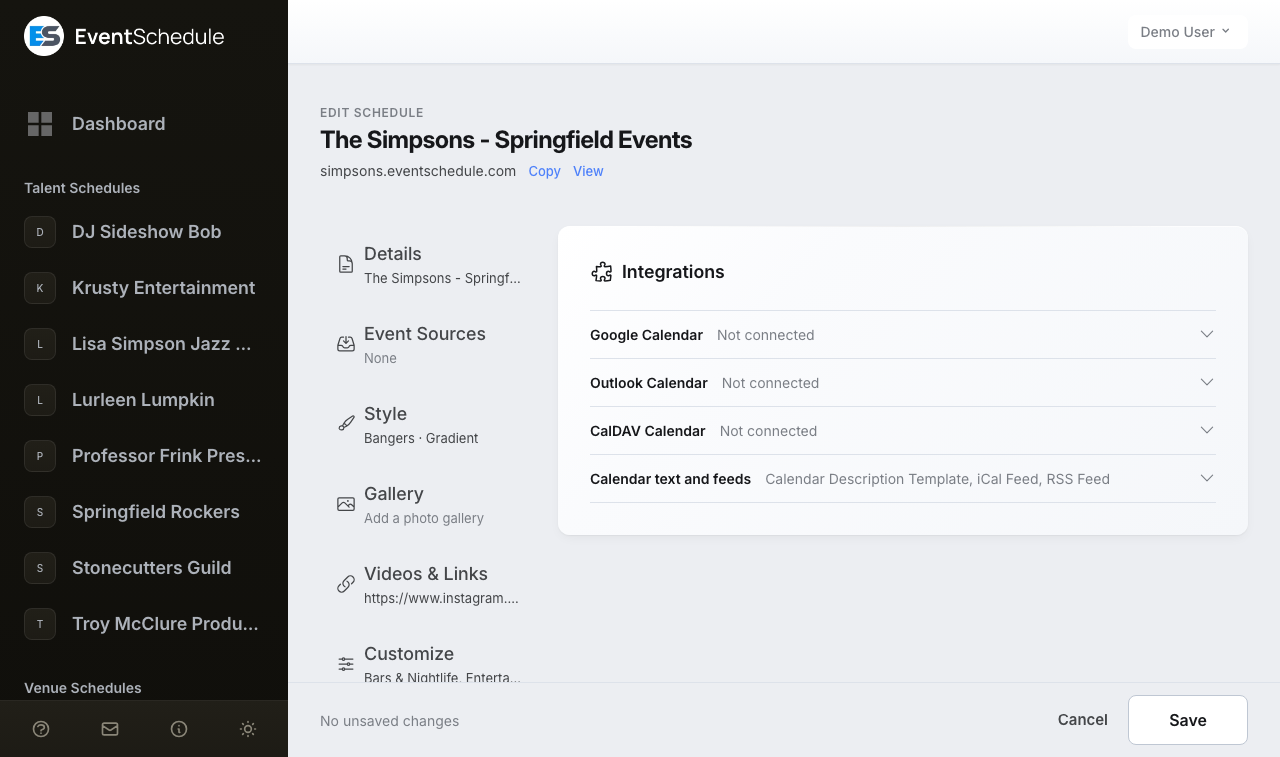
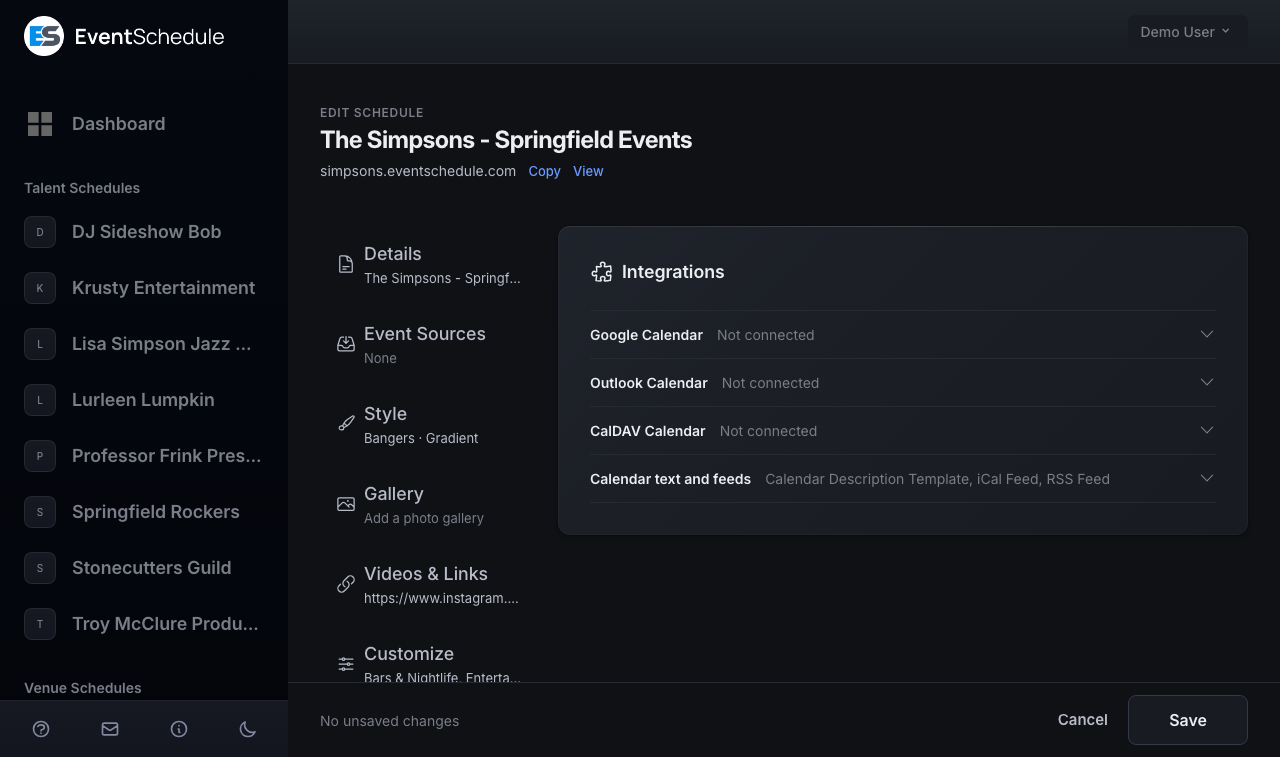
| Integrations | Rows for Email Settings (hosted platform only), Google Calendar, Outlook Calendar, CalDAV Calendar, and Calendar text and feeds | Every schedule |
The form itself, and most of what is on it, is free. Pro - Requires the Pro plan covers the announcement bar, Gallery, Custom Fields, Custom Labels, Feedback, Carpool, Sponsors, Gift Cards and custom CSS. Enterprise - Requires the Enterprise plan covers the two AI generators, a custom domain, and Internal or Unlisted as the default visibility. A row your plan does not include carries a lock and says which plan it needs when you open it. A selfhosted install resolves to Enterprise, so nothing on the form is held back there.
Saving
There is one Save for the whole form, in the bar at the bottom of the page. It saves every section at once, whichever one you are looking at. The same bar says where things stand:
- Unsaved, followed by the sections you have changed. Each name is a link back to that section.
- Saving removes, followed by what you took off a list, by name: a sub-schedule, a custom field, a category, a custom label, a sponsor, a source schedule. It is said before the save that removes it.
- Check, followed by the sections to look at, when a save was refused. The form opens the section and the row holding the first message, and keeps what you typed.
Cancel, beside Save, leaves the form. If anything is unsaved it asks first: Keep editing or Discard.
Schedule Types
Every schedule is one of three types. The type is chosen when the schedule is created and cannot be changed afterwards:
| Type | Best For | What the form adds or leaves out |
|---|---|---|
| Talent | Musicians, DJs, performers, speakers | A shorter Requests row, because a request to book a performer is always read by hand. Country in Contact Info. No Hide Videos switch. |
| Venue | Bars, clubs, theaters, event spaces | The Address section, and Merge Venue on a venue nobody has claimed. |
| Curator | Promoters, bloggers, community organizers | The Event Sources section, second in the list. City and Country in Contact Info. Require Account starts switched on. |
The type also decides which tabs a schedule's own page has (Availability for a Talent, Seating plans for a Venue, Videos for a Curator): see choosing a type and Managing Schedules.
Details
The Details section says who the schedule is. The name, the descriptions and the announcement bar are on the page as it opens. Language and time and Contact Info are two rows under them, each saying its current setting on the row.
General
Schedule Name
Required. Your schedule's display name, shown at the top of your schedule page and in search results. Use your band name, venue name, or organization name.
Short Description
One line, up to 200 characters. It is shown under your schedule's name when the header style is Banner, and it opens the description that search engines and link previews show for your page.
Description
A bio or description of your schedule, shown at the top of your schedule page. Supports Markdown formatting for links, bold text, lists, and more. Tell visitors what you're about and what kind of events they can expect.
Translated name and description
Once a second language is switched on and a translation exists, an extra field appears under the name, the short description and the banner message so you can correct the wording by hand. Each is labelled with the target language, for example Name (English), so it follows whichever language you chose to translate into rather than always being English.
Show an announcement bar Pro - Requires the Pro plan
Turn on Show an announcement bar to display a message in a bar at the top of your schedule's guest page, such as a venue change or a "tickets on sale" notice. The Banner message box takes up to 500 characters and accepts Markdown, including links. Show on event pages too extends the banner from the schedule page to individual event pages. Below Pro the switch is shown greyed out, with a note saying so.
AI Details Generator Enterprise - Requires the Enterprise plan
Let AI write your schedule's short description and description from its name and type. Those two fields are all it generates.
- Click AI Generator, at the end of the Details section's title row.
- Tick the fields you want. A field that already has content is left unticked and marked with a blue dot; tick it anyway and a warning tells you its content will be replaced.
- Optionally add Additional instructions (up to 500 characters) to steer the tone, and tick Save as default for this schedule to reuse them next time.
- Optionally open View/edit AI prompt to see the prompt that will be sent and adjust it for this run.
- Click Generate and review the preview. Regenerate redoes one item, Accept writes the results into the form, and Discard drops them. Nothing is saved until you save the schedule.
The button only appears when the site has an AI key configured. Selfhosted installations need a Gemini API key in the environment settings, because this feature is generated by Gemini. On the hosted platform a schedule below Enterprise sees the button greyed out, and there is a daily cap on AI text generation per schedule; you are told if you reach it.
Language and time
Language
The language you write your schedule and events in, which also sets the interface language on your schedule page. Twelve languages are supported: Arabic, Dutch, English, Estonian, French, German, Hebrew, Italian, Portuguese, Romanian, Russian, and Spanish.
Offer a second language to visitors
Turn this on to have your schedule and events translated automatically, then pick the target under Translate into (English by default; the language you write in is not offered). Visitors get a button to switch between the two. Available on all plans. Translations are generated in the background, so allow up to an hour for them to appear; changing the target re-translates everything, and editing an event refreshes its own translation. Turning the setting back off discards every stored translation for the schedule, including wording you corrected by hand, so you are asked to confirm first.
Timezone
Set your schedule's timezone. Event times are entered and displayed in this timezone, so set it before you add events. It matters most when your audience is spread across regions.
Use 24-hour time format
Off shows times as 2:00 PM, on shows them as 14:00. The choice carries through to event pages, calendar descriptions and the {time} template variable.
Contact Info
The second row of Details holds how to reach you. Closed, the row shows the schedule's email address. These details appear on your public schedule page, the email address and the phone number only when you switch them on.
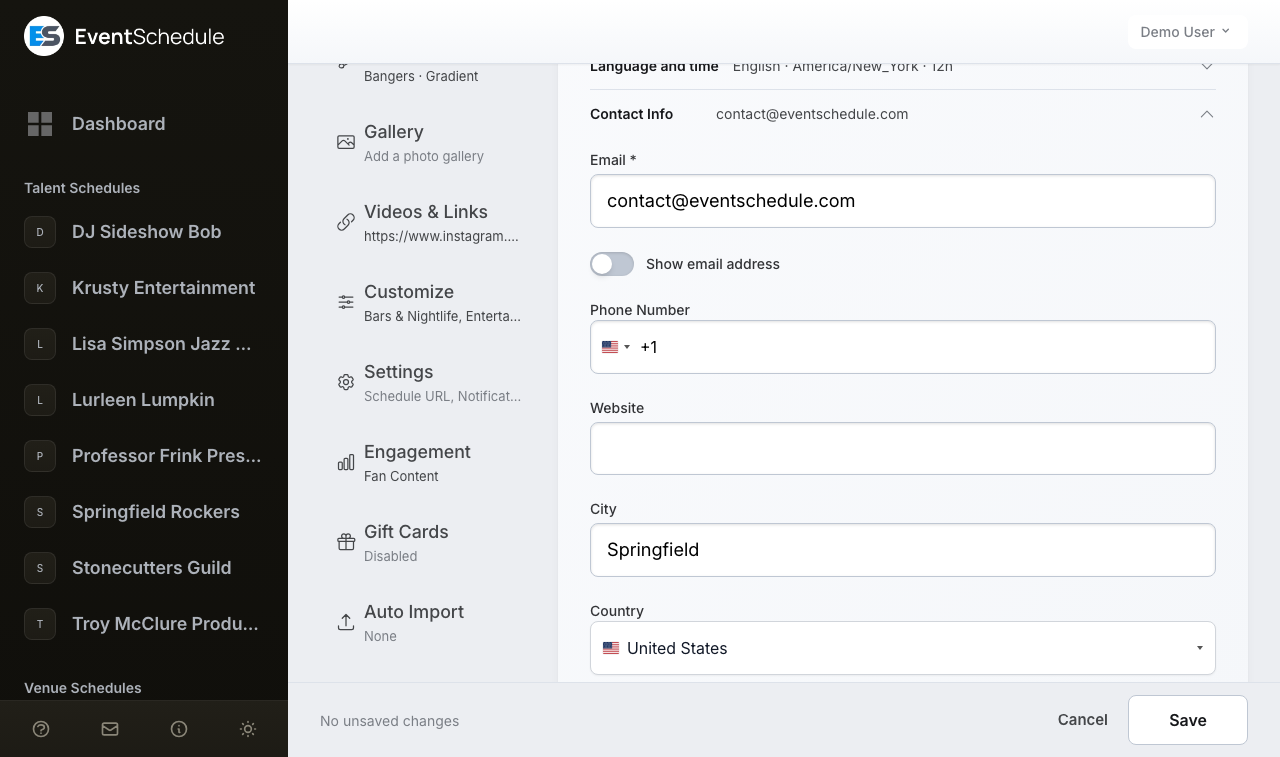
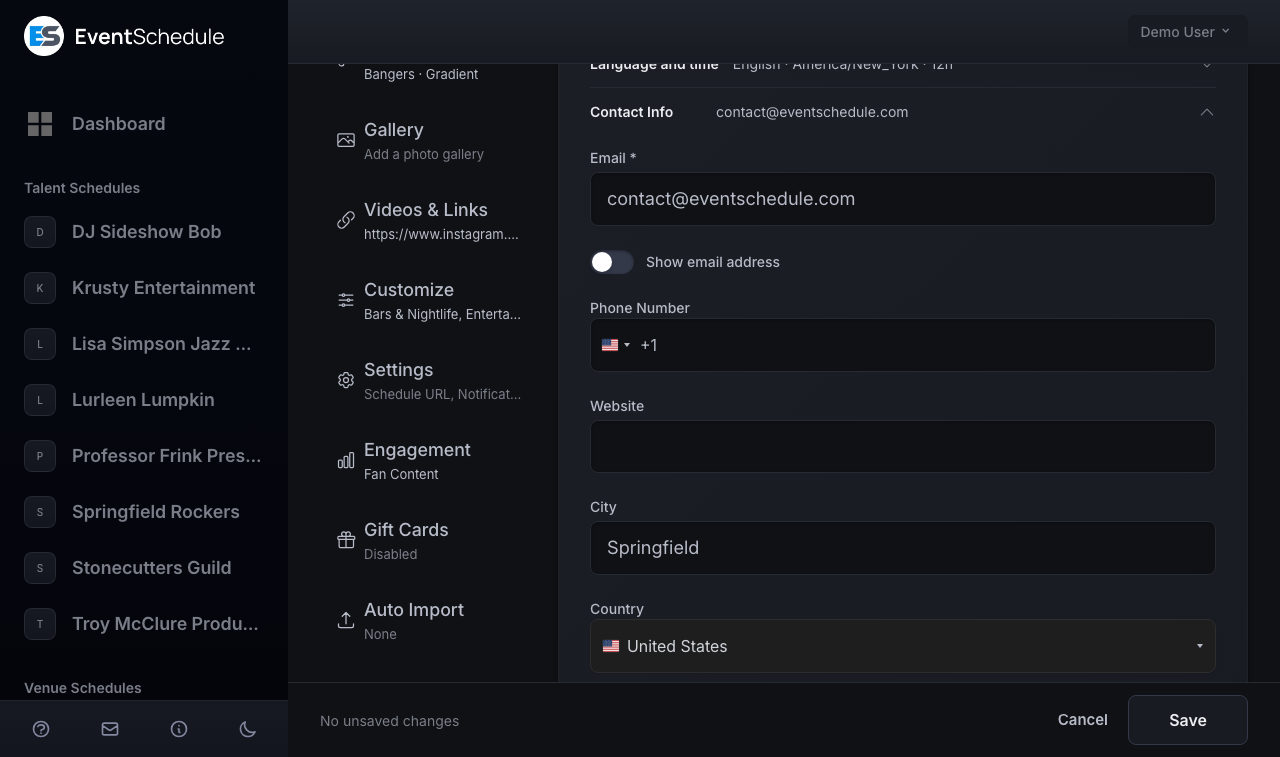
Required. This is the schedule's own address. On the hosted platform it has to be verified before the schedule's guest page can be opened, and changing it asks for verification again; a selfhosted install treats it as verified. Turn on Show email address to publish it to visitors as well; leave it off and the address stays private to you. It is not where your notifications go: those are sent to the email address on your own account, and to the schedule's shared notification address if you add one.
Phone Number
A contact number, entered with a country picker. Once a number is saved a Show phone number toggle appears next to it. On the hosted platform the number must be verified by SMS code before it is shown publicly.
Website
Link to your main website. It opens in a new tab when visitors click it.
City and Country
A way to say roughly where you are without a street address. Curator schedules get both City and Country; Talent schedules get Country only. Venue schedules use the Address section instead, so neither field appears here for them.
Event Sources Curator
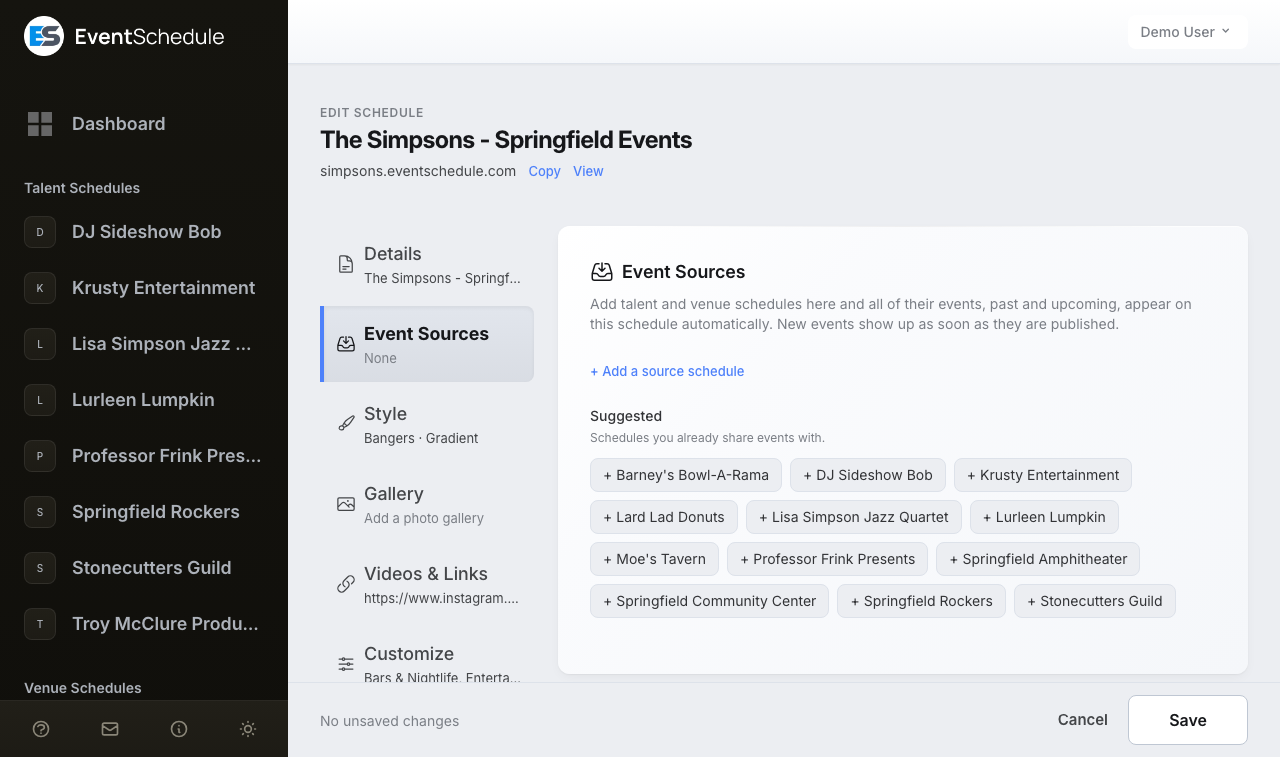
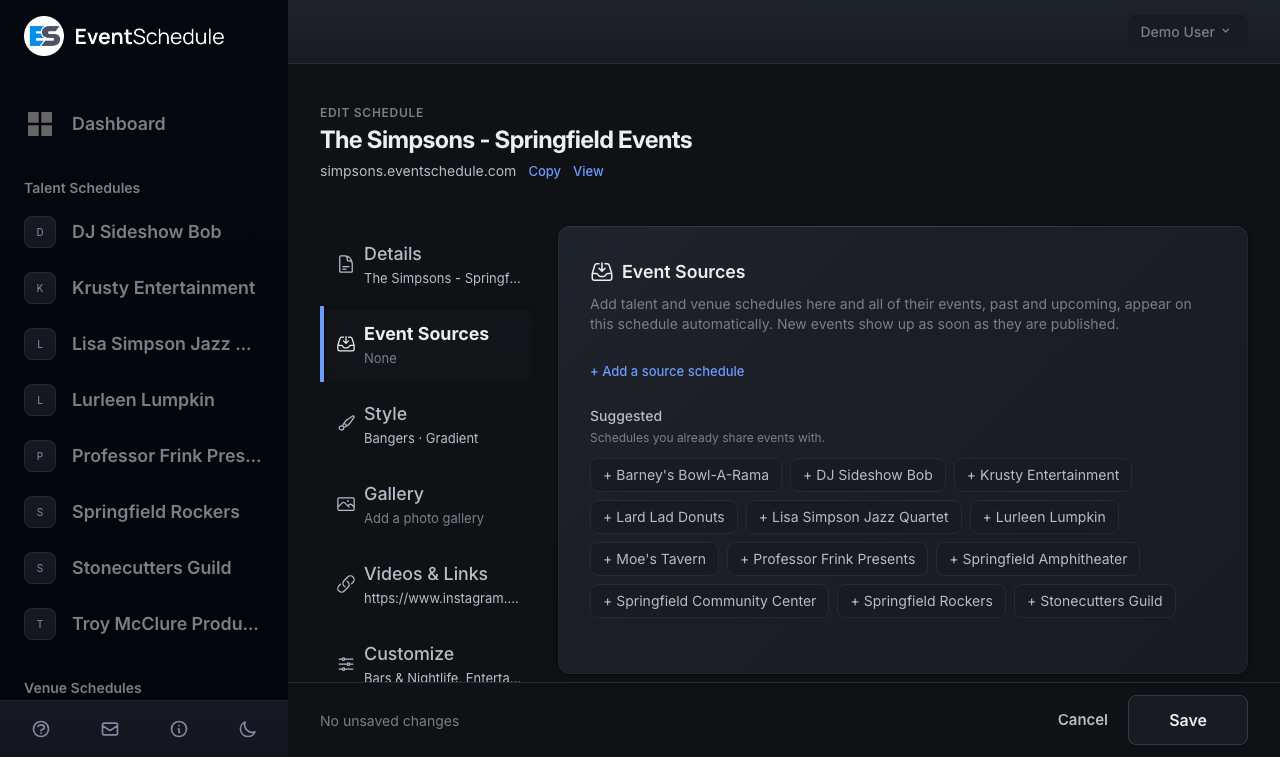
On a Curator schedule, Event Sources is the second section of the form. List the talent and venue schedules you want to follow and everything they publish shows up on your calendar on its own. It covers what they have already run as well as what is coming, and each new event appears within a few minutes of going live. This is the fastest way to stand up a city guide or a festival hub: pick your rooms and your acts once, and stop copying listings by hand. It is free on every plan.
Schedules
Search by name or subdomain and pick the talent or venue schedule you want. Only talent and venue schedules can be a source, so one curator never chains onto another.
Anything the schedule has chosen not to publish stays private: drafts, internal events, unlisted events and anything it has not accepted are all left out.
Each saved source shows how many of its events are on your calendar right now, past and upcoming, so you can tell at a glance whether it is feeding your schedule. An event you removed by hand is left out of that number, and an event two sources share counts under both, so the numbers need not add up to your total.
Sub-schedule
Optional. File everything from one source under a sub-schedule so visitors can filter by it. Changing it moves that source's existing events too.
Suggested
Schedules you already share events with, offered as one-click shortcuts.
Setting up event sources
- Open Edit Schedule on a curator schedule and choose Event Sources.
- Click + Add a source schedule and search for the talent or venue you want to follow, or click one of the names under Suggested.
- Optionally choose a sub-schedule to file that source's events under. The choice is offered once the schedule has sub-schedules.
- Save. Their events, past and upcoming, appear on your calendar right away.
To stop following a schedule, click the × beside it. The bar at the bottom names it after Saving removes, and saving takes its events off your calendar.
Sourced events count as yours almost everywhere: they show on your calendar and public page, in your event graphics, and in your iCal and RSS feeds. The exception is the automatic digest to your email subscribers, which only covers events this schedule created itself. To drop a single one, open it and choose Remove from schedule; it stays gone even though the source is still connected. Removing the source itself takes its events with it and leaves anything you added by hand untouched.
Address
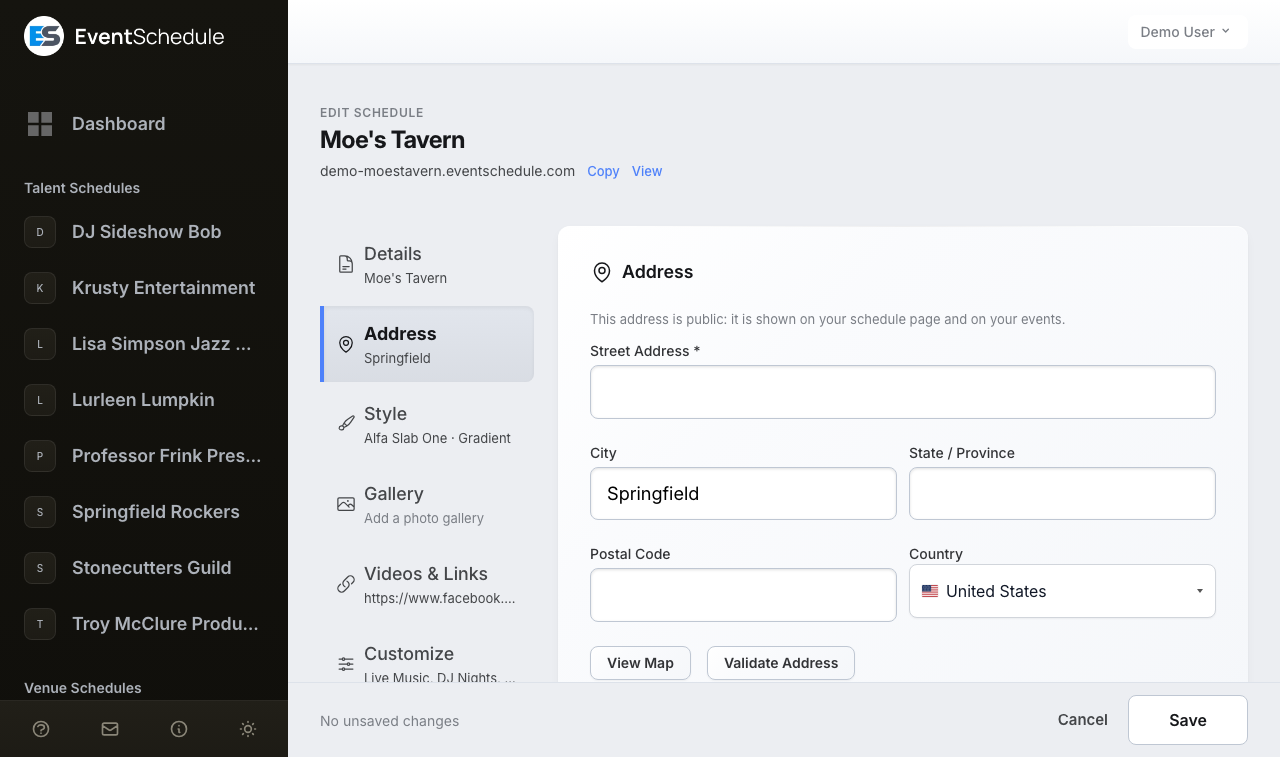
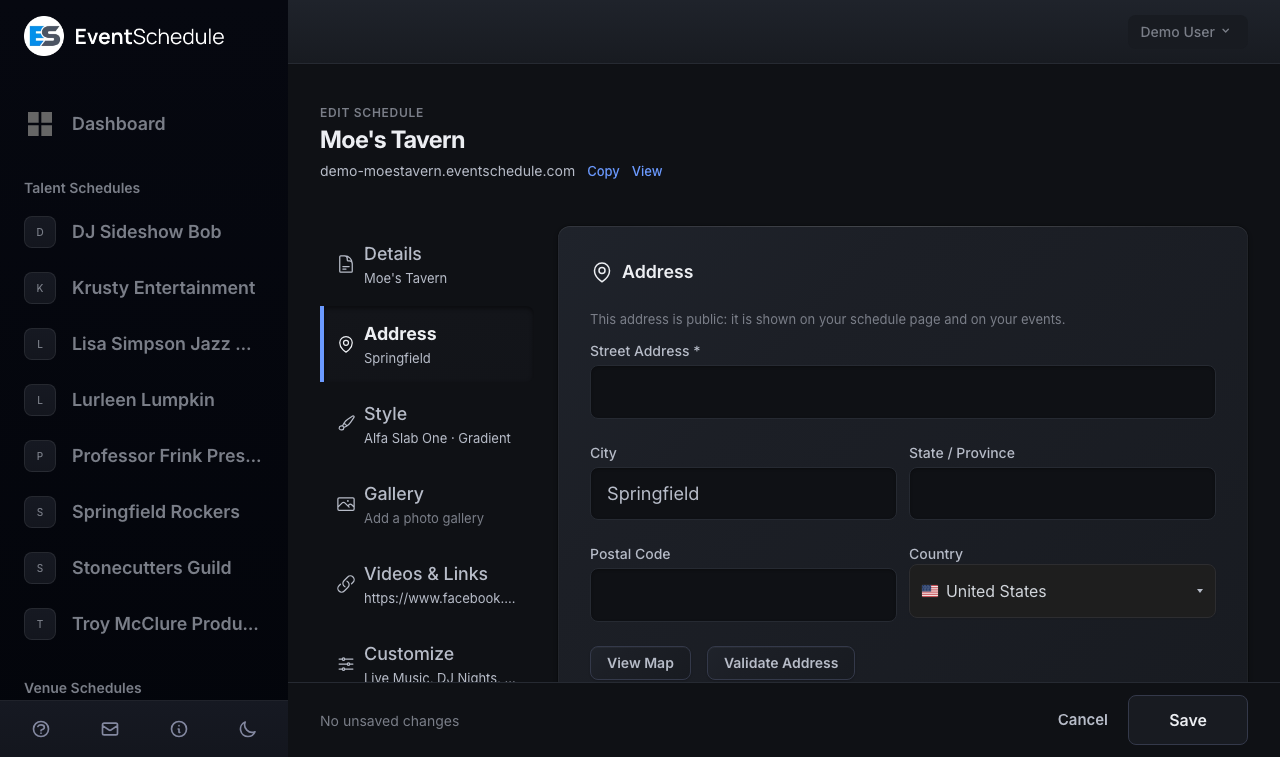
The Address section appears on Venue schedules only. The address is public. Your schedule page shows it as a link that opens Google Maps, your event pages show it on the venue card, with a map where the site has a Google Maps key, and it is what the nearby accommodation map centres on. Talent and Curator schedules say where they are in the Contact Info row instead.
Street Address
Required. Your venue's street address, for example "123 Main Street".
City, State / Province, Postal Code
Three separate fields. All are optional, but the more you give the more precisely the address can be placed on a map.
Country
Select your country from the dropdown. It is used for address formatting and map display.
View Map and Validate Address
View Map opens what you have typed in Google Maps, in a new tab, so you can check it landed in the right place. Validate Address looks the address up and offers a tidied version of each field; click Accept to take it. Validate Address only appears when the site has a Google Maps key configured.
Saving a new or changed address looks up its coordinates as part of the save. That lookup is what puts the map on your event pages and places the accommodation map. Clearing the address clears the coordinates again. The lookup needs a Google Maps key on the site, so a selfhosted install without one keeps the address as text and shows no map.
Merging duplicates
Importing events tends to create the same venue twice, once as "The Anchor" and again as "Anchor Bar". Rather than leave your calendar pointing at two half-empty pages, merge them. Every event moves to the schedule you keep and the duplicate goes away.
Merge Venue
A Merge Venue section appears on the schedule form of an unclaimed Venue schedule when you manage at least one other venue. It sits after Address in the list. The Merge into dropdown lists the other venues you manage; pick one and click the red Merge Venue button, which asks you to confirm and says how many events will move. All of this schedule's events move to the target and this one is removed. The merge happens when you confirm: it does not wait for the form's Save. If Event Schedule spots a likely match by name, city and country, it names it for you above the dropdown, so usually you only have to confirm.
Merging is offered for schedules nobody has claimed yet, which is exactly the kind an import creates - the pages described under Pages Created for Others. Once someone claims a schedule it has a real operator behind it, so it can no longer be absorbed into another. Both schedules must also be the same type, so a venue merges into a venue and never into a talent.
If some events already exist on the target, you are told how many before you commit. Those are not duplicated: where the same event sits on both schedules, the two entries are combined and any detail the target is missing is filled in from the schedule you are merging away.
Merge Duplicate Venues
There is also a bulk version that groups look-alike venues together and merges a whole group at once. Each group shows how many events sit on each venue, with the most-used one preselected as the one to keep.
- Merge - fold the rest of the group into the selected target.
- Not duplicates - for venues that only look alike. The group is dismissed for good and stops being suggested.
Work through the groups in any order, and skip any you are unsure about. Nothing is merged until you press the button on that group.
You can reach it two ways:
- From Following - covers every venue you are connected to, however you got there. This is the one that finds venues an import or a calendar sync invented and never attached to anything, including ones already deleted.
- From a Curator schedule - a banner on the Schedule tab, scoped to the venues in that schedule's upcoming events.
Duplicates are also collapsed in the venue picker when you add an event, so you only see one option per place. That is only done where it is safe: two venues that share a name but each carry their own contact details or address both stay on the list.
Style
The Style section decides how your public pages look, with a preview beside the form. It has a guide of its own, Schedule Styling. In the section's order:
- On the page as it opens - Square Profile Image, Accent Color and Font Family
- Event animation - how event cards arrive as visitors scroll
- Background - a gradient, a solid color or an image
- Header and layout - Header Style, Header Image, Default Layout and Custom CSS Pro - Requires the Pro plan
Gallery Pro - Requires the Pro plan
The Gallery section puts up to 50 photos on your schedule page: the venue, past events, your team. They appear below your events, and a photos link in the header opens them all at once. In the list of sections, Gallery shows how many photos it holds.
Adding, arranging and captioning photos works exactly as it does for an event's gallery, and nothing is published until you click Save. See the event gallery for the details. Each event can have a gallery of its own as well.
If a schedule drops below Pro, its photos are kept and hidden from guests until the plan is back. They can still be removed in the meantime.
Videos & Links
Two lists, one under the other: YouTube Videos and Social Links. Both are shown on your public schedule page.
YouTube Videos
Click + Add Video, paste a YouTube link, and it is added with its thumbnail and title. Videos appear in a panel on your schedule page, which the Hide Videos setting can turn off for Venue and Curator schedules.
Social Links
Click + Add Link to add profile URLs (Instagram, Facebook, X, TikTok, Bandcamp, Spotify and so on), or the address of any other site, so visitors can find you elsewhere. A platform Event Schedule recognises is detected from the URL and its icon is used automatically.
Short links
Every link in the Social Links list gets a short forwarding address under your own schedule URL automatically, with a copy button next to it. A recognised platform is named after the platform, for example yourname.eventschedule.com/instagram, and any other site after its brand name, as long as that name is still free on your schedule: a ticketing partner at promee.co.il/?r=33221 answers to yourname.eventschedule.com/promee. Short links are handy in printed material and bios. Each one shows how many times it has been clicked, and the same clicks are counted in Analytics; clicks by you and your team are left out.
Click Edit under a link to choose a different address. For a recognised platform the platform address keeps working alongside yours, so a /instagram already printed on a poster never breaks. For any other site your choice replaces the brand-name address. If a link has already been clicked, the editor shows how often and warns you before you change its address. Clear the box to go back to the automatic address. A short link cannot reuse the name of another platform, of a sub-schedule, or of a page the app already uses, and where the automatic name is already taken the link simply has none until you pick one.
Customize
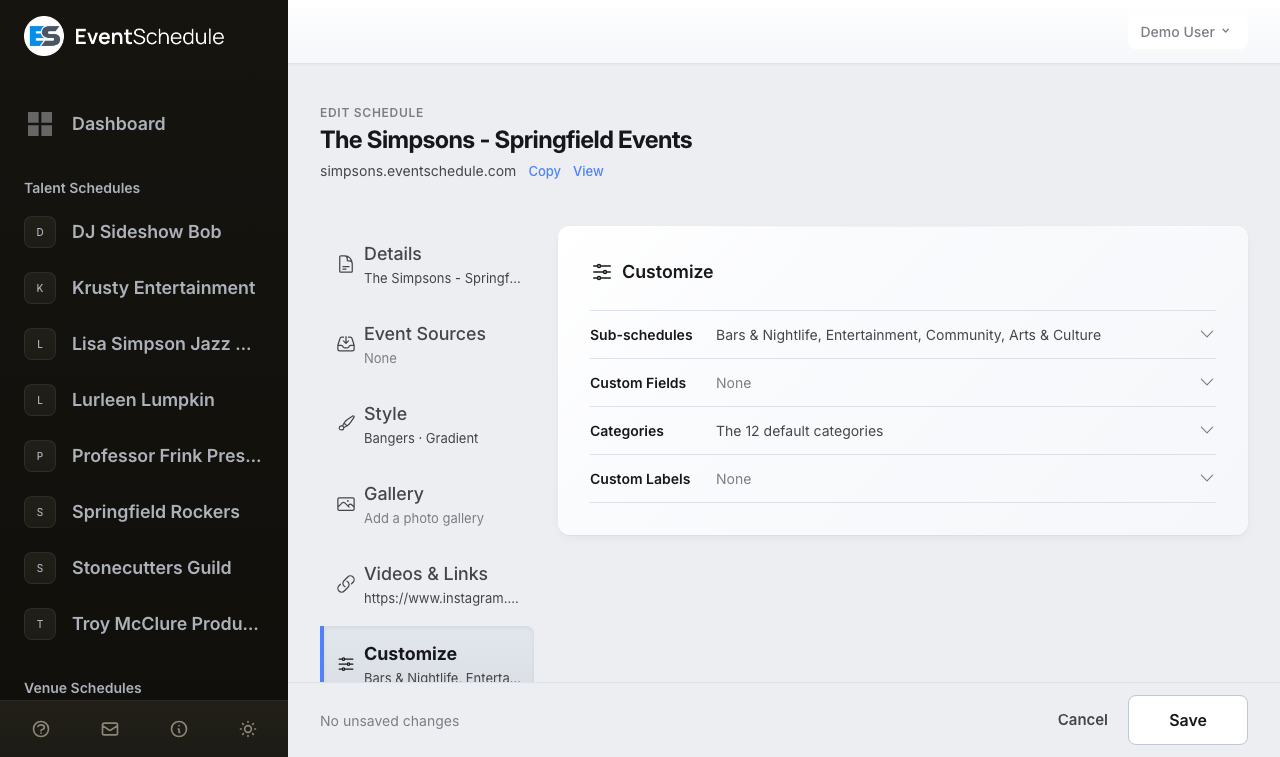
The Customize section is four rows: Sub-schedules, Custom Fields, Categories, and Custom Labels. Closed, each row lists what it holds, so you can read your sub-schedules or see that the categories are still the defaults without opening anything.
Sub-schedules
Sub-schedules split one schedule into parts, such as "Live Music", "DJ Nights", "Comedy" or "Workshops", or a venue's stages and rooms. Each one gets an address of its own and a color, so visitors can filter your calendar down to the part they care about. Each is one line in the list: its name, its color, and its own address underneath with Edit beside it.
Creating a sub-schedule
- Open the Customize section and open the Sub-schedules row.
- Click + Add Sub-schedule and type its name. If your schedule is not written in English, a second box beside the name takes it in the language your schedule is translated into, and is labelled with that language, for example Name (English). Leave it blank and the translation fills it in.
- Pick a Color from the 14-color palette, or use Clear to leave it uncolored. The color is what distinguishes sub-schedules in calendar views and on the filter buttons.
- Save. The sub-schedule now has an address such as
yourname.eventschedule.com/live-music, shown with a copy button. Edit changes that last part.
The × at the end of a line takes a sub-schedule off the list. It is only removed when you save, and the bar at the bottom names it after Saving removes until you do.
A sub-schedule carries a name, a color and an address, and nothing else. There is no visibility switch on one, so filing an event under a sub-schedule never hides it. To keep an event off your public page, set the event's own visibility instead - see event visibility.
Assigning events to sub-schedules
When you create or edit an event, pick a sub-schedule from the dropdown. An event sits in one sub-schedule per schedule, so an event you also share to a Curator schedule can be filed under one of your strands and one of theirs.
Custom Fields Pro - Requires the Pro plan
Define Event Custom Fields to add extra data to your events. You can add up to 10 custom fields per schedule, with + Add Field. A saved field shows its number beside it, as → {custom_1}: that is how you refer to its value in an Event URL Pattern, a calendar description and event graphics.
A field shows its name, its type and its checkboxes. What is rarely touched (the name in your schedule's second language, the pattern an answer must match and the note for the AI import) is behind More options on each field.
Field Name
Required. The display name for the field.
Type
Choose from six types: Text (one line), Multi-line Text, Yes/No (a switch), Date (a date picker), Dropdown (one choice from a list you define), or Multi-select (several choices from that list).
Options
For Dropdown and Multi-select fields, type the choices separated by commas. The field only appears for those two types.
AI prompt
An optional instruction, up to 500 characters, telling the AI how to extract this field's value when a visitor submits an event through AI Import. Under More options.
Required
Mark a field as required so that events cannot be saved without providing a value.
Private
Hide the field's value from the guest portal. The value still appears in the admin portal and can be referenced in graphic templates and slug patterns via {custom_N}. A private field is never offered as a filter, whatever its Show as filter setting.
Show as filter
Offer the field as a filter on your schedule page, so visitors can narrow the calendar to one value, for example every event in Room A. Available for Text, Dropdown and Multi-select fields. It is on by default for dropdown and multi-select fields and off for text fields. Each different value on your events becomes an option in the filter, and matching ignores capital letters and extra spaces, so Room A and room a count as one. A filtered view is a shareable link: choosing a value adds ?custom_N=value to the address, where N is the number shown next to the field. See embed URL parameters to use it in an embed.
On request form
Ask the field as a question on your public event request form, so visitors answer it when they submit an event. On by default. Uncheck it to keep a field for your own use in the admin portal. Combine a Multi-select field with this to offer a checklist, for example which of your equipment the visitor needs.
Validation Pattern
Under More options. For Text and Multi-line Text fields you can require entries to match a pattern, such as a reference code or a phone number. Pick one of the ready-made patterns (email address, phone number, web address, numbers only, letters and numbers) or write your own regular expression, and use the built-in tester to try a sample value before saving. The optional Hint is shown under the field so visitors know what format you expect. Patterns are enforced both in the browser and on the server.
Reordering
Drag a field by its handle to change the order the fields appear in on event forms. The handle shows once there are two fields.
Categories
Tailor the event categories shown on your event form and your schedule's filter. The 12 system defaults (Art & Culture, Business Networking, Community, Concerts, Education, Food & Drink, Health & Fitness, Parties & Festivals, Personal Growth, Sports, Spirituality, Tech) are pre-loaded as editable rows. Rename or remove any of them, and add categories that match how you organise events, up to 32 rows in total. A category name can be up to 80 characters. Free on every plan.
Renaming a default
Edit the name field on any default row to change how it appears on your schedule. The old name is shown underneath for reference. Existing events tagged with that category automatically display the new name once you save.
Removing a default
Click the × on any default to remove it from your event form and guest portal filter. Events already tagged with that category keep their badge: the original name still resolves via the system defaults. If the category is in use, you'll see a confirmation showing how many events are affected.
Adding a custom category
Click + Add category and enter a name. Custom categories appear immediately in your event form and on the schedule filter.
Color
Each category can be assigned a color from the 14-color palette. The category's color appears as a small dot beside every event tagged with that category on your schedule, making event types easy to scan at a glance. Categories without a color fall back to the sub-schedule color if one is set.
Ordering
Categories are always shown alphabetically: there's no manual reordering. The list re-sorts itself when you rename, add, or remove a row.
Translation
If your schedule offers a second language, custom category names and renamed defaults are translated into it in the background by the same pipeline that translates the rest of your content. Visitors reading in that language see the translated name; everyone else sees the source name you typed.
Reset to default categories
Removes all customisations and restores the original 12 categories. Existing events keep the category they were assigned. While the list is the original 12, the closed row says The 12 default categories in place of naming them all.
When a curator schedule shares an event from a talent schedule, the event's category badge shows the original name chosen by the talent. The curator's filter dropdown dynamically includes any categories present in visible events, so foreign categories remain filterable.
Custom Labels Pro - Requires the Pro plan
Override the wording Event Schedule uses on your public schedule page. For example, change "Events" to "Shows", "Follow" to "Subscribe", or "Free entry" to "No cover charge".
Adding a custom label
Pick a label from the searchable dropdown and click Add, then type your replacement, up to 200 characters. A label already overridden drops out of the dropdown, and the × at the end of its line puts it back and restores the original wording once you save.
Available labels
37 labels in all, covering the buttons (Request to Book, Submit Event, Follow, Buy Tickets, Book a Time, Register, Share), the navigation (Events, Filter Events, Past Events, Load More, Show All, View Full Schedule), and the wording on events themselves (Free entry, Online, Schedule, Category, Venue, Agenda, About, Photo Gallery, Our Sponsors).
Translations
If your schedule is not written in English, a second box appears under each label for the translated wording. Leave it blank and the translation fills it in for you.
Settings
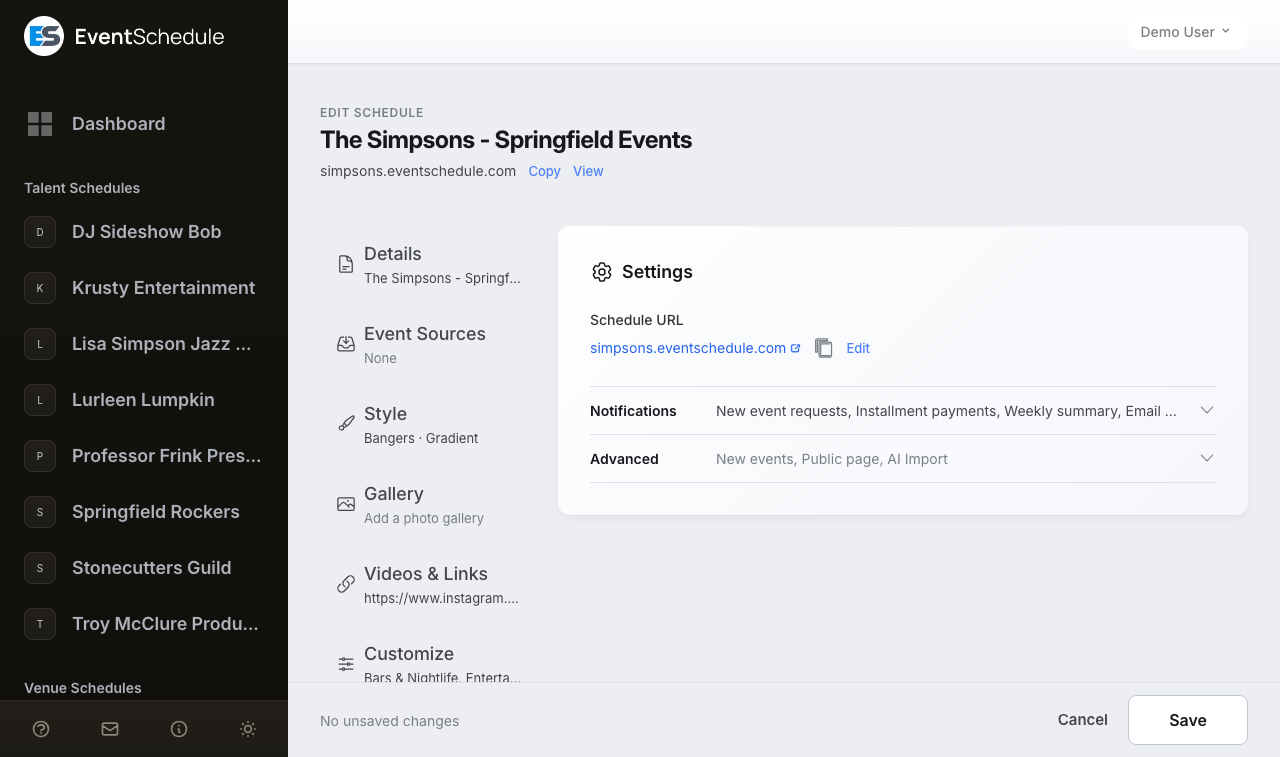
The Settings section controls how your schedule behaves. The schedule's address is on the page as it opens. Notifications and Advanced are two rows under it: closed, Notifications lists the emails that are switched on and Advanced lists its three headings.
Schedule URL
Schedule URL
Your schedule's address, shown with a copy button. Click Edit beside it to change it. On the hosted platform it is a subdomain, yourname.eventschedule.com; on a selfhosted install it is a path, yoursite.com/yourname. Between 4 and 50 characters, lowercase letters, numbers and dashes only. Choose something memorable and easy to type, because changing it later breaks any link people have already saved. The same address is under the schedule's name at the top of the form, with Copy and View.
Custom Domain Enterprise - Requires the Enterprise plan
Use your own domain, for example events.yourbrand.com, instead of a subdomain.
On the hosted platform, clicking Edit beside the Schedule URL also shows a Mode with three choices: Subdomain (the default, no custom domain), Redirect, and Direct. The last two need Enterprise; below it they are greyed out. A selfhosted install has no Mode, only the path. See the setup instructions below.
Custom Domain Setup Enterprise - Requires the Enterprise plan
There are two ways to connect a custom domain to your schedule. Choose the mode that best fits your needs.
Direct Mode (CNAME)
Your schedule is served directly on your custom domain with automatic SSL. This is the recommended option for most users.
- In the Settings section, click Edit beside the Schedule URL, select Direct, and enter your domain (e.g.,
events.yourbrand.com) under Custom Domain. The form shows the CNAME target with a copy button. - Go to your domain registrar (e.g., GoDaddy, Namecheap, Cloudflare) and create a CNAME record pointing your domain to
. - Wait for DNS propagation (usually a few minutes, but can take up to 48 hours).
- SSL is provisioned automatically. Once DNS has propagated, your schedule will be accessible at your custom domain over HTTPS.
While a Direct domain is being set up, a status sits beside the Schedule URL: Setting up..., then nothing once it is live, or Setup failed. Until the domain is live, the address shown at the top of the form and of the schedule's pages stays the eventschedule.com one, because that is the one that answers.
Redirect Mode (Cloudflare)
Your custom domain redirects visitors to your eventschedule.com URL. Use this if your domain's DNS is managed by Cloudflare. Cloudflare's free plan is sufficient.
- In the Settings section, click Edit beside the Schedule URL, select Redirect, and enter your domain under Custom Domain.
- Add your domain to Cloudflare (if not already). After adding the domain, Cloudflare will provide two nameservers. Go to your domain registrar and update your domain's nameservers to the ones Cloudflare provides. Wait for Cloudflare to confirm the domain is active.
-
Set up DNS records. In your Cloudflare dashboard, go to DNS > Records:
- Delete any existing A or AAAA records for the domain.
- Add an A record with the name
@(root domain) pointing to192.0.2.1. - Add another A record with the name
*(wildcard) pointing to192.0.2.1. - The IP address doesn't matter since traffic will be redirected. Make sure both records are set to Proxied (orange cloud icon) so Cloudflare can intercept and redirect the requests.
-
Create a Page Rule. In your Cloudflare dashboard, go to Rules > Page Rules and create a new page rule:
- URL pattern:
*yourdomain.com/* - Setting: Forwarding URL
- Status code: 301 - Permanent Redirect
- Destination URL:
https://yourname.eventschedule.com/$2
The
$2wildcard preserves the URL path, soyourdomain.com/some-eventcorrectly redirects toyourname.eventschedule.com/some-event. - URL pattern:
- Changes may take a few minutes to several hours to propagate. Once active, visitors who go to your custom domain will be seamlessly redirected to your schedule.
Notifications
The row is in three groups, by who the email goes to: Emails to you, Emails to followers and Shared inbox. Where the site has push notifications set up, a Push notifications panel sits above the three.
Push notifications Pro - Requires the Pro plan
The same notifications can also reach you as browser and mobile push, on top of email rather than instead of it. Choose Enable push on this device, allow notifications when your browser asks, then use Send test push to confirm it works. Push is per device, so repeat it on your phone and your laptop. Enabling it sends notification data to OneSignal, a third-party service.
The panel only appears once the operator of your Event Schedule site has configured push, which is off by default. On iPhone and iPad, web push only works for sites added to the home screen (iOS 16.4 and later); Android and desktop browsers need no such step.
Emails to you
Choose which emails you get about this schedule. These choices are personal: each owner and admin sets their own in this row, and the emails go to the address on that person's account, not to the schedule's contact email. To also send them to a team inbox, add a shared notification address. New event requests, Installment payments and Weekly summary start switched on and stay that way until you turn them off; the rest are off until you turn them on.
New event requests
Receive an email when new event requests are pending approval.
New fan content
Receive an email when fans submit new videos, comments or photos for your events.
New ticket sale
Receive an email when a ticket is purchased for one of your events. On the free plan this covers the first paid sale on each event; Pro emails you about every sale.
New feedback
Receive an email when attendees submit post-event feedback for your events.
New poll option suggestions
Receive an email when a visitor suggests a new option on one of your event polls (requires Allow User Options to be enabled).
Installment payments
A daily summary of installment payments due in the next two days, and an immediate email whenever one fails. It only matters if you let buyers pay in installments, which is a Pro feature.
Weekly summary
One email a week with your views, sign-ups, sales and the dates coming up, for all of your schedules together. It is only sent in a week with something to report. The switch is shown to the schedule's owner alone, who is the only one to receive it, and the email is sent on the hosted platform only.
On the hosted platform, New ticket sale, New feedback and New poll option suggestions only email you once you configure Email Settings, and a note in the row links you straight there. Until then their toggles are greyed out, except that New ticket sale and New feedback stay usable where push notifications are available (above): on Pro those two also arrive as a push, which needs no email settings. A greyed-out toggle keeps whatever it was set to. New event requests, new fan content, Installment payments and the weekly summary work either way. Selfhosted installs send everything through the server's own mail configuration, so nothing is gated.
Emails to followers
The one setting in this group points the other way, and it belongs to the whole schedule rather than to you. Email subscribers about new events decides whether your email subscribers get an automatic digest when you publish, at most one every few days. It covers the events this schedule created itself, so an event another schedule lists on yours, including everything a curator pulls in through its event sources, never appears in it. It is on by default, because the people receiving it asked for it when they signed up.
Shared notification address
If your team works from a shared mailbox, enter it under Shared notification address, in the Shared inbox group at the bottom of the Notifications row. It gets a copy of the schedule's notifications on top of each person's own emails, so it replaces nothing. Unlike the toggles above, it belongs to the whole schedule: there is one per schedule, and any owner or admin can change it.
Nothing is sent to it until it is confirmed. Saving the address emails it a confirmation link, valid for 7 days, and the row shows Waiting for confirmation with a button to send the link again. Anyone who reads that mailbox can confirm it, with or without an account. Changing the address asks for confirmation again.
Under Send to this address the address has its own set of toggles: New event requests (on by default), New ticket sale, New feedback, New poll option suggestions and Installment payments. New fan content is not offered, because that email only ever goes to the person who created the event. Each one follows the same rules as your own copy, including the plan and email settings rules above. If the shared address is also the login of someone who already gets that email, it is not sent twice.
Every email sent to the shared address ends with a Stop sending to this address link, which removes it without signing in. It is also removed when the schedule is transferred to a new owner and the previous owner leaves.
Advanced
The Advanced row collects the settings that change how your schedule behaves rather than how it looks, under three headings: New events, Public page and, on the hosted platform, AI Import. Closed, the row lists the headings.
New events
Default visibility for new events
The visibility every new event starts with: Public or Draft, plus Internal and Unlisted on Enterprise. Public unless you change it, and you can still set the visibility on any individual event. See event visibility.
Event URL Pattern
Decides the address given to each new event. Leave it empty and the event name is used. Otherwise build a pattern from the variables below, for example {event_name}-{date_dmy}, which produces addresses like my-event-27-1.
Changing the pattern only affects events created from then on, so an Update all events button appears offering to apply it to your existing events as well. Show available variables, under the field, opens the list below.
Default category
Preselect one of your categories on every new event so you do not have to pick one each time. Once saved, an Update all events button appears to apply the default to all existing events in one click. If you later remove the category, the setting is flagged so you can pick another.
Default curator schedules
If you also run Curator schedules, tick the ones new events should be shared to automatically, instead of choosing them on every event. Shown on Talent and Venue schedules that have at least one Curator schedule to offer.
Public page
Hide Past Events
Keep past events off your public schedule so visitors only ever see what is still to come. Your own admin views are unaffected, so nothing is lost: the events are still there when you need them.
Hide Videos
Hide the videos panel from your public schedule. Offered on Venue and Curator schedules only, because a Talent schedule's videos are part of the point.
First Day of Week
Which day your calendar week starts on. All seven days are available; Sunday unless you change it.
Show Accessibility Widget
Add an accessibility panel to your public schedule so visitors can adjust font size, contrast, and motion for themselves. Useful if you are publishing on behalf of an organization with an accessibility commitment to meet.
Show Sign-Up Panel
On unless you turn it off. Signed-out visitors see the Stay up to date panel on your schedule page and near the foot of each event page, where they can sign up for email updates. Turning it off also removes the calendar feed link under the form. A link made to open the form, like the QR code on the Followers tab, still shows the panel. The switch only hides it: sign-ups through such a link, and on eventschedule.com through the Follow button, still arrive. Free on every plan.
Show “Notify Me” Card
Off unless you turn it on. When it is on, the public events this schedule creates offer a Tell me when tickets go on sale card, plus links to it in the Add to Calendar menu and beside the buy button, so visitors can join that event's interest list. It follows the event wherever it is listed, including a performer's or curator's page, because the list and its emails belong to the schedule that created the event. Turning it off again stops new sign-ups, and anyone already on a list still gets the emails they asked for. Free on every plan.
Do not show other schedules' promotions
Some Event Schedule sites run a promotions network, where schedules pay to have an event featured on other schedules' public pages. Turn this on and your pages carry nothing of the sort: no other schedule's promotions, and no ads either. It is free on every plan, and it does not stop you buying promotions of your own. See on-network promotions and ads on free schedules. The toggle only appears on sites that have this switched on.
List this schedule on the network
Share this schedule's public events with the listings on eventschedule.com, where each listing links back to the event on your own site. Three choices: Not decided yet, Listed on the network or Not listed. The setting only appears once an administrator has enabled federation for the whole installation, so you will not see it on eventschedule.com itself. You do not have to come here to answer it: once the schedule has an upcoming public event with an image, a List on the network prompt on the schedule's page, and on your dashboard for schedules you own, does it in one click. A listed schedule shows Listed on the network on its page, which links back to this setting. See Federation.
AI Import
Import Form Fields
Decides which optional fields appear on the AI import request form: short description, description, price, coupon code, registration URL, category, and sub-schedule if you have any. The coupon code field brings its discount along with it. Turn a field on and a Required checkbox appears next to it, so you can insist on an answer. Shown on the hosted platform only.
URL Pattern Variables
Use these in the Event URL Pattern, in the Advanced row above. Every value is converted to something safe for a URL: lowercase, with spaces and punctuation turned into dashes. These are close cousins of the calendar description variables but not identical, because a URL cannot carry a slash or a colon: dates here use dashes and never gain a year, and there is no variable for the description or the event's own link.
Date & Time
| Variable | Description | Example |
|---|---|---|
{day_name} |
Full day name (translated) | wednesday |
{day_short} |
Short day name (translated) | wed |
{date_dmy} |
Day-month format | 15-3 |
{date_mdy} |
Month-day format | 3-15 |
{date_full_dmy} |
Full date (day-month-year) | 15-03-2025 |
{date_full_mdy} |
Full date (month-day-year) | 03-15-2025 |
{month} |
Month number | 3 |
{month_pad} |
Month number (zero-padded) | 03 |
{month_name} |
Full month name (translated) | march |
{month_short} |
Short month name (translated) | mar |
{day} |
Day of month | 15 |
{day_pad} |
Day of month (zero-padded) | 05 |
{year} |
Year | 2025 |
{time} |
Start time | 20-00 or 8-00-pm |
{end_time} |
End time | 22-00 or 10-00-pm |
{duration} |
Duration in hours | 2 |
Event Information
| Variable | Description | Example |
|---|---|---|
{event_name} |
Event Name | summer-concert |
Venue Information
| Variable | Description | Example |
|---|---|---|
{venue} |
Venue name (translated) | central-park |
{city} |
City | new-york |
{address} |
Street address | 123-main-st |
{state} |
State/Province | ny |
{country} |
Country | us |
Ticket Information
| Variable | Description | Example |
|---|---|---|
{currency} |
Currency code | usd |
{price} |
Lowest ticket price (or price range) | 10 or 10-25 |
{coupon_code} |
Coupon code | SAVE20 |
Custom Fields Pro - Requires the Pro plan
The value an event holds for one of your custom fields, by the field's number.
| Variable | Description | Example |
|---|---|---|
{custom_1} |
Value of the 1st custom field | john-smith |
{custom_2} |
Value of the 2nd custom field | room-101 |
{custom_3} |
Value of the 3rd custom field | workshop |
| ...up to {custom_10} | ||
All variable values are automatically converted to URL-safe slugs: lowercase letters, numbers, and dashes only. For example, "Summer Concert" becomes "summer-concert" and "New York" becomes "new-york".
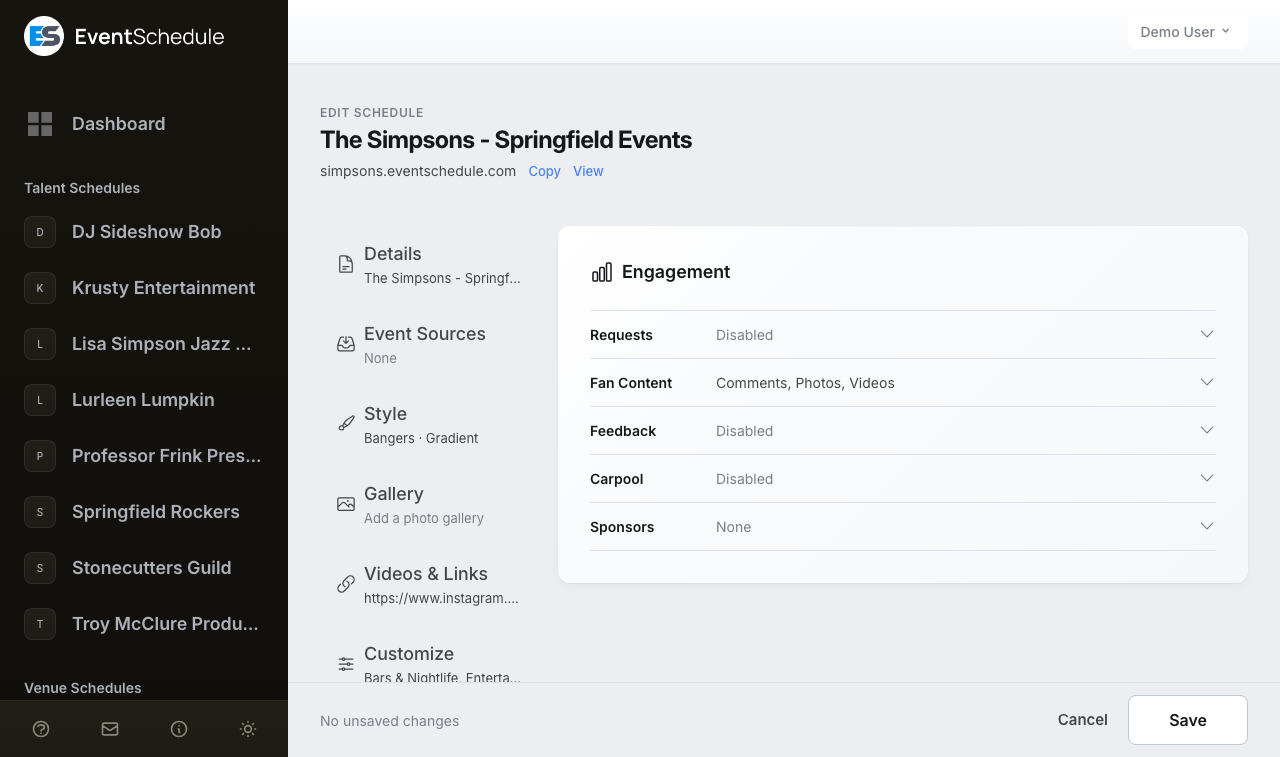
Engagement
Everything to do with what visitors can send you, in six rows that each say whether they are on: Requests, Fan Content, Feedback, Carpool, Sponsors, and Accommodation. The last one only appears on sites whose operator has enabled it. Nothing here is on the page until you open a row.
Requests
Let other people put events on your schedule. The row opens on one switch, Accept requests, and the rest appears once that is on.
A Talent schedule gets a shorter version of this row, with only Accept requests, the Booking Form options, Request Terms and your own questions, because a request to book a performer is always read by hand. The same goes for events other schedules add you to: once your talent schedule has an owner, a venue or curator that lists you sends a request you accept under Admin Panel → Requests, unless it had already listed you before you claimed your page. Requests to a talent always come in through the Booking Form, where creating an account is left to the visitor. Whoever sends a request through the Booking Form gives their name and email, and those are shown with the request under Admin Panel → Requests so you can reply to them.
Accept requests
Turn on the public request form. What lands there is reviewed in the pending queue. Typical uses:
- Talent: let promoters ask to book you
- Venue: take booking requests from bands and performers
- Curator: let the community submit local events
Require Account
Make submitters sign in first, so every request has a name behind it. On by default for Curator schedules, off for Venue schedules. With the AI Import form, a first-time submitter completes everything on one page - their account, their own schedule, and the event - with their email confirmed by a code after they press Submit. They can add a flyer and have the form filled in from it. With it off, visitors can send a request as a guest, and on the Booking Form they can also choose to create an account, wherever the site accepts new accounts. Not offered on Talent schedules, whose Booking Form always leaves the account up to the visitor.
Event submission form
Which form visitors see: AI Import, where they paste the event text or upload a flyer and the details are read out of it, or Booking Form, a plain form with set fields. AI Import unless you change it. Offered on Venue and Curator schedules while Require Account is off; a Talent schedule always uses the Booking Form.
Required fields
Choose which of the Booking Form's own fields a visitor has to fill in before sending a request: Event Name, Date & Time, Description and Location. Nothing is required until you tick it. Location is satisfied by a venue name, address or city, or by ticking Online, and is not offered on Venue schedules, where your venue is the location. To insist on an answer to one of your own questions, use that question's Required option, and for a phone number use Ask for phone number below. Shown while the Booking Form is in use.
Offer online events
On by default. Turn it off and the Booking Form no longer offers the Online option, so every request is for an in-person event. The AI Import form is not affected.
Ask for phone number
Off by default. Turn it on and the Booking Form asks the visitor for a phone number, and a Required switch appears beneath it if you want to insist on one. Signed-in visitors are asked too, since the form does not take one from their account. The number is shown with the request under Admin Panel → Requests, as a link you can tap to call. The AI Import form is not affected.
Require Approval
On by default. Submitted events wait in the pending queue until you accept them; turn it off and they go straight onto your public schedule. With it off, the Booking Form asks every visitor for an event name, a date and a start time, whatever you left optional: the event is public the moment it is sent. A request from someone on the schedule's own team skips the queue either way. Review them under Admin Panel → Requests. Not offered on Talent schedules.
Approved Schedules
Name schedules you already trust and what they send from their own schedule skips the queue: an event of theirs that they add you to, or a submission they make signed in while Require Account is on. A Booking Form request, or a submission sent without an account, waits for approval like everyone else's. Click + Add Schedule, start typing to search, and pick a schedule. Shown while Require Approval is on, and not offered on Talent schedules.
Request Terms
Terms or guidelines for people sending you requests. Use it for booking policy, technical requirements, or what you will and will not take. They are shown on every request form, where they are read before anything is typed: under the title of the Booking Form and of the page where a signed-up submitter enters their event, and on the AI Import form.
Your own questions Pro - Requires the Pro plan
Add questions of your own to whichever form you use, with Custom Fields marked On request form. Ask whatever you need before accepting an event: which of your equipment the visitor wants (a multi-select checklist), a reference number in a set format (a validation pattern), an expected head count. Answers appear on the request in Admin Panel → Requests and on the event once you accept it. A link at the bottom of this row opens the Custom Fields row.
Fan Content
Let people who were there add to the event afterwards. Each kind has its own switch, all three are off until you turn them on, and nothing a visitor sends appears in public until you approve it.
Comments
Written comments on your events.
Photos
Uploaded photos. A Free schedule holds up to 25 photos in total; Pro removes the cap and adds a bulk download of every photo on an event.
Videos
Links to YouTube videos.
Require an account
Off by default: attendees submit with just a name and email, so they never have to create an account. Turn it on to make them sign in first. Either way nothing appears publicly until you approve it, and the submitter's email is only ever visible to you.
Feedback Pro - Requires the Pro plan
Ask attendees what they thought once the event is over. Free schedules see the row with its switch greyed out. On the hosted platform, feedback emails also need Email Settings: until they are configured the switch stays greyed out, and a note in the row links you there.
Post-event feedback
Once the event has ended, email everyone holding a ticket or registration for it, asking for a star rating and a comment. The rest of the row appears once this is on.
Send feedback request after
How long to wait after the event ends: 1, 2, 6, 12, 24 or 48 hours. 24 hours unless you change it.
Show feedback publicly
Publish the ratings and comments you collect on the event page, so people deciding whether to come can see what previous attendees said. Off by default: with it off, feedback is yours alone to read.
Send test feedback email
A button that sends you the request email as an attendee would receive it, so you can check the wording and the delivery before an event ends.
Carpool Pro - Requires the Pro plan
Carpool matching
Let attendees arrange lifts to and from your events. A carpool link appears on the event page where they can offer a ride or ask for a seat.
How it works
A driver posts an offer with their city, the direction (to the event, from it, or both), how many seats are free, and optionally a departure time and meeting point. Attendees browse the offers and ask for a seat, the driver accepts or declines, and accepted passengers are given the driver's contact details.
Sponsors Pro - Requires the Pro plan
Show the people backing you in a band across your public schedule page.
Adding sponsors
Click + Add Sponsor to open the form. A Logo is required; the Sponsor Name, a Website URL and a Tier of Gold, Silver or Bronze are optional. Up to 50 sponsors per schedule. Nothing is published until you save the form.
Reordering
Drag the handle on a sponsor to change the order they appear in on the public page.
Background
Shown once you have a sponsor. Choose how the sponsors band blends into your page: Default (the panel), Transparent so your own background shows through, or Custom color. Text colors adjust automatically for readability.
Show sponsors
Shown once you have a sponsor. Switch it off to take the sponsors section off your schedule page and your event pages without deleting anything; switch it back on and the same sponsors return. An event with sponsors of its own keeps showing them, and a sponsors block you place in a newsletter is not affected. The switch stays available on every plan, so sponsors added on a paid plan can always be hidden.
You can also override sponsors for individual events. See Per-Event Sponsors.
Venue map
Show the venues of your events as pins on a map on your public schedule page, each with the venue's logo on its pin. A visitor presses a venue to see what is coming up there, get directions and find what else is nearby.
Show a map of venues
Off by default. Switch it on and save. Each venue's address is then looked up once: a dozen or so straight away and the rest four a minute, and your schedule's admin page shows how far that is. The map is put on your page when every venue has been looked up, and it is there only while at least two venues have a position. A venue you add later joins the map when it has been placed.
Open the map on arrival
The map is a band above your events that a visitor opens. With this on, it starts open on larger screens for visitors who have allowed Marketing and embedded content in the cookie notice, and the street images then load with the page. Where your Event Schedule instance uses no street images, it starts open for everyone. On a phone it always starts closed, and a visitor who hides it keeps it hidden.
Which venues are on it
The venues of your public events from the last 60 days onward. A venue with nothing coming up is a small grey dot. Events that are a draft, cancelled, unlisted or behind a password do not count. Neither does a venue that has an owner and has not accepted the event, whether it declined or has not answered yet: it is not in your list of venues either. A recurring event keeps its venue on the map for as long as the series runs. An online event whose location is a meeting link is not a place and is left out. On a sub-schedule's page the map holds that sub-schedule's venues.
Venues
Once the map is on, this list names every venue and where it stands: On the map, Approximate position, Placed by hand, Waiting, No street address, No country, Address not found or Off the map, with the venues that need attention first. A venue with a town and no street is placed at the centre of a small town or village and marked approximate. In a larger town it is left off, because the centre of a town would put it in the wrong place. To fix a venue, correct its address: a changed address is looked up again.
Fixing a pin yourself
Each venue in the list has its own actions, and each is saved the moment you press it, apart from the form's Save. Move pin opens a small map: drag the pin, click where the venue is, or move the map with the arrow keys and press Put the pin at the centre of the map, then Save position. Place by hand is the same for a venue with no pin yet, such as one in a village with no street names, or one still waiting to be looked up. A pin you place stays where you put it, even if the venue's address is corrected later: Use the looked-up position in that map goes back to what the address search found. Take off the map removes a venue from your map and keeps it in the list, where Put back on the map returns it. All of this is about your map only: it changes nothing on the venue itself or on another schedule's map. Moving and placing are offered where the operator has set up street images.
Seeing a venue's events
A venue's panel lists its next three events. Where it has more, See all events here sets the venue filter of the event list below the map, the same filter a visitor can choose there, and changes no other filter. The button is offered when the list has an event at that venue under the filters the visitor already has, so in the month view it appears for venues with an event in the month on screen.
Visitor privacy
The street images come from a map service, which sees the address of whoever loads them. A visitor who has allowed Marketing and embedded content gets them when the map opens, which is on arrival if you set the map to start open. For anyone else nothing is loaded until they ask: the band says which service the images come from, and pressing Show map beside that sentence loads them, each time the page is opened; Open without streets shows the pins on a plain ground instead. The venue addresses are sent to the address search by the server, and nothing about a visitor is.
This row only appears if the operator of your Event Schedule instance has set up a map service, and never on a venue schedule, which is one place. It is available on all plans, including Free.
Accommodation
Show a map of hotels and rentals near the venue on your public event pages, so attendees travelling in can find somewhere to stay without leaving your schedule. Bookings made through the map earn an affiliate commission.
Show nearby accommodation
Off by default. Turn it on and an accommodation section appears on event pages whose venue has a validated address. Check-in and check-out dates are filled in from the event: a single evening becomes one night, and a multi-day event covers its full run.
Stay22 affiliate ID
Add your own Stay22 affiliate ID to earn the commission from bookings on your pages. A Stay22 account is free. If you leave this blank, the commission goes to whoever runs this Event Schedule instance instead.
Venue address required
The map centers on the venue's coordinates, so nothing appears for events whose venue has no validated address. It is also hidden for past events, embedded calendars, and shareable event graphics.
Visitor privacy
The map is not loaded when the page opens. Visitors see a short explanation and a button, and nothing is requested from Stay22 until they either accept cookies or click to show the map. Visitors sending a Global Privacy Control signal are never shown it.
This row only appears if the operator of your Event Schedule instance has enabled the integration. It is available on all plans, including Free.
Gift Cards Pro - Requires the Pro plan
The Gift Cards section sells gift cards that buyers send to someone by email and that are redeemed toward tickets for any event on the schedule. It opens on one switch, Enable gift cards; the amounts, the currency, how long a card stays valid and the payment method appear once that is on. In the list of sections it says whether gift cards are on, and for which amounts.
Gift cards have a guide of their own: see setting up gift cards.
Auto Import Selfhost
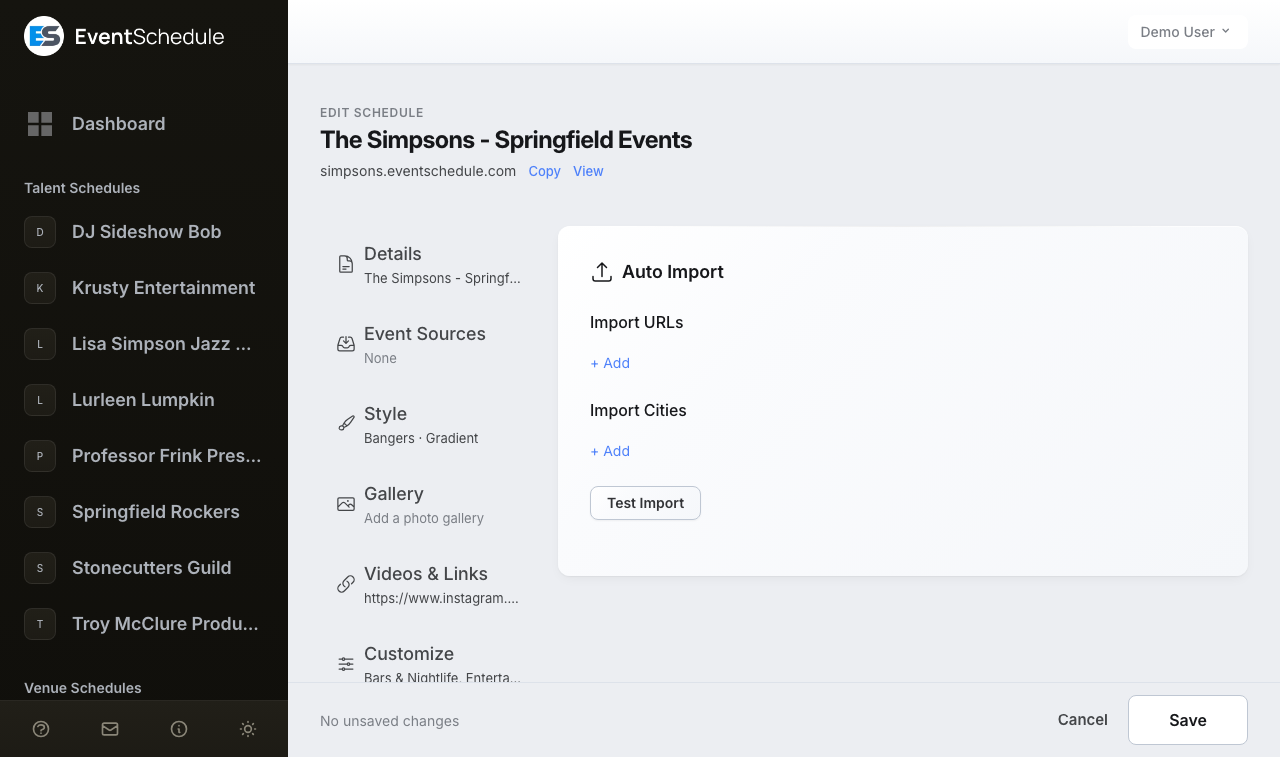
Point Event Schedule at a page that lists events and it reads them once a day, so a venue calendar or a tour page keeps your schedule current without you retyping anything. This section only exists on selfhosted installs, and it needs an AI key configured on the server.
Import URLs
The addresses to read. Add as many as you like: venue event pages, artist tour pages, ticketing organizer pages, and most other sites that list events with a date. The page is fetched and the events on it are read out by AI.
A site's robots.txt is checked first, and a page it asks robots to leave alone is skipped.
Import Cities
A filter, not a search. Name one or more cities and only events in those cities are taken from the URLs above; leave it empty to take everything. Cities on their own import nothing, because there is always a URL doing the actual reading.
Setting up auto import
- Open Edit Schedule and choose Auto Import.
- Under Import URLs, click + Add and paste an address. Repeat for each source.
- Optionally add cities under Import Cities to narrow what is taken.
- Click Test Import to see what a source produces before you commit to it.
- Save. From then on the sources are re-read once a day.
Auto-imported events go to your pending queue if you have Require Approval enabled, so you can review them before they appear publicly.
Integrations
Connect your schedule to the outside world: send its email through your own server, keep it in step with a calendar you already use, and hand out feed URLs other apps can subscribe to. The rows are Email Settings (hosted platform only), Google Calendar, Outlook Calendar, CalDAV Calendar, and Calendar text and feeds. A row that is not connected says Not connected; a connected calendar row says which way it syncs.
Email Settings
Send this schedule's mail (ticket confirmations, notifications, feedback requests and newsletters) through your own SMTP server and from your own address.
Per-schedule email settings are a hosted-platform feature, available on every plan, and the first row of Integrations there. Selfhosted installs configure mail once at the server level instead, so the row is not shown: see the selfhost email docs.
Setting up custom email
- Open Edit Schedule, choose Integrations, and open the Email Settings row.
- Fill in SMTP Host, SMTP Port and Encryption (None, TLS or SSL) from your email provider.
- Enter the SMTP Username and SMTP Password. For Gmail or Google Workspace this must be an App Password, not your account password.
- Set the From Address and From Name your recipients will see, for example
[email protected]. - Save, then click Send Test Email. If it fails, the exact error from your provider is shown.
Troubleshooting
If a message fails to send, click Send Test Email to see the exact error returned by your email provider. A "permission denied" error almost always comes from the provider rejecting your credentials or sender address, not from Event Schedule. Most problems fall into one of these categories:
"Permission denied" or authentication errors
- Double-check your SMTP username and password.
- For Gmail or Google Workspace, create an App Password and use that instead of your normal account password.
- Make sure your account has SMTP access enabled with your provider.
Sender address rejected or not authorized
- The most common cause of a "permission denied" style rejection: your From address must be a verified sender (or on a verified domain) with your provider.
- Providers such as Amazon SES, SendGrid, Mailgun, and Postmark reject mail sent from an unverified address.
- Amazon SES accounts in sandbox mode can only send to verified recipients until you request production access.
Connection refused or timeout
- Use port
587with TLS, or port465with SSL, and make sure the port and encryption match. - Confirm the SMTP host is spelled correctly and that your provider allows outbound SMTP.
Emails going to spam
- Set up SPF, DKIM, and DMARC DNS records for your sending domain.
- Use a From address on a domain you own rather than a free email provider.
If your SMTP credentials start failing, the Email Settings row and the Integrations entry in the list of sections both say Email delivery is failing, and a warning appears inside the row, with a Show error details link carrying the provider's own message. Delivery is paused while settings are failing; Event Schedule retries after 24 hours, or immediately once a test email succeeds. Fix the underlying problem, then send a test email to resume delivery right away.
Calendar sync
The next three rows each keep the schedule in step with a calendar you already use. All three are free on every plan and work the same way: choose a calendar, choose a direction, save. A connection belongs to the schedule's owner, whose account it runs on, so the owner is the one who sets it.
Sync Direction
Four choices per integration: To the calendar (push your events out), From the calendar (pull its events in), Bidirectional Sync (keep both in step), or No Sync, which is where every integration starts. Closed, the row shows the direction you chose.
When an event is deleted in the connected calendar
Shown in the Google and Outlook rows once that integration is pulling events in; CalDAV has no such setting, so an event deleted there stays here. It is one setting for both: with Google connected it sits in the Google Calendar row, and otherwise in the Outlook Calendar row. Choose what happens here when you delete an event there: Keep it here (the default), Mark as cancelled (hidden but reversible), or Delete it here. Deleting is permanent, so an event with any ticket sale on record (refunded ones included) or an ad boost that has spent money is hidden rather than deleted. An event that another schedule owns and shares with yours is only taken off your schedule, never deleted for everyone.
Event Schedule does not send a repeat rule to a connected calendar, so a weekly event arrives there as a single entry on its start date. If you want every date to show up in someone's calendar app, give them the iCal feed instead, which lists each occurrence.
Google Calendar
Keep your schedule and a Google Calendar in step. Google tells Event Schedule about changes as they happen, so an edit made on either side shows up on the other without waiting for a poll.
Connect your Google account first, in Account Settings. Then:
- Open Edit Schedule, choose Integrations, and open the Google Calendar row. Until your Google account is connected, the row holds a Connect Google Calendar button in place of the settings.
- Pick the calendar to sync with under Select Google Calendar.
- Choose a Sync Direction: To Google Calendar, From Google Calendar, Bidirectional Sync, or No Sync. If you connected Google from the import page, the connection is read-only and the two choices that send events to Google are off until you click Allow at Google.
- If you are pulling events in, set what happens when an event is deleted there.
- Save. To run a sync by hand afterwards, the owner has Sync Events in the Actions menu at the top of the schedule's page.
The row also holds a Resync to Google Calendar button, for when you have switched Google account or calendar. Save the form first, because it uses the saved calendar. It sends every event of the schedule to that calendar again and never imports anything from Google, so it needs a direction that sends events there. Copies of the events may be left behind on the calendar you used before.
A team member who is not the owner sees Sync to My Calendar in this row instead, where they can point the schedule's events at a calendar of their own. That choice is theirs alone and is separate from the schedule-wide sync above, so everyone can follow the schedule in their own Google account. The schedule-wide sync itself is set by the schedule's owner, because it runs on the owner's Google account.
Google Calendar sync needs Google API credentials on the server. See the selfhost Google Calendar docs for setup instructions.
Outlook Calendar
The same two-way sync against an Outlook or Microsoft 365 calendar, over the Microsoft Graph API. Changes arrive near-instantly, with regular polling as a safety net.
Connect your Outlook account first, in Account Settings. Then:
- Open Edit Schedule, choose Integrations, and open the Outlook Calendar row. Until your Outlook account is connected, the row holds a Connect Outlook Calendar button in place of the settings.
- Pick the calendar to sync with.
- Choose a Sync Direction: To Outlook Calendar, From Outlook Calendar, Bidirectional Sync, or No Sync.
- If you are pulling events in, set what happens when an event is deleted there.
- Optionally turn on Create Teams meetings for online events so an online event with no venue is created as a Microsoft Teams meeting and its join link is saved back onto the event.
- Save.
Outlook Calendar sync needs an Azure app registration. See the selfhost Outlook Calendar docs for setup instructions.
CalDAV Calendar
CalDAV is the open standard behind Apple Calendar, Fastmail, Nextcloud and many others, so this row covers everything the two above do not. There is no webhook in the standard, so changes are picked up on a regular sweep rather than the moment they happen.
- Open Edit Schedule, choose Integrations, and open the CalDAV Calendar row.
- Enter the Server URL, Username and Password. Providers that use two-factor authentication usually want an app-specific password here rather than your account password.
- Click Test Connection. Once it succeeds, the calendar list and the sync direction appear.
- Pick the calendar to sync with.
- Choose a Sync Direction: To CalDAV, From CalDAV, or Bidirectional Sync.
- Click Connect. The connection is saved at once and the page reloads, so save any other changes on the form first.
Once connected, the row shows which server you are attached to, the sync direction can be changed there (with No Sync as a fourth choice), and Disconnect asks you to confirm and then stops syncing. The connection belongs to the schedule's owner: other members see how it is set and cannot change it.
Calendar text and feeds
This row holds two things: the wording used for your events inside a connected calendar, and the read-only feed URLs for your schedule.
Calendar Description Template
An event pushed out to Google Calendar, Outlook or CalDAV normally arrives carrying its own description and nothing else. Set a Calendar Description Template and every outbound event uses your wording instead, built from the same variables as event graphics. Leave it empty and the event description is used as-is. Show available variables, above the box, opens the list below.
A line whose variables all come out empty is dropped rather than left as a stray separator, so one template can serve events with a venue and events without.
{event_name}
{date_full_dmy} {time}
{venue} | {city}

{description}

{url}Summer Concert
15/03/2025 20:00
Central Park | New York
Join us for a night of music...
example.eventschedule.com/summer-concertFeeds
Under the template, the row gives you two read-only addresses, each with a copy button, that let anyone follow your schedule from an app of their own. They list your public, upcoming events, need no login, and pick up your changes the next time the app checks them.
- iCal Feed: subscribe from any calendar app (Google Calendar, Apple Calendar, Outlook). Unlike a connected calendar, this feed lists a recurring event on every date it falls in the next 90 days, not just the first.
- RSS Feed: follow your schedule from any RSS reader.
Visitors can find the calendar feed without you: Subscribe to all events from your schedule's name appears in the Add to Calendar menu on an event page and in the sign-up panel. See calendar feeds.
Available Variables
The full list, shared by the calendar description template and by event graphics. A variable with nothing behind it, such as {venue} on an online event, simply comes out empty.
Date & Time
| Variable | Description | Example |
|---|---|---|
{day_name} |
Full day name (translated) | Wednesday |
{day_short} |
Short day name (translated) | Wed |
{date_dmy} |
Day/month format (year added for other years) | 15/3 |
{date_mdy} |
Month/day format (year added for other years) | 3/15 |
{date_full_dmy} |
Full date (day/month/year) | 15/03/2025 |
{date_full_mdy} |
Full date (month/day/year) | 03/15/2025 |
{month} |
Month number | 3 |
{month_pad} |
Month number (zero-padded) | 03 |
{month_name} |
Full month name (translated) | March |
{month_short} |
Short month name (translated) | Mar |
{day} |
Day of month | 15 |
{day_pad} |
Day of month (zero-padded) | 05 |
{year} |
Year | 2025 |
{time} |
Start time (uses schedule's 24h setting) | 20:00 or 8:00 PM |
{end_time} |
End time (uses schedule's 24h setting) | 22:00 or 10:00 PM |
{duration} |
Duration in hours | 2 |
Event Information
| Variable | Description | Example |
|---|---|---|
{event_name} |
Event Name | Summer Concert |
{short_description} |
Short Description | Live jazz with local artists |
{description} |
Description | Join us for a night of music... |
{url} |
Event URL | https://... |
{number} |
Position in the list, on event graphics only (empty in a calendar description) | 3 |
Venue Information
| Variable | Description | Example |
|---|---|---|
{venue} |
Venue name (translated) | Central Park |
{city} |
City | New York |
{address} |
Street address | 123 Main St |
{state} |
State/Province | NY |
{country} |
Country | US |
Ticket Information
| Variable | Description | Example |
|---|---|---|
{currency} |
Currency code | USD |
{price} |
Lowest ticket price. Empty when the event is free | 10 |
{coupon_code} |
Event coupon code | SAVE20 |
{coupon_discount} |
What the coupon is worth, as a percentage or an amount in the event's currency. Empty when no discount is set | 15% |
{discounted_price} |
The price with the coupon taken off, as a bare figure with no currency symbol. Empty when the event has no discount or no price, and on any event that sells tickets or takes RSVPs through the platform | 119 |
{original_price} |
The price before the discount. The same price as {price}, written to the currency's own decimal places and with a thousands separator, but empty unless a discount applies, so a before-and-after pair appears together or not at all |
149 |
Custom Fields Pro - Requires the Pro plan
If you have defined Event Custom Fields in your schedule settings, you can include their values using numbered variables.
| Variable | Description | Example |
|---|---|---|
{custom_1} |
Value of the 1st custom field | John Smith |
{custom_2} |
Value of the 2nd custom field | Room 101 |
{custom_3} |
Value of the 3rd custom field | Workshop |
| ...up to {custom_10} | ||
Every variable above belongs to one event. The schedule-wide header and footer text on event graphics have no event behind them, so they take a smaller, context-free set instead: {schedule_name}, today's date parts such as {month_name} and {year}, and the range covered by the graphic, {first_event_date} and {last_event_date}. The event graphics guide lists them all.
See Also
- Schedule Styling - Colors, fonts, backgrounds, and visual customization
- Creating Events - Add events to your schedule
- Sharing Your Schedule - Embed and share your schedule
- Selling Tickets - Set up ticketing for your events
- Managing Schedules - View events, manage team, set availability, and more